Where to get a camera for video surveillance?
9 unusual ideas

Let us imagine the following situation: you are faced with the task of organizing a video surveillance system. After researching the issue, you have chosen video surveillance software — for example, Xeoma with its free test drive. You already have a computer (since programs like Xeoma run on a regular computer and even on a laptop or tablet), and the software has been selected. But what should be done with the “heart” of video surveillance, or rather, its eyes — the cameras? Where can you get a camera to test the selected video surveillance solution? What can be used instead of a camera?
Of course, video surveillance usually relies on specialized cameras that are designed specifically for monitoring. However, sometimes investing in cameras right away is impractical. There are several reasons for this:
- uncertainty about the need for video surveillance: users want to first see what modern video surveillance is capable of and, based on test results, decide whether it makes sense to purchase specialized cameras;
- urgency of the task: camera delivery takes time, but video surveillance is needed right now;
- economic feasibility: video surveillance is needed temporarily (for example, for a short office stay or for writing a review article or academic paper), after which it will not be used, so investments should be minimized;
- temporary solution: there is a desire to thoroughly understand which camera should be purchased, while temporarily using a substitute.
Fortunately, modern technologies make it possible to use almost any video source in a video surveillance system — not only specialized cameras and USB devices. In this article, we will look at 9 unusual ideas on where to get a camera for a planned video surveillance system.
Table of contents:
1. Built-in laptop or monitor camera as a video surveillance camera
– 1.1. General information
– 1.2. Six basic steps
– 1.3. Additional steps (video surveillance on the same laptop/computer with monitor)
– 1.4. Additional steps (video surveillance on another computer)
–– 1.4.1. Emulation using the “RTSP Broadcasting” module
–– 1.4.2. Emulation using the “HTTP upload to other Xeoma” and “HTTP Receiver” modules (internal Xeoma method)
––– 1.4.2. a) within one network
––– 1.4.2. b) in different networks
2. Built-in smartphone camera as a video surveillance camera
– 2.1. General information
– 2.2. Using an application from a video surveillance service
– 2.3. True independent camera emulation from an Android smartphone camera
–– 2.3.1. Emulation using the “RTSP Broadcasting” module
–– 2.3.2. Emulation using the “HTTP upload to other Xeoma” and “HTTP Receiver” modules (internal Xeoma method)
–––– 2.3.2. a) within one network
–––– 2.3.2. b) in different networks
– 2.4. True independent camera emulation from an iOS smartphone camera
3. Built-in TV camera as a video surveillance camera
– 3.1. General information
– 3.2. Using an application from a video surveillance service
– 3.3. True independent camera emulation from an Android TV camera
–– 3.3.1. Basic steps via the app catalog
–– 3.3.2. (Alternative option) Basic steps via the manufacturer’s website
–– 3.3.3. Further steps
––– 3.3.3. a) If video surveillance on the TV is sufficient
––– 3.3.3. b) If the TV camera needs to be used for video surveillance on a computer
–– 3.3.4. If the TV camera needs to be used in another Xeoma
––– 3.3.4. Option 1: computer and TV on the same network
––– 3.3.4. Option 2: computer and TV on different networks
4. Public camera as a video surveillance camera
– 4.1. General information
– 4.2. Overview of resources with public cameras
– 4.3. Instructions for the Opentopia portal
– 4.4. Instructions for the Insecam portal
5. Video file as a video surveillance camera
– 5.1. General information
– 5.2. Where to get a video file
– 5.3. Instructions for converting a video into a camera using VLC
– 5.4. Instructions for converting a video into a camera using Xeoma
–– 5.4.1. General steps
–– 5.4.2. Converting video to the required format
–– 5.4.3. Additional steps for emulation using the “RTSP Broadcasting” module
6. Screen recording instead of a video surveillance camera
7. Special demo camera in Xeoma
8. Built-in random world cameras in Xeoma
9. Photo camera / action camera as a surveillance camera
‐ 9.1. USB connection
‐ 9.2. HDMI connection
10. Bonus: How to use IP or USB cameras for video surveillance
11. Afterword
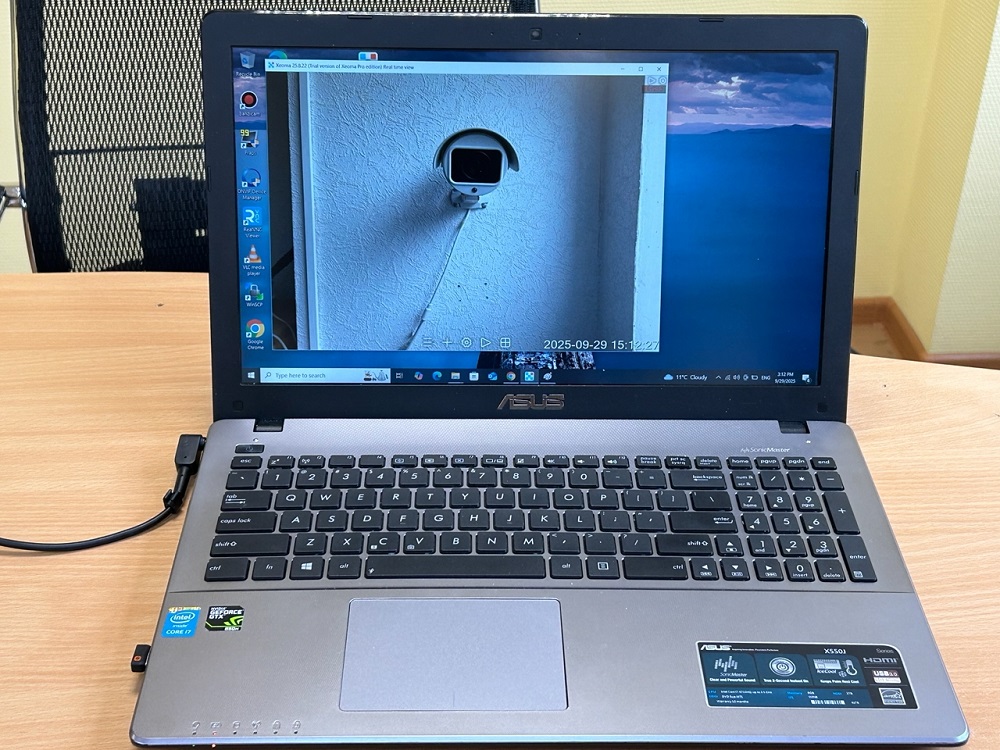
1.1. GENERAL INFORMATION
Built-in laptop webcams are technically USB cameras, so they can be connected to a video surveillance system that works with USB cameras.
Usually, the procedure for adding USB cameras in such systems either does not differ from adding network cameras or is described separately in the documentation. For example, in Xeoma, USB cameras (including built-in cameras of laptops and netbooks) are detected in the same way as IP cameras, but the camera settings differ.
We also include cameras built into monitors in this category for two reasons:
* technically, such cameras are also USB cameras;
* monitors do not operate independently — they are connected to a computer, and as a result such a system is not much different from a laptop, since in laptops the camera is also essentially built into the monitor.
For simplicity, in this section we will describe working with a laptop camera, but working with a monitor camera is identical.
Using Xeoma as an example, let us consider how to add a built-in laptop camera to video surveillance software. Below there will also be instructions on how to convert such a built-in camera into a network camera in Xeoma and transmit its stream over the network.

|
If the built-in camera is also equipped with a microphone and transmits audio, a separate “Microphone” module will need to be added in Xeoma for the audio track. See more details on how to work with this module in Xeoma in this article. |
1.2. SIX BASIC STEPS
Step 1. Open the Xeoma website
On the laptop (or the computer to which the monitor is connected), open the official Xeoma website. In the top panel of the site, find the “Download” tab and go to it.

Step 2. Choose the required option
You will immediately be offered a download of Xeoma for the operating system of the device from which you accessed the page — that is, in our case, for the laptop. However, if the system was detected incorrectly or you want to download Xeoma for another computer, manually switch to the tab with the required operating system by clicking on it (“1” in the illustration below).
You can use either the “Official version” option or the “Beta version” option (“2” in the illustration below).
After selecting the desired option, click the “Download” button next to it.

Step 3. Locate the downloaded file
Xeoma will be saved to the folder specified for downloads in the browser you are currently using. In many modern browsers, a pop-up window appears that allows you to go directly to the folder containing the file.

Step 4. (For Linux and macOS) Extract the archive
For macOS and Linux, the downloaded archive must be extracted. Step-by-step instructions for macOS can be found here, and for Linux — here.
For Windows, extraction is not required: an executable file is downloaded immediately.
Step 5. Launch Xeoma
Launch Xeoma like any other program on your computer — usually by double-clicking the trackpad or the left mouse button if a mouse is connected. You can also select the file with a single click and then press the Enter key on the keyboard.

Step 6. Add the camera
Xeoma launches and, on first start, displays its welcome window. In this window, you can select the option “Run without installation: find cameras on the network”.
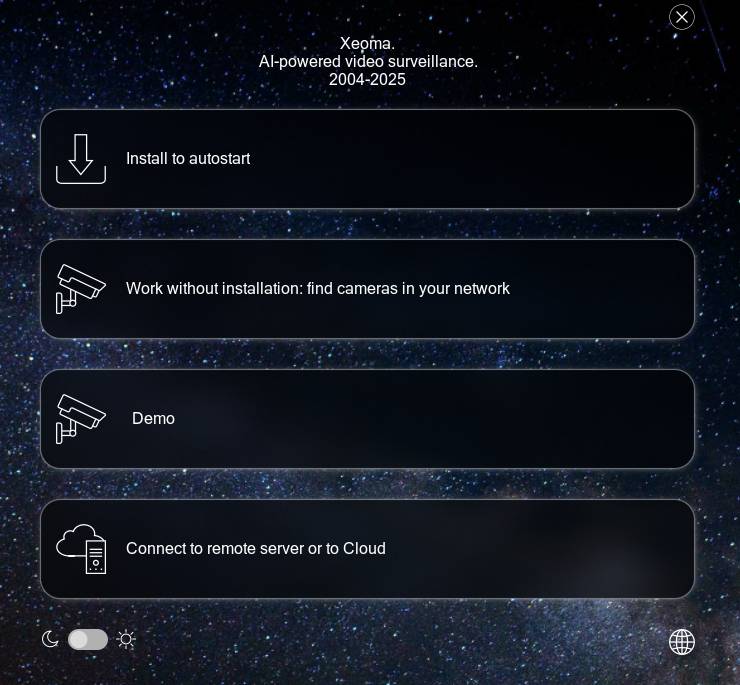
The welcome window will close, and the camera will be found and added to the screen almost instantly — USB cameras have priority in Xeoma, so they are ready to work immediately.


If you are launching Xeoma not for the first time, the welcome window will not appear, but you can start the search from the bottom menu by clicking the “+” icon and selecting “Simple search for local cameras” from the menu that opens.

The camera is added automatically.
Tip: Xeoma finds the built-in camera of the device almost instantly, but continues searching further. Since we do not need other cameras, the search can be stopped by clicking on the progress bar.

1.3. ADDITIONAL STEPS (VIDEO SURVEILLANCE ON THE SAME LAPTOP / COMPUTER WITH A MONITOR)
If video surveillance will be carried out on the same laptop or computer to which the monitor is connected, steps 1–6 are sufficient. After that, you can connect the required functions and configure the chains according to your needs.
Information on how to work with chains is available in the video “Xeoma Modular System”. For a description of all Xeoma modules, see the User Manual, where brief information about each function is provided along with links to more detailed explanations.
1.4. ADDITIONAL STEPS (VIDEO SURVEILLANCE ON ANOTHER COMPUTER)
If video surveillance will be carried out on another computer, the webcam built into a laptop, netbook, or monitor can be converted into a network camera and transmit its video stream over the network using special software.
Search the internet for “how to turn a webcam into an IP camera”. There are many such programs, and you will need to carefully review them, as they often do not provide exactly what is required.
Most of the solutions we encountered were proprietary applications of video surveillance services that allow connecting a built-in camera only to their own service. If one of these services suits your video surveillance system, you can use such a solution.
However, if you want to use a built-in laptop camera as a surveillance camera in a system that does not offer its own webcam connection software, you need independent camera emulation. Xeoma is one of the few programs that allows this.
1.4.1. Emulation using the “RTSP Broadcasting” module
Step 7. Remove unnecessary modules
So, if you need to emulate a camera for use in another program, then as the seventh step after completing steps 1–6 above, we open the Xeoma module chain. Once in the workflow, remove all modules except “Universal Camera”, and add the “RTSP Broadcasting” module.
To remove modules, you can either click and hold the module icon and drag it upward, or click on the module and select the “Trash” icon in the settings that open.

Step 8. Find the “RTSP Broadcasting” module
You can find the “RTSP Broadcasting” module in three ways:
a) Place the mouse cursor in the search field and start typing the name “RTSP Broadcasting”.

b) Go to the “Destinations” tab and find the “RTSP Broadcasting” module there.

c) Simply scroll through all modules in the top panel using the arrow until you see the “RTSP Broadcasting” icon.

Step 9. Add the “RTSP Broadcasting” module to the chain
After finding the required “RTSP Broadcasting” module, you need to add it to the chain. Click on the module with the mouse and release, or hold it on the top panel with the mouse and drag it to the desired place in the chain.

Step 10. Configure the “RTSP Broadcasting” module and obtain the link
Next, go to the settings of the “RTSP Broadcasting” module by clicking on it. Select the settings according to what you want to achieve. There’s a separate guide for configuring this module—check it out here. In brief, it’s recommended to choose the utility for streaming (in the “Broadcasting tool” list, select ffserver if you want to compress the stream, or live555 if no stream recoding is needed), choose the streaming codec (dropdown “Encoder type”), and if necessary, specify the compression level and the path to an alternative encoder utility on your device. You can also set the stream name, its URL, and port for broadcasting (or use the ones suggested by Xeoma).
Take the link that appears in the “Path for rtsp broadcasting” field and send it to the target computer.
Done!

|
|
Note that the example shows a local address, meaning such a link will only work within your “home” network. Broadcasting to devices over the Internet is also possible, but for this, you need to get a public static IP address for this laptop from your Internet provider and forward the port you’ll use for RTSP streaming on your router (for example, port 8555, as in the example). Search the Internet for information on the required actions. |
1.4.2. Emulation using the “HTTP upload to other Xeoma” and “HTTP Receiver” modules (internal Xeoma method)
By the way, for those who plan to use a built-in laptop camera as a surveillance camera but in Xeoma running on another computer, there is a special option that is more efficient and less resource-intensive. The following steps are provided for this method:
Step 7. Switch the program to Free mode
After completing steps 1–6 above, close the Welcome window and switch the program to Free mode via the Main menu (the icon with three horizontal lines) — Registration — Switch to another edition — Switch to Free version.

Step 8. Find our camera
Now we need to find and add our camera to the screen. For built-in cameras, the algorithm is very simple: start a search for local cameras. Find the “+” icon in the bottom panel, click it, and select “Simple search for local cameras” from the menu that opens.
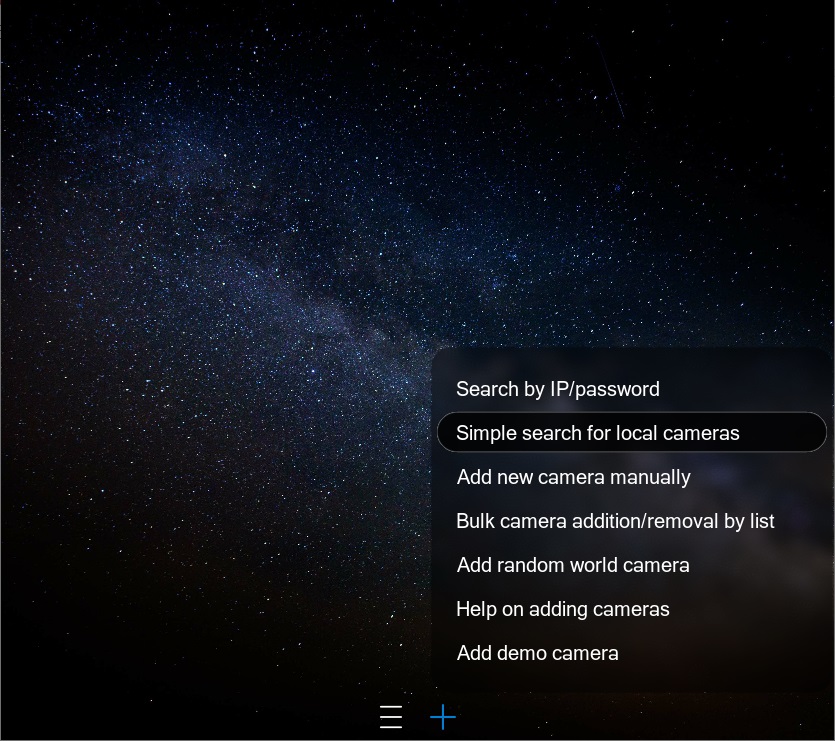
The camera is added automatically, so you’ll see the image from it on the screen almost immediately.
Tip: Xeoma finds the device’s built-in camera almost instantly but continues searching further. Since we don’t need other cameras, you can stop the search by clicking on the progress bar.
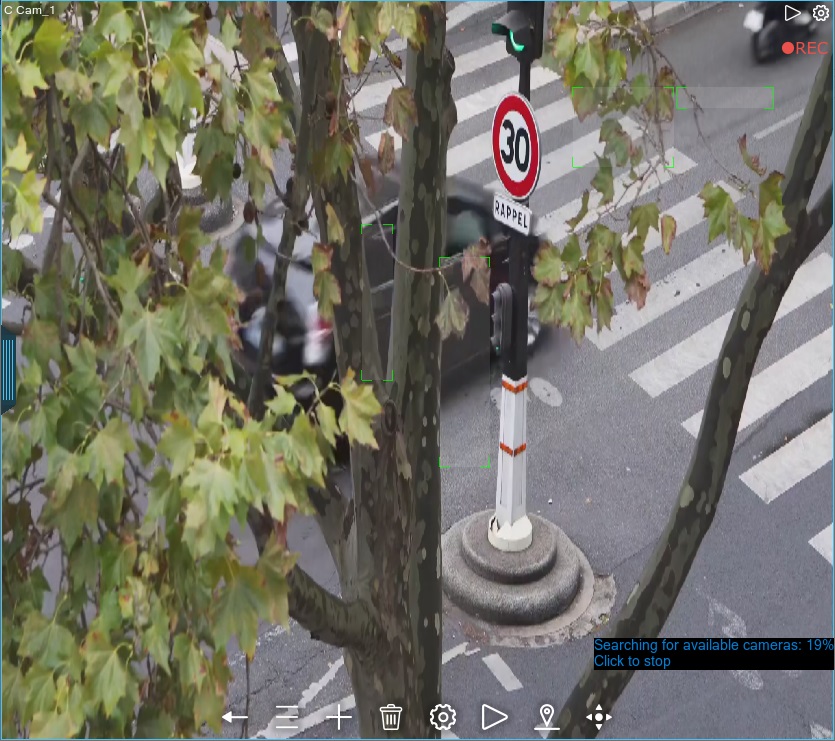
Step 9. Remove unnecessary modules
Remove all modules except “Universal camera”.
To remove modules, you can either click and hold the module icon and drag it upward, or click on the module and select the “Trash” icon in the settings that open.

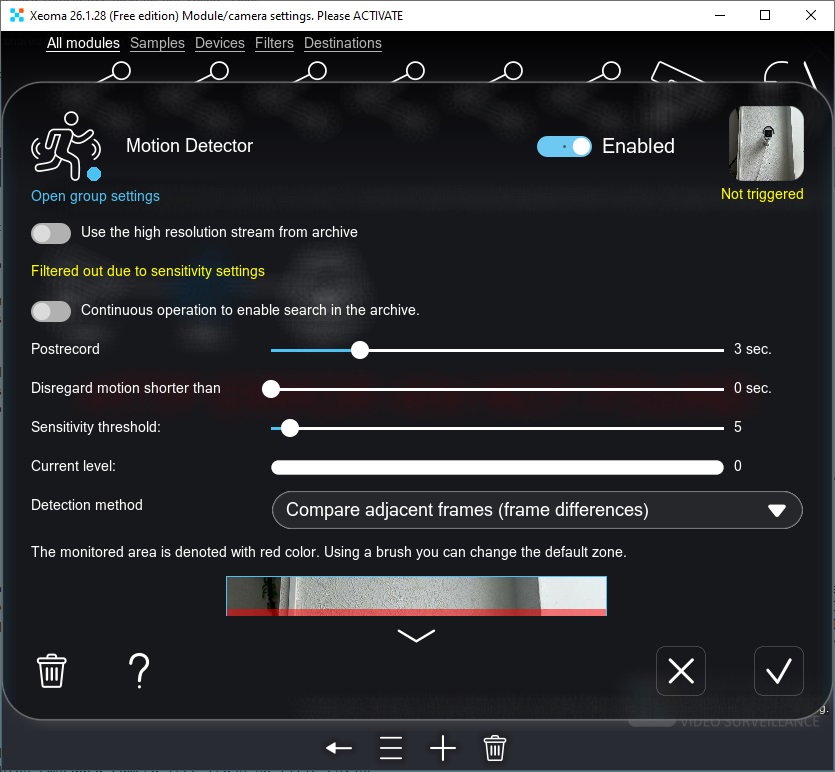
Step 10. Find the required module — “HTTP upload to other Xeoma”
Add the “HTTP upload to other Xeoma” module to the chain connected to the “Universal camera” module. You can find the “HTTP upload to other Xeoma” module in three ways:
a) Place the mouse cursor in the search field and start typing the name “HTTP upload to other Xeoma” in full (or any word from this name).

b) Go to the “Destinations” tab and find the “HTTP upload to other Xeoma” module there.

c) Simply scroll through all modules in the top panel using the arrow until you see the “HTTP upload to other Xeoma” icon.

Step 11. Add “HTTP upload to other Xeoma” to the chain
After we have found the required “HTTP upload to other Xeoma” module, we need to add it to the chain. Click on the module with the mouse and release it, or click and hold it on the top panel and drag it to the desired place in the chain.

You can open the settings of the “HTTP upload to other Xeoma” module by clicking on it, but this is not required yet — we have not received the information that needs to be entered here. This information must be obtained on the “receiving” side, that is, from the Xeoma that will receive this video stream.

Step 12. Repeat the basic steps on the receiving computer
Move to the computer that should receive the video stream from your built-in laptop camera. Here, also perform steps 1–6 described above.
Step 13. Add a demo camera
Next, we need a chain where, instead of a camera, another image source is used — a video stream transmitted from another Xeoma. This is done using the “HTTP Receiver” module. This module is not available in the Free version of Xeoma, so you should stay in the version of Xeoma that launches by default — the Trial version.
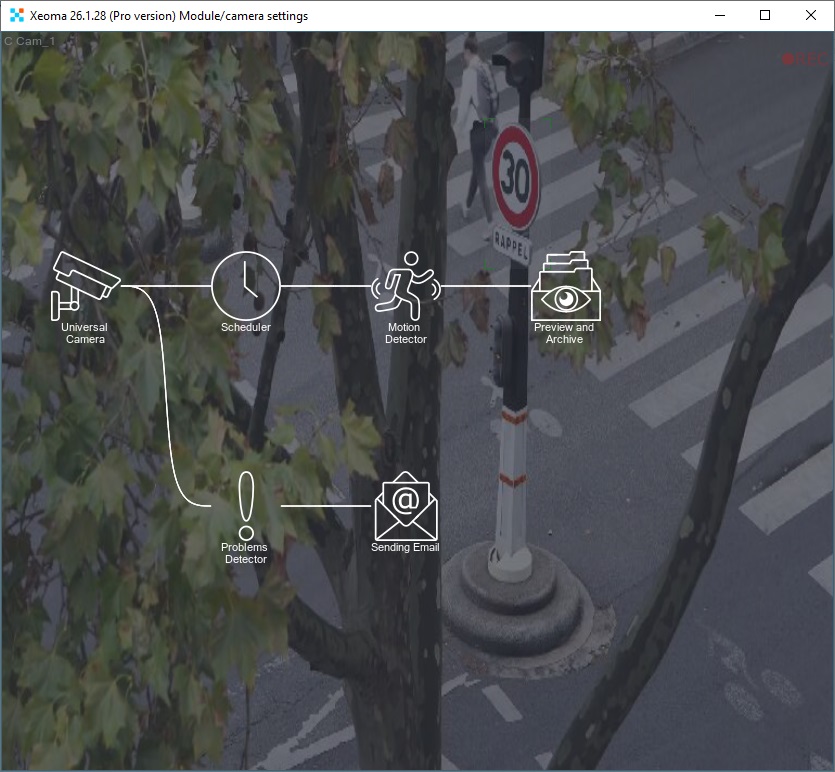
So, to create a chain with the “HTTP Receiver” module, in the Xeoma welcome window, which we will also see on this computer, choose the “Demo” option to add a demo camera.
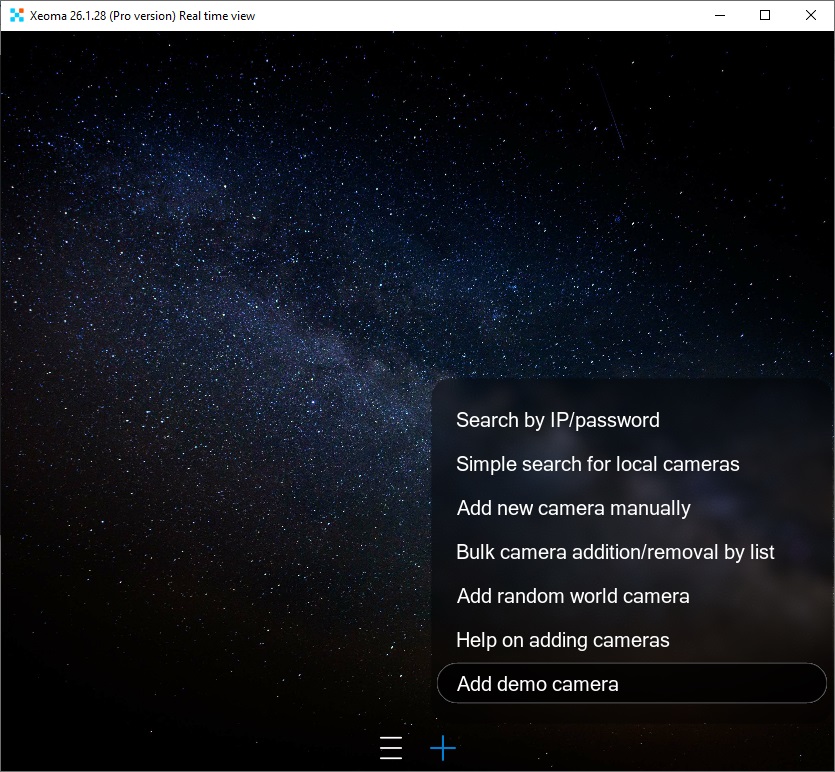
If you are launching Xeoma not for the first time, the Welcome window will not be shown, but you can always add a demo camera to the screen from the + menu in the bottom panel:
Step 14. Remove the unnecessary module
We do not need the demo camera itself, so once in the module chain window, using the already familiar motion, drag the camera icon (the first in the chain) upward to remove it.

Alternatively, you can click on the “Universal camera” module icon to open its settings and remove the module there by clicking the “Trash” icon.

Step 15. Find the required module — “HTTP Receiver”
Now our chain is headless — it has no video signal source. Instead of the removed camera, we must add the “HTTP Receiver” module. You can find it in two ways:
a) Place the mouse cursor in the search field and start typing the name “HTTP Receiver”.

b) Go to the “Devices” tab and find the “HTTP Receiver” module there.

Step 16. Add “HTTP Receiver” to the chain
After we have found the required “HTTP Receiver” module, we need to add it to the chain. Click on the module with the mouse and release it (then the module will be added to a random place in the chain), or click and hold it on the top panel and drag it to the desired place in the chain.

If the module connected in the wrong place, remove the incorrect connection by clicking on it.

Drag a new connection from the right edge of the module, as if drawing it with the mouse, to the required subsequent module.

Step 17. Configure “HTTP Receiver”
Next, click on the “HTTP Receiver” module icon in the scheme to open the module settings.

Please note that in the “Full path” field, a sample link will be specified. It cannot be changed, but you can set a custom ending, as well as protect the connection with a login and password. We recommend first trying without changing any of the fields, and then, after making sure everything works, making changes if necessary.
Further actions are divided and depend on whether your laptop and computer are on the same home network, or whether the computer belongs to another network and the connection will need to be established via the Internet.
First option: the laptop and the computer are on the same local network (for example, the laptop is connected via Wi-Fi, and the computer is connected via cable to your home Internet). For this case, see the further instructions in section 1.4.2. Option 1: on the same network.
Second option: the laptop is on one network (for example, at home), and the computer is on another (for example, at work). For this case, see the further instructions in section 1.4.2. Option 2: on different networks.
1.4.2. Option 1: within one network
If this computer is on the same network as your laptop with the built-in camera, you can return to Xeoma on the laptop, open the settings of the “HTTP upload to other Xeoma” module, and simply replace the word localhost in the link with the IP address of this computer (so that it becomes, for example, 192.168.0.10/httpreceiver).

If everything is configured correctly, the “HTTP Receiver” module on the second computer will start receiving the video stream — you will see the image from the built-in laptop camera:

Next, you configure the functions you want to test with this camera.
All Xeoma modules are briefly described in the User Manual; more detailed information about a specific function can be found by following the links provided there. How to work with modules is also explained in the video “Xeoma Modular System”.
1.4.2. Option 2: in different networks
If this computer is located in a different network than the laptop with the built-in camera, then during step 17 it is recommended to enable P2P connection. This is the manufacturer’s own secure connection; no third-party services are involved. P2P connection must be enabled specifically on the computer with the “HTTP Receiver” module.
Step 18. Enable P2P connection (only for devices in different networks)
To enable P2P connection, click on the text “P2P connection settings”. A settings window will open, where you need to check the option “Enable the P2P connection option”. After a couple of seconds, you will see an address in the field “P2P address of this server”:

Step 19. Return to the laptop (only for devices in different networks)
Return to the laptop with the built-in camera, open Xeoma there, and go to the settings of the “HTTP upload to other Xeoma” module. The data in this module must match the data in the “HTTP Receiver” module — only the word “localhost” needs to be replaced with the P2P address of this server that you obtained in step 18 above (so that it becomes, for example, 1A1-2B2-C3C/httpreceiver).

If everything is configured correctly, the “HTTP Receiver” module on the second computer will start receiving the video stream — you will see the image from the built-in laptop camera:
Next, you configure the functions you want to test with this camera.
All Xeoma modules are briefly described in the User Manual; more detailed information about a specific function can be found by following the links provided there. How to work with modules is also explained in the video “Xeoma Modular System”.
|
|
Xeoma on the laptop and, accordingly, the laptop itself must be running the entire time you want to receive an image from the camera. |
To summarize briefly: with Xeoma, you can use a laptop camera as a video source for your video surveillance system — both when it is located on the same computer and when it is in another network. There are several tools available for this that allow transmitting the video stream to other devices.
Using a built-in laptop camera is not the only camera substitute that can be used in video surveillance. Below, we will look at several more popular methods, provide setup instructions, and even share some lesser-known tips.
If you do not have a dedicated surveillance camera but want to try some video surveillance software or service, you can use your phone camera. How to do this is explained below.
2.1. GENERAL INFORMATION
Technically, a smartphone camera is a kind of USB camera, so there is nothing extraordinary about such a setup. A pleasant feature of video surveillance using a smartphone camera as a video source is the mobility of this solution — the phone is easy to carry and can record dynamic events. The downside of this approach is that it may not be suitable for long-term use due to battery drain and device overheating.
However, unlike the situation where a built-in laptop camera is planned to be used as a surveillance camera, far fewer solutions are available for smartphones. The issue here is that, on the one hand, thousands of applications are available for smartphones that work with cameras, including built-in smartphone cameras. On the other hand, there are extremely few applications that do what we actually need — namely, turn a smartphone camera into an analogue of a network camera whose stream can be transmitted to a video surveillance service or program.
2.2. USING NATIVE APPLICATIONS FROM VIDEO SURVEILLANCE SERVICES
From this already very small number, the overwhelming majority of applications you will find when searching for phrases like “how to turn a smartphone camera into a surveillance camera” are proprietary applications of certain video surveillance services that allow connecting the built-in camera only to their own service. For example:
- Alfred Camera
- IP Webcam
- Faceter
- AtHome
If one of these services is exactly what you wanted to try for your video security system, then use their application and instructions. As a rule, setup is simple and performed in just a few steps. Almost all such services are paid, so we recommend studying this issue separately.
But what if you want to use the built-in smartphone camera as a surveillance camera in some other service that does not have its own separate application for connecting webcams? In that case, you need independent camera emulation that works even with third-party services. Several options are discussed below.
2.3. GENUINELY INDEPENDENT CAMERA EMULATION FROM AN ANDROID SMARTPHONE CAMERA
Xeoma is one of the few programs that provides such functionality, especially on the Android mobile platform. See the instructions for this case below.
2.3.1. Basic steps
Step 1. Open the app store on your smartphone
On your smartphone, open Google Play, GetApps, Samsung Galaxy Store, RuStore, or another app store.
Step 2. Search for Xeoma or MyCamera
Search for the application “MyCamera” or “Xeoma (server and client)”. Please note that you need the version that includes both parts — client and server. The “Client only” version (for example, available in Google Play) will not work.
Depending on the app store you use, look for the following applications:
- Google Play — MyCamera
- Xiaomi GetApps, Samsung Galaxy Store, RuStore, Huawei AppGallery — Xeoma
Using Google Play as an example:

Using Galaxy Store as an example:

Step 3. Install the application and launch it
After finding the required application in the list, click the “Install” button, which after installation will change to “Open” or “Launch” — click it to open the application.
Using Google Play as an example:

Using Galaxy Store as an example:

Step 4. Grant permission to use the camera
Xeoma or MyCamera will open. First of all, on the first launch of the application, you will receive a message requesting permission to work with the device camera. Since this is exactly what we need, permission should be granted.
Step 5. Find the camera
On first launch, you will see a welcome window containing various options that may be useful for new Xeoma users. In our case, you should choose the option “Find cameras on the network”.
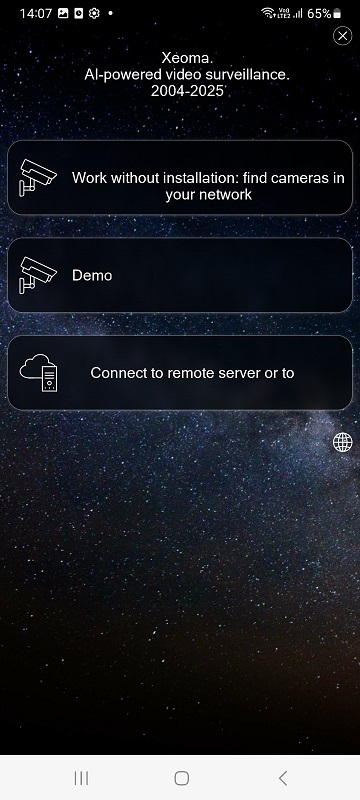
The welcome window will close, and the camera will be found and added to the screen almost instantly — in Xeoma, USB cameras (which include built-in cameras) have priority, so they are ready to work immediately.
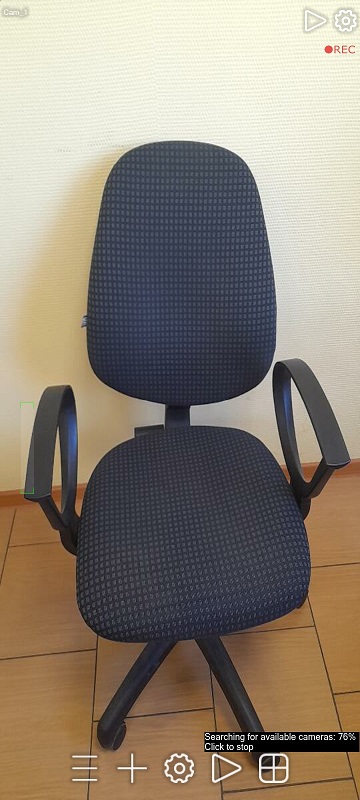
Further actions depend on how exactly you want to use the built-in phone camera.
First option: you can deploy the video surveillance system directly on this smartphone. For this case, see the instructions in section 2.3.2. If video surveillance on the smartphone is sufficient.
Second option: you can transmit the video stream from the smartphone camera to another device — for example, a computer. For this case, see the instructions in section 2.3.3. If the smartphone camera needs to be used in video surveillance on a computer.
The third option is a combination of the two previous ones: using the video stream from the built-in smartphone camera in another Xeoma that will run on a computer. In which cases such an option is needed, as well as setup instructions, see section 2.3.4. If the smartphone camera needs to be used in another Xeoma.
2.3.2. If video surveillance on the smartphone is sufficient
After completing steps 1–5 above, you can stop there. In this way, you will be able to use the smartphone camera as a surveillance camera in the Xeoma or MyCamera product. Even on Android, these two applications offer a wide range of features, including video analytics — intrusion detection, license plate recognition, face recognition, emotion recognition, and many others.
You can learn more about all available features from the Xeoma User Manual.
2.3.3. If the smartphone camera needs to be used in video surveillance on a computer
If the smartphone camera needs to be used in another program (for example, one running on a computer), then you need to add a special module to the camera — RTSP Broadcasting — which will convert the built-in camera into an analogue of a network camera. To do this, follow these steps:
Step 6. Click the “gear” icon to open the camera chain
So, if you need to emulate a camera for use in another program, as the fifth step after completing steps 1–4 above, open the Xeoma module chain by clicking the gear icon in the bottom panel or in the upper right corner of the camera cell.
Step 7. Remove unnecessary modules
Once in the chain window, remove all modules except “Universal Camera” and add the “RTSP Broadcasting” module to the chain.
To remove modules, you can either click and hold the module icon and drag it upward, or click the module and select the “Trash” icon in the settings that open.


Step 8. Find the required module — “RTSP Broadcasting”
You can find the “RTSP Broadcasting” module in three ways:
a) Place the mouse cursor in the search field and start typing the name “RTSP Broadcasting”.
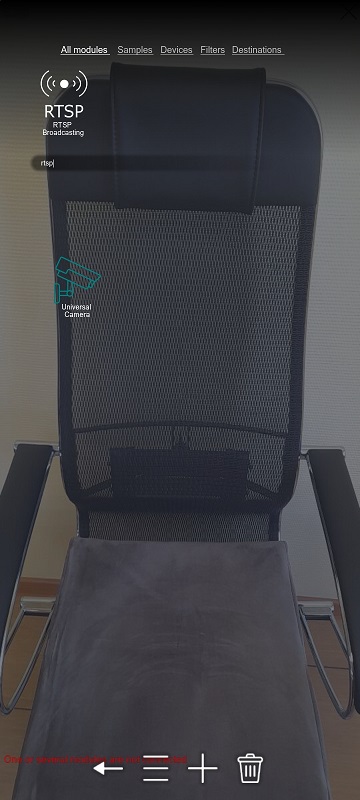
b) Go to the “Destinations” tab and find the “RTSP Broadcasting” module there.

c) Simply scroll through all modules in the top panel using the arrow until you see the “RTSP Broadcasting” icon.

Step 9. Add the “RTSP Broadcasting” to the chain
After finding the required “RTSP Broadcasting” module, you need to add it to the chain. Click on the module with the mouse and release it, or click and hold it on the top panel and drag it to the desired position in the chain. To see the video stream, you can also add the “Preview” or “Preview and Archive” module to the chain in the same way:

Step 10. Configure the “RTSP Broadcasting” and obtain the link
Next, open the settings of the “RTSP Broadcasting” module by clicking on it in the chain.
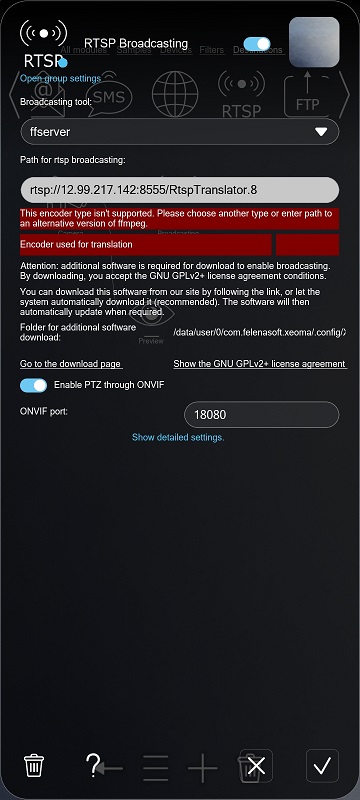
Select the settings according to what you want to achieve. There is a separate guide for configuring this module; see it here. In short, it is recommended to select the utility that will perform the streaming (in the list “Broadcasting tool”, choose ffserver if you want to apply compression to the stream, or live555 if transcoding is not required), select the streaming codec (the “Encoder type” drop-down list), and, if necessary, specify the compression level and the path to an alternative encoder utility located on your device. You can also set the stream name, its URL, and the broadcasting port (or use those suggested by Xeoma).
Take the resulting link shown in the field “Path used for RTSP streaming” and transfer it to the required computer.
Done!
2.3.4. If the smartphone camera needs to be used in another Xeoma
For those who plan to use the built-in smartphone camera as a video surveillance camera, but in Xeoma running on another computer, a special option is provided that is more efficient and less resource-intensive.
Step 6. Switch the program to Free mode
After completing steps 1–5 above, close the Welcome window and switch the program to Free mode via the Main menu (the icon with three horizontal lines) — Registration — Switch to another edition — Switch to Free version.
Switching to the free version of Xeoma via the Main menu
Step 7. Find the camera
Since we have already seen and closed the Welcome window, it will no longer be shown. Therefore, to add our built-in camera, we need to start the search from the bottom menu by clicking the “+” icon and selecting “Simple search for local cameras” from the menu that opens.
The camera is added automatically, so you will almost immediately see the image from it on the screen.
Step 8. Remove unnecessary modules
Remove all modules except “Universal Camera”. To remove modules, you can either click and hold the module icon and drag it upward, or click the module and select the “Trash” icon in the settings that open.
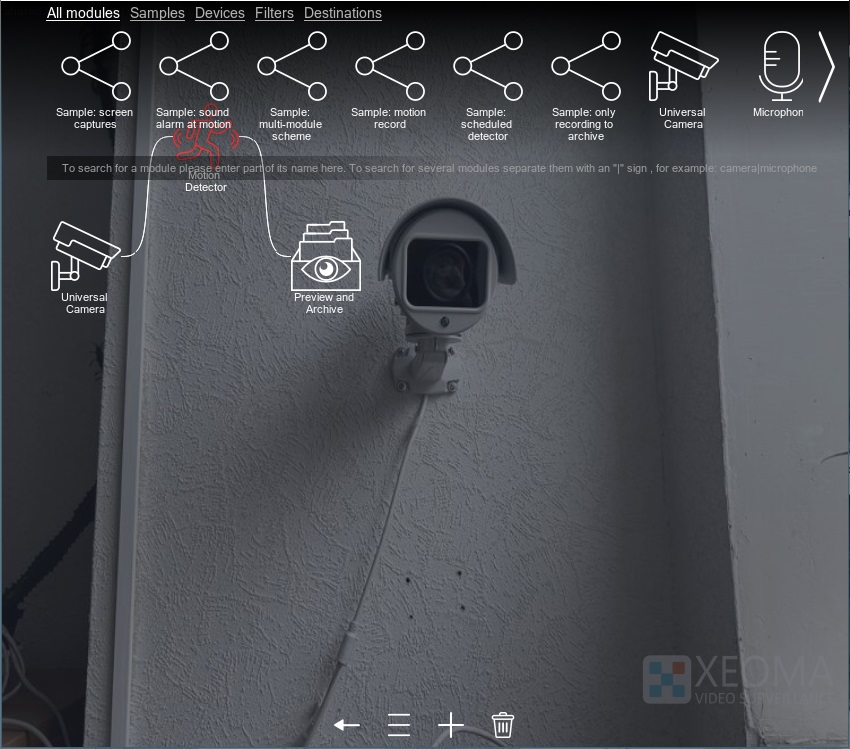
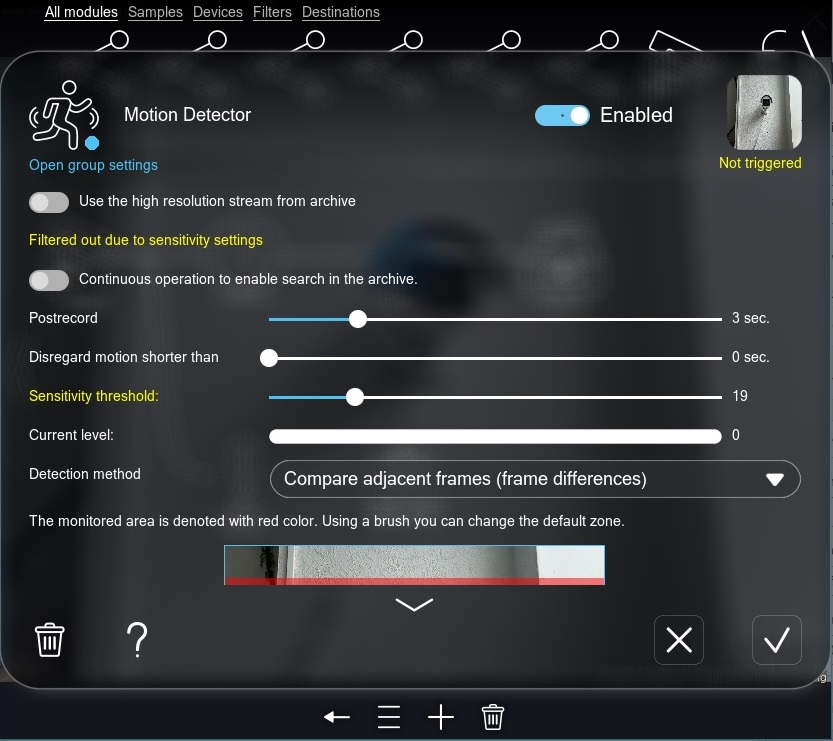
Step 9. Find the required module — “HTTP upload to other Xeoma”
Add the “HTTP upload to other Xeoma” module to the chain connected to the “Universal Camera” module. You can find the “HTTP upload to other Xeoma” module in three ways:
a) Place the mouse cursor in the search field and start typing the full name “HTTP upload to other Xeoma” (or any word from this name).
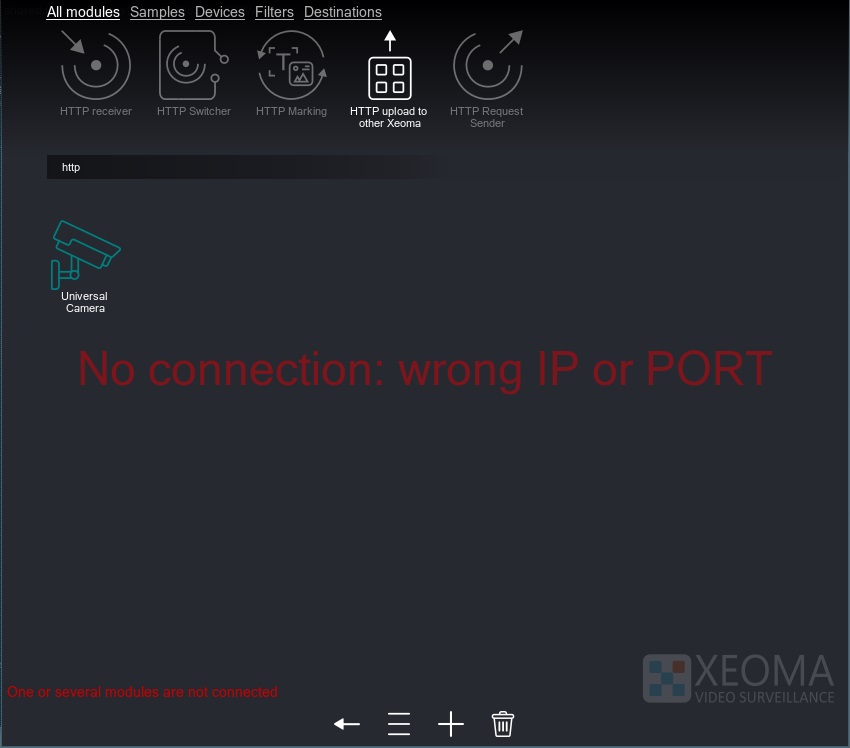
b) Go to the “Destinations” tab and find the “HTTP upload to other Xeoma” module there.
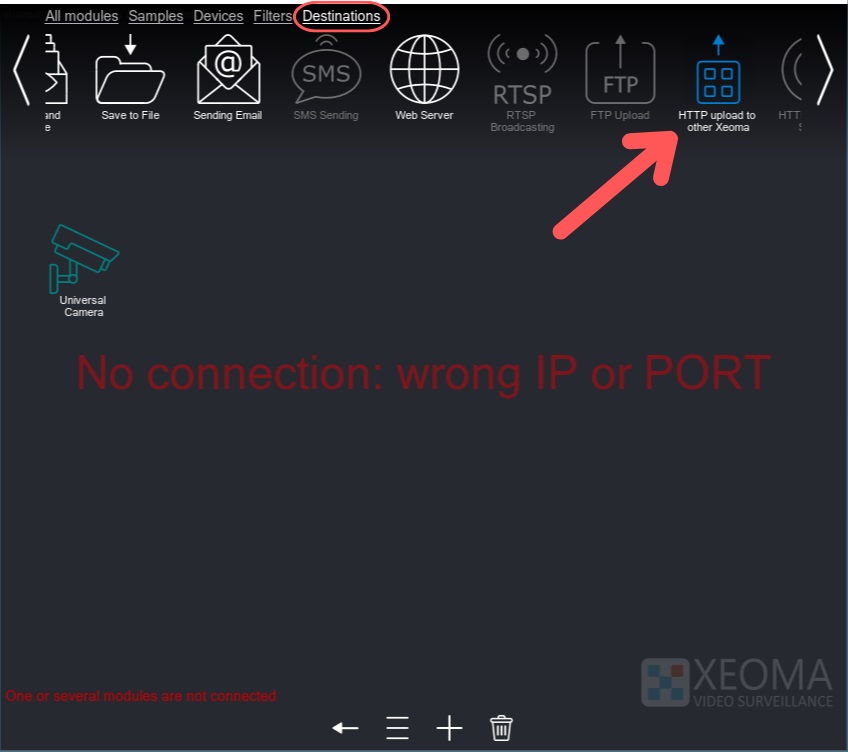
c) Simply scroll through all modules in the top panel using the arrow until you see the “HTTP upload to other Xeoma” icon.

Step 10. Add “HTTP upload to other Xeoma” to the chain
After finding the required “HTTP upload to other Xeoma” module, you need to add it to the chain. Click on the module with the mouse and release it, or click and hold it on the top panel and drag it to the desired position in the chain.
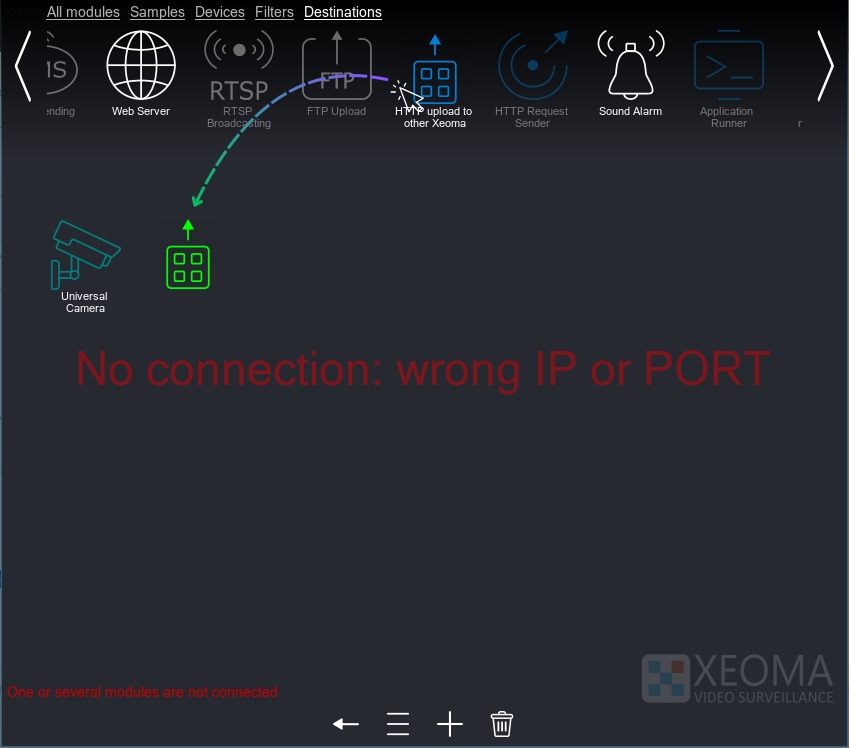
You can open the settings of the “HTTP upload to other Xeoma” module by clicking on it, but this is not required yet — the information that must be entered here has not yet been obtained. It must be taken from the “receiving” side, that is, from the Xeoma that will receive this video stream.
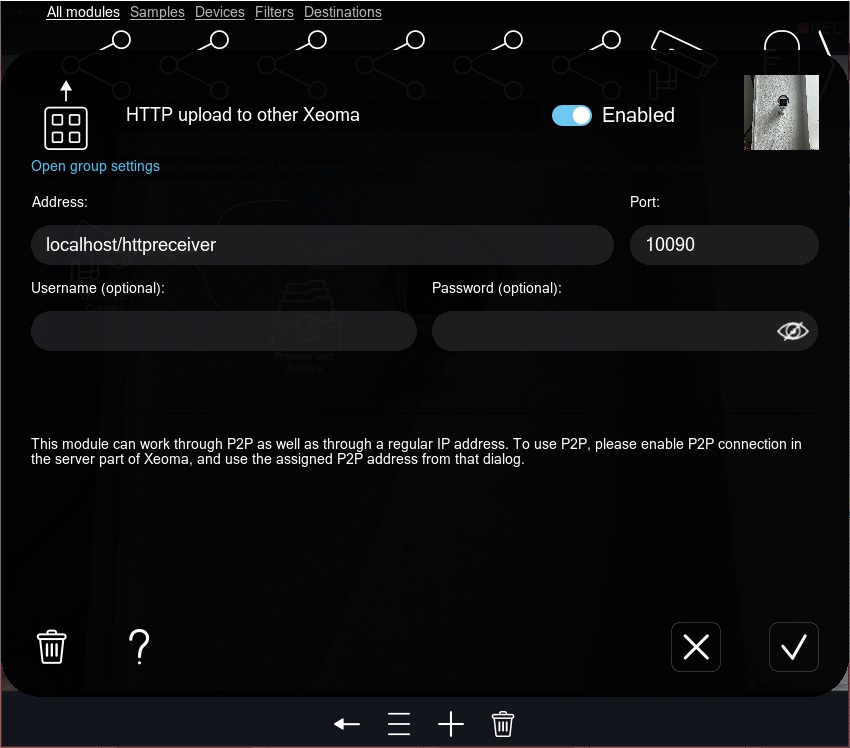
Now move to the computer that should receive the video stream from the camera built into the smartphone — the so-called “receiving computer”. Here, you also need to download and run Xeoma, but the initial steps are slightly different:
Step 11. Open the Xeoma website
On the computer, open the official Xeoma website. Find the “Download” tab in the top panel of the site and go to it.
Step 12. Select the required option
You will immediately be offered to download Xeoma for the operating system of the device from which you accessed this page. However, if the system was detected incorrectly or you want to download Xeoma for another computer, manually switch to the tab with the required operating system by clicking on it (“1” in the illustration below).
You can use either the “Official version” or the “Beta version” (“2” in the illustration below).
After selecting the required option, click the “Download” button next to it.
Step 13. Find the downloaded file
Xeoma will be saved to the folder configured for downloads in the browser you are currently using. In many modern browsers, a pop-up window appears that allows you to go directly to the folder containing the file.
Step 14. (For Linux and macOS) Extract the archive
For macOS and Linux, the downloaded archive must be extracted. See the step-by-step instructions for macOS here, and for Linux here. For Windows, extraction is not required, as an executable file is downloaded directly.
Step 15. Launch Xeoma
Launch Xeoma like any other program on your computer — usually by double-clicking the left mouse button, or by selecting the file and pressing the Enter key on the keyboard.
Step 16. Add a demo camera
Xeoma starts and, on first launch, displays its Welcome window.
In the Welcome window, select the “Demo” option to add a demo camera. We do not actually need the demo camera itself; instead, we will use another image source — the video stream transmitted from the smartphone. To receive this stream, we will use the “HTTP Receiver” module. This module is not available in the Free version of Xeoma, so you should remain in the version of Xeoma that starts by default — the Trial version.
If you are launching Xeoma not for the first time, the Welcome window will not be shown, but you can always add a demo camera to the screen from the “+” menu in the bottom panel:
Step 17. Remove the unnecessary module
After adding the demo camera, you will find yourself in the module chain window. Using the already familiar motion, drag the camera icon (the first in the chain) upward to remove it.
Alternatively, you can click on the “Universal Camera” module icon to open its settings and remove the module there by clicking the “Trash” icon.
Step 18. Find the required module — “HTTP Receiver”
Now our chain is headless — it has no video signal source. Instead of the removed camera, we need to add the “HTTP Receiver” module. It can be found in two ways:
a) Place the mouse cursor in the search field and start typing the name “HTTP Receiver”.
b) Go to the “Devices” tab and find the “HTTP Receiver” module there.
Step 19. Add “HTTP Receiver” to the chain
After finding the required “HTTP Receiver” module, add it to the chain. Click on the module with the mouse and release it (in this case, the module will be added to a random position in the chain), or click and hold it on the top panel and drag it to the desired position in the chain.
If the module connected in the wrong place, remove the incorrect connection by clicking on it.
Drag a new connection from the right edge of the module, as if drawing it with the mouse, to the required subsequent module.
Step 20. Configure the “HTTP Receiver”
Next, click the “HTTP Receiver” module icon in the scheme to open the module settings.
Please note that the “Full path” field will contain an example link. It cannot be changed, but you can specify a custom ending and also protect the connection with a login and password. We recommend first trying without changing any of the fields, and then, after making sure everything works, making changes if necessary.
Further actions depend on whether the laptop and the computer are located within the same home network, or whether the computer belongs to another network and the connection will need to be established via the Internet.
First option: the smartphone and the computer are in the same local network (for example, the smartphone is connected via Wi-Fi, and the computer is connected by cable to your home Internet). For this case, see the further instructions in section 2.3.4. Option 1: Computer and smartphone in the same network.
Second option: the smartphone is in one network (for example, at home), and the computer is in another (for example, at work). For this case, see the further instructions in section 2.3.4. Option 2: Computer and smartphone in different networks.
2.3.4. Option 1: Computer and smartphone in the same network
If this computer is located in the same network as your smartphone with a built-in camera, you can return to Xeoma on the smartphone, open the settings of the “HTTP upload to other Xeoma” module, and simply replace the word localhost in the link with the IP address of the computer (so that it becomes, for example, 192.168.0.10/httpreceiver).
If everything is configured correctly, the “HTTP Receiver” module on the computer will start receiving the video stream — you will see the image from the smartphone:
Next, you configure the functions you want to test with this camera.
All Xeoma modules are briefly described in the User Manual; more detailed information about a specific function can be found by following the links provided there. How to work with modules is also explained in the video “Xeoma Modular System”.
2.3.4. Option 2: Computer and smartphone in different networks
If this computer is located in a different network than the smartphone with a built-in camera, it is recommended to enable P2P connection. This is the manufacturer’s own secure connection; no third-party services are involved. P2P connection must be enabled specifically on the computer with the “HTTP Receiver” module.
Step 21. Enable P2P connection (only for devices in different networks)
To enable P2P connection, click on the text “P2P connection settings”. A settings window will open, where you need to check the option “Enable the P2P connection option”. After a couple of seconds, you will see an address in the field “P2P address of this server”:
Step 22. Return to the smartphone (only for devices in different networks)
Return to the smartphone with the built-in camera, open Xeoma there, and go to the settings of the “HTTP upload to other Xeoma” module. The data in this module must match the data in the “HTTP Receiver” module — only the word localhost needs to be replaced with the P2P address of this server that you obtained in step 20 above (so that it becomes, for example, 1A1-2B2-C3C/httpreceiver).
If everything is configured correctly, the “HTTP Receiver” module on the computer will start receiving the video stream — you will see the image from the smartphone:
Next, you configure the functions you want to test with this camera.
All Xeoma modules are briefly described in the User Manual; more detailed information about a specific function can be found by following the links provided there. How to work with modules is also explained in the video “Xeoma Modular System”.
|
|
Xeoma on the smartphone and, accordingly, the smartphone itself must be running the entire time you want to receive an image from the camera. It is recommended to connect the smartphone to a charger. |
2.4. TRUE INDEPENDENT CAMERA EMULATION FROM AN iOS SMARTPHONE CAMERA
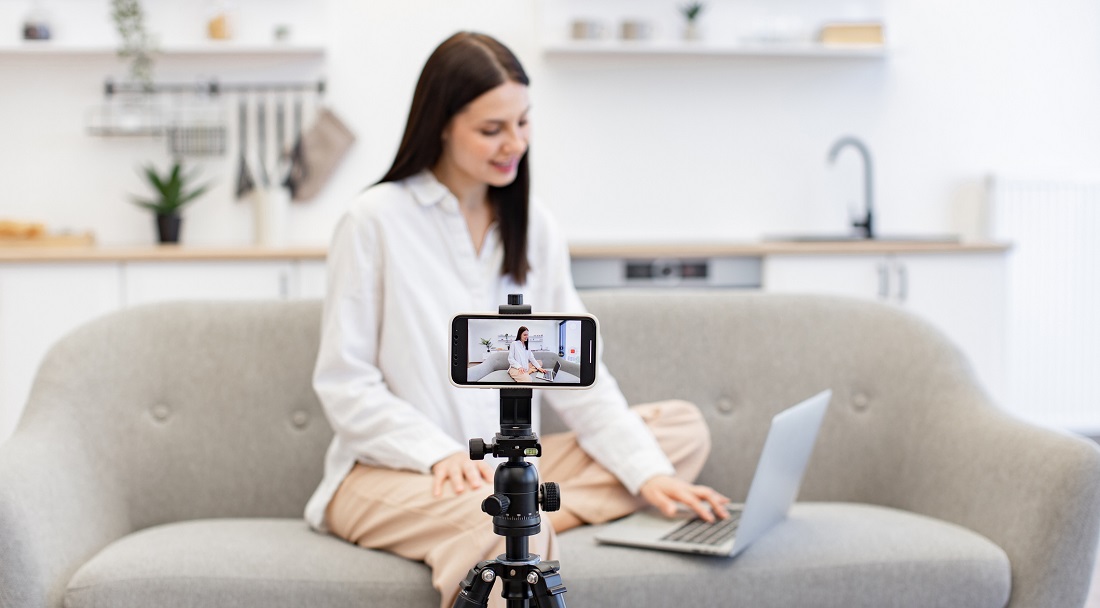
Want to try video surveillance but do not have a camera? In fact, you do have a camera — you almost certainly have a mobile phone. A mobile phone camera can be used as a video surveillance camera. Below we describe several methods available for Apple devices (i.e., iPhone smartphones and iPad tablets). One of them is a native method from the device manufacturer and requires a Mac computer, while another works on various computers but requires a special application.
|
|
Xeoma on the smartphone and, accordingly, the smartphone itself must be running the entire time you want to receive an image from the camera. It is recommended to connect the smartphone to a charger. |
2.4.1. Using the DroidCam application with an iPhone camera
You can connect an iPhone smartphone camera to a computer using the special DroidCam application. The application is not available in Russia and therefore does not have a Russian interface. To find the application in the App Store, your Apple ID account on this device must belong to another region.
If your computer is a Mac, you may have access to a simpler, native Apple option, which is described below.
Step 1. Open the App Store on your smartphone
Open the App Store on your phone and find the application called DroidCam Webcam & OBS Camera:

Step 2. Install the application
Download and launch the application like any other app. On first launch, the application will request permission to
* use the camera,
* use the microphone,
* transmit data over the local network.
All these permissions must be granted, as they are required for operation.
After launch, the application will assign an IP address and port to the video stream from the phone camera and will wait for you to complete the next steps:

Step 4. Download the client to the computer
Now set the phone aside and move to the computer. An important requirement: the computer must be in the same network as your smartphone. In other words, both the computer and the iPhone must be connected to the same network — for example, via Wi-Fi. If mobile internet is used on the phone, you can share it with the computer by creating a hotspot; or you can switch the phone to Wi-Fi and make sure the computer is also connected to this Wi-Fi.
Next, you need to download the client program from the same developer. This can be done on the developer’s website — droidcam.app. At the time of writing, this website was not accessible, so we downloaded the client from the developer’s GitHub profile.
Step 5. Install the client on the computer and launch it
Install the client on your computer like any other program and launch it.
If both the phone and the computer are in the same network, the client program will automatically find your smartphone and start displaying the camera image:

On the phone, you will also see the camera image instead of a black screen with data:

Step 6. Add the camera to the video surveillance program
Now you can find the iPhone camera in your video surveillance software. For example, in Xeoma this is done as follows:
Step 6.1. Open the Xeoma website
On the computer, open the official Xeoma website. Find the “Download” tab in the top panel of the site and go to it.
Step 6.2. Select the required option
You will immediately be offered to download Xeoma for the operating system of the device from which you accessed this page. You can use either the “Official version” or the “Beta version”.
After selecting the required option, click the “Download” button next to it.
Step 6.3. Find the downloaded file
Xeoma will be saved to the folder configured for downloads in the browser you are currently using. In many modern browsers, a pop-up window appears that allows you to go directly to the folder containing the file.
Step 6.4. Extract the archive
For macOS and Linux, the downloaded archive must be extracted. See the step-by-step instructions for macOS here, and for Linux here.
For Windows, extraction is not required, as an executable file is downloaded directly.
Step 6.5. Launch Xeoma
Launch Xeoma like any other program on your computer — usually by double-clicking the left mouse button, or by selecting the file and pressing the Enter key on the keyboard.
Step 6.6. Add the camera
Xeoma starts and, on first launch, displays its Welcome window. In this case, select the option “Find cameras on the network”.
The Welcome window will close, and the camera will be found and added to the screen almost instantly.
Xeoma finds such cameras almost instantly but continues searching further. Since no other cameras are needed, the search can be stopped by clicking on the progress bar.
Step 6.7. Configure the camera and start testing other features
Click the “Gear” icon in the bottom panel or in the corner of the camera cell to open the chain settings. In chain configuration mode, you can add or remove module blocks, each of which represents a specific function. For example, click the “Universal Camera” icon in the chain to open the camera settings:

Next, configure the functions you want to test with this camera.
All Xeoma modules are briefly described in the User Manual; more detailed information about a specific function can be found by following the links provided there. How to work with modules is also explained in the video “Xeoma Modular System”.
2.4.2. Using an iPhone camera on a Mac
If you have a Mac computer, you can use the rear camera of your iPhone as a camera on it. You can use the following procedure.
Make sure both the Mac and the iPhone are connected to the same network — for example, via Wi-Fi. If mobile internet is used on the phone, you can share it with the Mac by creating a hotspot; or you can switch the phone to Wi-Fi and make sure the computer is also connected to this Wi-Fi.
Find the FaceTime application on your Mac and open it. This application has a camera icon on a green background and is installed by default on all Apple devices. If you cannot find it, use search.
In the top menu of your Mac, select the “Video” option. In the drop-down list, you will see the “Camera” submenu. By default, it usually selects the computer’s own camera, typically called FaceTime HD Camera. If everything is configured correctly, your iPhone will also appear in the list — select it:

If everything is configured correctly, FaceTime will display the image from the rear camera of your iPhone.
Now that the camera is available on your Mac, you can also find this camera in other programs on the same Mac — for example, in Xeoma. Below we describe how to find and add this camera in Xeoma. Similar steps apply to other video surveillance programs.
Step 6. Open the Xeoma website
On the computer, open the official Xeoma website. Find the “Download” tab in the top panel of the site and go to it.
Step 7. Select the required option
You will immediately be offered to download Xeoma for the operating system of the device from which you accessed this page. You can use either the “Official version” or the “Beta version”.
After selecting the required option, click the “Download” button next to it.

Step 8. Find the downloaded file
Xeoma will be saved to the folder configured for downloads in the browser you are currently using. In many modern browsers, a pop-up window appears that allows you to go directly to the folder containing the file.

Step 9. Extract the archive
For macOS, the downloaded archive must be extracted. Double-click the archive icon to extract it. In the new window, you will find the Xeoma.app application:

Step 10. Launch Xeoma
Launch Xeoma like any other program on your computer — usually by double-clicking the left mouse button, or by selecting the file and pressing the Enter key on the keyboard.
|
|
When launching Xeoma, you may receive a warning saying “The application xeoma.app can’t be opened because the developer cannot be verified”. In this case, see the instructions in the macOS step-by-step guide. |
Step 11. Add the camera
Xeoma starts and, on first launch, displays its Welcome window. In this case, select the option “Find cameras on the network”.
The Welcome window will close, and the camera will be found and added to the screen almost instantly.
Xeoma finds such cameras almost instantly but continues searching further. Since no other cameras are needed, the search can be stopped by clicking on the progress bar.
Click the “Gear” icon in the bottom panel or in the corner of the camera cell to open the chain settings. In chain configuration mode, you can add or remove module blocks, each of which represents a specific function. For example, click the “Universal Camera” icon in the chain to open the camera settings:

Next, configure the functions you want to test with this camera. For example, if video surveillance is needed on another computer, you can transmit the camera image from Xeoma on your Mac to it. Instructions on how to configure this are provided here (you need to perform the steps starting from step 9).
If video surveillance will be used on the same Mac computer, we primarily recommend the guide article for macOS.
You can learn more about Xeoma’s capabilities (modules) from the program’s User Manual, and more details about a specific function via the links provided there.
We demonstrate how to work with the Xeoma modular system visually in the video “Xeoma Modular System”.
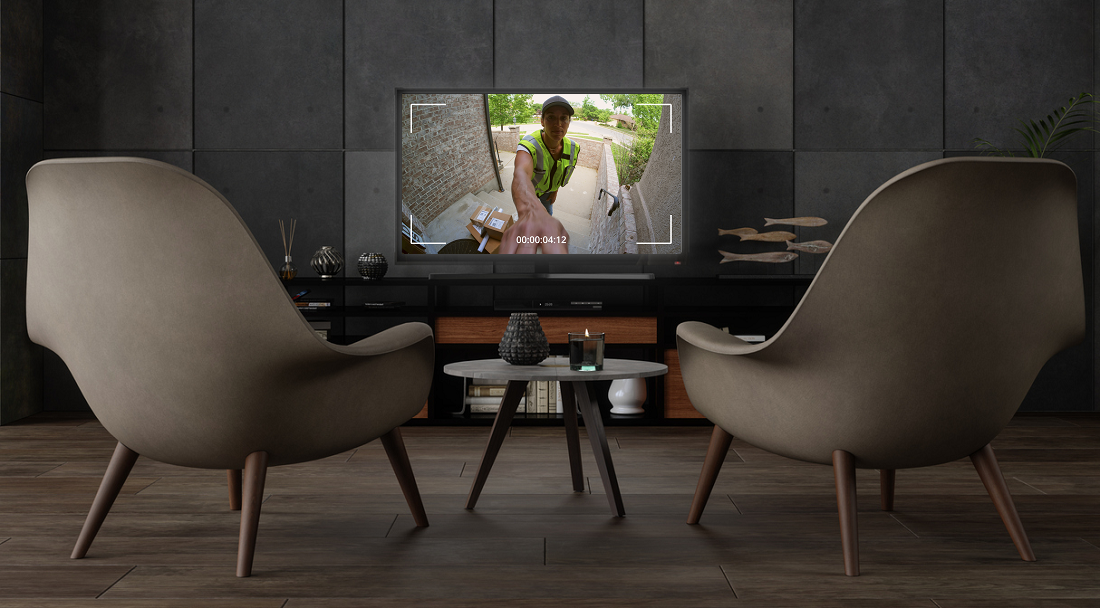
Some modern TVs with cameras can be used for video surveillance. Essentially, TVs also run on the Android operating system, so the same recommendations apply as for Android smartphones, with the limitation that many applications available for Android smartphones are not available for TVs.
Not every TV is a smart TV. But if it has a camera, it is most likely a TV with the Smart TV technology we need.
3.1. OPTIONS FOR USING A BUILT-IN TV CAMERA AS A VIDEO SURVEILLANCE CAMERA
Once again, there are two possible approaches here:
– organize video surveillance directly on your smart TV,
or
– use an application to transmit the image from the TV camera as a video stream to another computer that is better suited for video surveillance.
There are quite few applications for smart TVs for both options, but there are still some available choices.
3.2. USING “NATIVE” APPLICATIONS FROM VIDEO SURVEILLANCE SERVICES
Let us search the Internet for phrases like “how to turn a TV camera into a video surveillance camera”. The very first options you will see are proprietary applications from certain video surveillance services that allow you to connect the built-in camera only to their own service. For example,
* Camy
* Faceter
* AtHome Video Streamer
Among the options listed above, using “native” applications from a video surveillance service mostly corresponds to the option “transmit the image from the camera to another computer”, except that instead of a computer, the recipient is the cloud video surveillance service of that company. If you need truly independent transmission of a video stream from the TV camera to another computer, you should consider another option — independent network camera emulation, which we describe below.
If one of these services is exactly the one you wanted to try for your video security system, then use their application and instructions. As a rule, setup is simple and consists of just a few steps. Almost all such services are paid, so we recommend studying this issue separately. Below we will review the basic steps required to install the selected application on your smart TV. You will need a TV remote control and a bit of patience.
Step 1. Finding Google Play or another app store
As the very first step, we suggest going to the home screen of your TV by pressing the button with a house icon on the remote.
Once you are on the “Main” or “Home” screen, you need to find Google Play, GetApps, Samsung Galaxy Store, RuStore, or another application catalog from which you will download your app. On some TVs, the Google Play icon or a similar store icon is located directly on this main screen — in that case, you do not need to search for it, just click it and proceed to step 3. If you do not see such an icon readily available, try finding the required store via search. To do this, press the search icon (“Magnifying glass”):

Using the remote control and the on-screen keyboard, enter a search query — for example, “Google Play” — and select the suggested option:

Instead of typing manually, you can dictate your query by holding down the microphone button on the remote. In our case, voice input worked even better — the app catalog opened automatically.
Step 2. Searching for your application in the catalog
Once in the Google Play catalog (or another similar app store), also open search by clicking the “Magnifying glass” icon:

Start typing the name of your application, and the app store will find it and immediately display information about it:

Step 3. Installing and launching the application
Navigate to the “Install” button and press it. You will see the label change to an installation progress bar, and after the process completes, it will change to “Open”. Open the application and start working with it according to the application’s instructions, including those related to using the device camera.
Done. You can now use your video surveillance application, using the TV camera instead of a separate surveillance camera.
But what if you want to use the built-in camera of a smartphone or TV as a surveillance camera in some other service that does not have its own dedicated application for connecting webcams? In that case, you need independent camera emulation, which works even in third-party services. We will review several such options below.
3.3. INDEPENDENT CAMERA EMULATION USING A TV CAMERA
Xeoma is one of the few programs that provide the ability not only to work within the application itself, but also to transmit a video stream to other video surveillance solutions. This is especially valuable on mobile Android platforms, where few applications offer such functionality — and even more so on TVs, for which even fewer applications are available. See the instructions for this case below.
Xeoma can be found both in application catalogs and on the manufacturer’s website. Here we will explain how to install Xeoma or MyCamera on a TV via app catalogs such as Google Play, GetApps, Samsung Galaxy Store, and similar ones, and here is an alternative option for downloading and installing directly from the manufacturer’s website.
Depending on the app catalog you have, search for the following applications:
- Google Play — MyCamera
- Xiaomi GetApps, Samsung Galaxy Store, RuStore, Huawei AppGallery — Xeoma
3.3.1. Basic steps via the app catalog
Step 1. Finding Google Play or another app store
As the very first step, we suggest going to the home screen of your TV by pressing the button with a house icon on the remote.
Once you are on the “Main” or “Home” screen, you need to find Google Play, GetApps, Samsung Galaxy Store, RuStore, or another application catalog from which you will download your app. On some TVs, the Google Play icon or a similar store icon is located directly on this main screen — in that case, you do not need to search for it, just click it and proceed to step 3. If you do not see such an icon readily available, try finding the required store via search. To do this, press the search icon (“Magnifying glass”):
Using the remote control and the on-screen keyboard, enter a search query — for example, “Google Play” — and select the suggested option:
Instead of typing manually, you can dictate your query by holding down the microphone button on the remote. In our case, voice input worked even better — the app catalog was found and opened automatically.
Step 2. Searching for your application in the catalog
Once in the Google Play catalog (or another similar app store), also open search by clicking the “Magnifying glass” icon:
Start typing the name Xeoma (for Xiaomi GetApps, Samsung Galaxy Store, RuStore, Huawei AppGallery) or MyCamera (for Google Play), and the app store will find the required application:

Tip: The Xeoma application available in Google Play is not suitable here. For Google Play, it is recommended to use the MyCamera application.
Step 3. Installing and launching the application
Navigate to the “Install” button and press it. You will see the label change to an installation progress bar, and after the process completes, it will change to “Open”.
Open the application and proceed to step 4.
3.3.2. (Alternative option) Basic steps via the manufacturer’s website
If you want to download the application from the manufacturer’s website, you will need an Internet browser. Any browser already installed on your TV will do: Google Chrome, Yandex, etc.
If you do not have a browser on your TV, you can download and install one by following the tips here (only instead of “Faceter”, as in the example, search for the browser name).
Step 1. Opening the browser and searching for xeoma.com
Press the “Home” button on the TV remote to go to the main (or “home”) screen. Once there, find the browser icon in the list of applications and click it to open the browser:

In the browser, type xeoma.com and go to the Xeoma website. On the site, go to the “Download” tab.

Step 2. Downloading the Xeoma application
If you access the site from a TV, you will immediately be taken to the correct tab: Android. Click the “Download” button to start downloading the application:

Step 3. Installing and launching Xeoma
When the download is complete, you can click on the progress bar to launch the application.
Click “Install” in the window that opens.
After installation, the application will launch automatically, and the application icon will also be available in the list of your applications.
3.3.3. Further steps
Step 4. Choosing storage (optional)
When you launch Xeoma for the first time, you will see a pop-up window asking where to store recordings made by the application. If the application will be used as a video stream transmitter, recording is not required, so you can either leave the default option or skip this step.
Step 5. Searching for the camera
After that, you will see the application’s Welcome window, which contains all the most important options for beginners. The Welcome window is shown only once, on the first launch, but its options can be found in the program at any time.
In our case, you should select “Find cameras on the network” in the Welcome window:

The Welcome window will close, and the camera will be found and added to the screen almost instantly — Xeoma assigns priority to USB cameras (which include built-in cameras), so they are ready to work immediately.
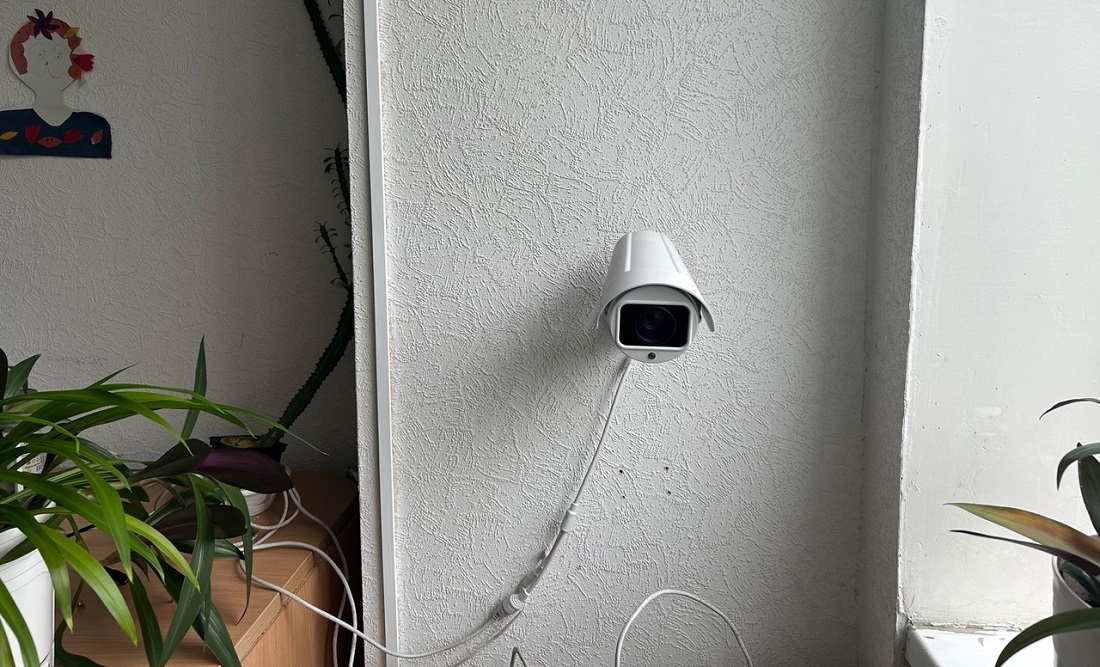
Further actions depend on how exactly you want to use the built-in TV camera.
First option: deploy the video surveillance system right here on this TV. For this case, see the instructions in section 3.3.3. a) If video surveillance on the TV is sufficient.
Second option: transmit the video stream from the TV camera to another device — for example, a computer. For this case, see the instructions in section 3.3.3. b) If the TV camera needs to be used for video surveillance on a computer.
The third option is a combination of the two previous ones: using the video stream from the built-in TV camera in another Xeoma instance running on a computer. In which cases this option is needed and how to configure it, see section 3.3.4. If the TV camera needs to be used in another Xeoma.
3.3.3. a) If video surveillance on the TV is sufficient
After completing steps 1–5 above, you can stop here. This way, you can use the TV camera as a video surveillance camera in the Xeoma or MyCamera product. Even on Android TV, these two applications offer a wide range of functions, including video analytics — intrusion detection, license plate recognition, face recognition, loitering detection, abandoned objects detection, QR code recognition, and color recognition. Connect and configure the functions you want to test with this camera.
Brief information about all Xeoma modules is provided in the “User Manual”, and more detailed information about a specific function can be found by following the links provided there. How to work with Xeoma’s modular system is also demonstrated in the video “Xeoma Modular System”.
3.3.3. b) If the TV camera needs to be used for video surveillance on a computer
If the TV camera needs to be used in another program (for example, running on a computer), you must add a special module to the camera — the RTSP Broadcasting — which will convert the built-in camera into a kind of network camera. To do this, follow these steps:
Step 6. Click the “gear” icon to open the camera chain
If camera emulation is required for use in another program, as the sixth step after completing steps 1–5 above, open the Xeoma module chain by clicking the gear icon in the bottom panel or in the upper right corner of the camera cell.
Step 7. Removing unnecessary modules
In the chain window, remove all modules except “Universal Camera” and add the “RTSP Broadcasting” module to the chain.
To remove modules, either click and drag the module icon upward, or click the module and select the “Trash” icon in the settings that open.

Step 8. Finding the required module — “RTSP Broadcasting”
The “RTSP Broadcasting” module can be found in three ways:
a) Place the mouse cursor in the search field and start typing “RTSP Broadcasting”.

b) Go to the “Destinations” tab and find the “RTSP Broadcasting” module there.

c) Simply scroll through all modules in the top panel using the arrow until you see the “RTSP Broadcasting” icon.

Step 9. Adding “RTSP Broadcasting” to the chain
After finding the required “RTSP Broadcasting” module, add it to the chain. Click the module with the mouse and release it, or click and drag it from the top panel into the desired position in the chain. To view the video stream, you can also add the “View” or “View and Archive” module in the same way.

Step 10. Configuring the “RTSP Broadcasting” and obtaining the link
Open the RTSP Broadcasting module settings by clicking on it in the chain.

Select the settings according to what you want to achieve. There is a separate guide for configuring this module; see it here. In short, it is recommended to choose the utility that will perform the transmission (in the “Tool used for broadcasting” list, select ffserver if you want to apply compression to the stream, or live555 if transcoding is not required), select the broadcast codec (the “Encoder type” drop-down list), and, if necessary, specify the compression level and the path to an alternative encoder utility located on your device. You can also set the stream name, its URL, and the broadcast port (or use those suggested by Xeoma).
Take the link generated in the “Path used for RTSP broadcasting” field and pass it to the required computer.
Done.
3.3.4. If the TV camera needs to be used in another Xeoma
For those who plan to use the built-in TV camera as a video surveillance camera in Xeoma running on another computer, a special option is provided that is more cost-effective and less resource-intensive.
Step 6. Switching the program to Free mode
After completing steps 1–5 above, close the Welcome window and switch the program to Free mode via the Main menu (icon with three horizontal lines) — Registration — Switch to another edition — Switch to Free version.
Step 7. Finding the camera
Since the Welcome window has already been shown and closed, it will not appear again. To add the built-in camera, initiate a search from the bottom menu by clicking the “+” icon and selecting “Simple search for local cameras” in the menu that opens.
The camera is added automatically, so you will see its image on the screen almost immediately.
Xeoma finds built-in device cameras almost instantly, but continues searching afterward. Since no other cameras are needed, the search can be stopped by clicking the progress bar.
Step 8. Removing unnecessary modules
Remove all modules except “Universal Camera”. To remove modules, either click and drag the module icon upward, or click the module and select the “Trash” icon in the settings that open.
Step 8. Finding the required module — “HTTP upload to other Xeoma”
Add the “HTTP upload to other Xeoma” module to the chain connected to the “Universal Camera” module.
The “HTTP upload to other Xeoma” module can be found in three ways:
a) Place the mouse cursor in the search field and start typing “HTTP upload to other Xeoma” in full (or any word from this name).
b) Go to the “Destinations” tab and find the “HTTP upload to other Xeomaa” module there.
c) Simply scroll through all modules in the top panel using the arrow until you see the “HTTP upload to other Xeoma” icon.
Step 9. Adding “HTTP upload to other Xeoma” to the chain
After finding the required “HTTP upload to other Xeoma” module, add it to the chain. Click the module with the mouse and release it, or click and drag it from the top panel into the desired position in the chain.
You can open the settings of the “HTTP upload to other Xeoma” module by clicking on it, but this is not required yet — the information that needs to be entered here has not been obtained yet. It must be obtained on the “receiving” side, that is, from the Xeoma instance that will receive this video stream.
Now move to the computer that should receive the video stream from the TV’s built-in camera — the so-called “receiving computer”. Xeoma must also be downloaded and launched there, but the initial steps are slightly different:
Step 10. Opening the Xeoma website
On the computer, open the official Xeoma website. Find the “Download” tab in the top panel of the site and go to it.
Step 11. Choosing the required option
You will be immediately offered to download Xeoma for the operating system of the device from which you accessed the page. However, if the system was detected incorrectly or you want to download Xeoma for another computer, manually switch to the tab with the required operating system by clicking it (“1” in the illustration below).
You can use either the “Official version” or the “Beta version” option (“2” in the illustration below).
After selecting the desired option, click the “Download” button next to it.
Step 12. Finding the downloaded file
Xeoma will be saved to the folder specified for downloads in the browser you are currently using. In many modern browsers, a pop-up window appears that allows you to open the folder containing the file.
Step 13. (For Linux and macOS) Unpacking the archive
For macOS and Linux, extract the downloaded archive. See step-by-step instructions for Mac here, and for Linux here.
For Windows, unpacking is not required — an executable file is downloaded directly.
Step 14. Launching Xeoma
Launch Xeoma like any other program on your computer — usually by double-clicking the left mouse button, or by selecting the file and pressing the Enter key on the keyboard.
Step 15. Adding a demo camera
When Xeoma starts, it shows its Welcome window on first launch.
In the Welcome window, select the “Demo” option to add a demo camera. The demo camera itself is not needed; instead, we will use another image source — the video stream transmitted from the TV. To receive this stream, we will use the “HTTP Receiver” module. This module is not available in the Free version of Xeoma, so you should remain in the version of Xeoma that launches by default — the Trial version.
If you are not launching Xeoma for the first time, the Welcome window will not appear, but you can always add a demo camera from the “+” menu in the bottom panel:
Step 16. Removing the unnecessary module
After adding the demo camera, you will be taken to the module chain window. Using the familiar motion, drag the camera icon (the first in the chain) upward to remove it.
Alternatively, you can click the “Universal Camera” module icon to open its settings and remove the module by clicking the “Trash” icon there.
Step 17. Finding the required module — “HTTP Receiver”
Now the chain has no video source. Instead of the removed camera, add the “HTTP Receiver” module. It can be found in two ways:
a) Place the mouse cursor in the search field and start typing “HTTP Receiver”.
b) Go to the “Devices” tab and find the “HTTP Receiver” module there.
Step 18. Adding “HTTP Receiver” to the chain
After finding the required “HTTP Receiver” module, add it to the chain. Click the module with the mouse and release it (the module will be added at a random position in the chain), or click and drag it from the top panel into the desired position in the chain.
If the module connected incorrectly, delete the incorrect connection by clicking on it.
Draw a new, correct connection from the right edge of the module to the required subsequent module, as if drawing it with the mouse.
Step 19. Configuring the “HTTP Receiver”
Next, click the “HTTP Receiver” module icon in the diagram to open its settings.
Note that the “Full path” field here will contain an example link. It cannot be changed, but you can set a custom ending and also protect the connection with a login and password. We recommend first trying without changing any fields, and after confirming that everything works, making changes if necessary.
Further actions depend on whether the TV and the computer are on the same home network, or whether the computer belongs to a different network and the connection will be made via the Internet.
First option: the TV and the computer are on the same local network (for example, the TV is connected via Wi-Fi and the computer via cable to your home Internet). For this case, see the further instructions in section 2.3.4. Option 1: Computer and TV on the same network.
Second option: the TV is on one network (for example, at home), and the computer is on another (for example, at work). For this case, see the further instructions in section 2.3.4. Option 2: Computer and smartphone in different networks.
3.3.4. Option 1: Computer and TV on the same network
If this computer is on the same network as your TV with a built-in camera, you can return to Xeoma on the TV, open the settings of the “HTTP upload to other Xeoma” module, and simply replace the word localhost in the link with the IP address of the computer (so that it becomes, for example, 192.168.0.10/httpreceiver).
If everything is configured correctly, the “HTTP Receiver” module on the computer will start receiving the video stream — you will see the image from the TV:
Next, configure the functions you want to test with this camera.
All Xeoma modules are briefly described in the User Manual; more detailed information about a specific function can be found by following the links provided there. How to work with modules is also explained in the video “Xeoma Modular System”.
2.3.4. Option 2: Computer and TV on different networks
If this computer is on a different network from the TV with a built-in camera, it is recommended to enable a P2P connection. This is a proprietary secure connection from the Xeoma manufacturer; no third-party (including Chinese) services are involved. The P2P connection must be enabled specifically on the computer with the “HTTP Receiver” module.
Step 20. Enabling the P2P connection (only for devices on different networks)
To enable the P2P connection, click on the text “P2P connection settings”. A settings window will open, where you need to check the option “Enable P2P connection capability”. After a few seconds, you will see an address in the field “P2P address of this server”:
Step 21. Returning to the TV (only for devices on different networks)
Return to the TV with the built-in camera, open Xeoma there, and go to the settings of the “HTTP upload to other Xeoma” module. The data in this module must match the data in the “HTTP Receiver” module — only the word “localhost” must be replaced with the P2P address of this server that you obtained in step 20 above (so that it becomes, for example, 1A1-2B2-C3C/httpreceiver).
If everything is configured correctly, the “HTTP Receiver” module on the computer will start receiving the video stream — you will see the image from the TV:
Next, configure the functions you want to test with this camera.
All Xeoma modules are briefly described in the User Manual; more detailed information about a specific function can be found by following the links provided there. How to work with modules is also explained in the video “Xeoma Modular System”.
|
|
Xeoma on the TV, and the TV itself, must remain running the entire time you want to receive the camera image. It is recommended to disable sleep mode on the device. |
Done. You can now use your video surveillance application, using the TV camera instead of a separate surveillance camera.
4.1. GENERAL INFORMATION
Public cameras from streets, train stations, tourist locations, and city squares can be used for testing or training video surveillance systems. Often, private users and companies also make their cameras publicly available for promotional purposes — for example, ski resorts to demonstrate scenery and weather conditions.
Where can you get a public camera? Public cameras are available on the Internet; you just need to choose the right search query — for example, “Omsk city cameras”. There are also specialized portals that collect cameras from all over the world, where you can select cameras by use case, manufacturer, country, or time zone close to yours. However, not all of them can be used in video surveillance: this depends on the method used to play the camera stream on the website.
4.2. Overview of public camera resources
A quick Internet search returns the following portals with public cameras:
- http://www.insecam.org/
- http://www.opentopia.com/
- https://www.geocam.ru
- https://www.earthcam.com
- https://www.webcams.travel
However, of these, only the first two options — insecam and opentopia — are suitable for obtaining a video stream link.
The third portal — geocam — uses different players to play camera streams; some of them are suitable, others are not.
The fourth portal — earthcam — is not suitable, as it uses its own proprietary player to display cameras.
The fifth portal — webcams.travel — has ceased to exist altogether and redirects visitors to a weather map, which also includes cameras.
Therefore, we will look at how to use public Internet cameras as video surveillance cameras using the first two portals as examples.
4.3. Instructions for the Opentopia portal
Opentopia is one of the most optimal platforms for those who want to use a public camera in video surveillance: it has many cameras and it is easy to obtain a stream link. Here is the sequence of steps to follow:
Step 1. Go to opentopia.com. Select a camera based on the required criteria: manufacturer, country, etc.

Warning — please do not open or access 18+ (Adult Cams) cameras; they are most likely unsafe.
Step 2. In the “Viewing Mode” dropdown, select “Live Feed”.

Step 3. Right-click on the camera image and select “Copy image address” from the context menu.

Step 4. Done! You now have the camera link. Open it in your preferred surveillance software and add it as a camera.
For example, in Xeoma you can do it like this:
Step 4.1. Open the Xeoma website
On your computer, open the official Xeoma website. Find the “Download” tab in the top panel and go there.
Step 4.2. Choose the correct version
You will be immediately offered to download Xeoma for the operating system of the device you are using. However, if the system was detected incorrectly or you want to download Xeoma for another computer, manually switch to the correct OS tab by clicking on it (“1” in the illustration below).
You can choose either the “Official version” or the “Beta version” (“2” in the illustration below).
Once you select the desired option, click the “Download” button next to it.
Step 4.3. Locate the downloaded file
Xeoma will be saved to the folder set for downloads in your current browser. In many modern browsers, a popup appears; clicking it will take you to the file.
Step 4.4. (For Linux and MacOS) Extract the archive
For MacOS and Linux, extract the downloaded archive. See the step-by-step instructions for Mac here, and for Linux here.
For Windows, extraction is not required; the executable file runs directly.
Step 4.5. Launch Xeoma
Launch Xeoma like any other program on your computer—usually by double-clicking with the left mouse button, or by selecting the file and pressing Enter on your keyboard.
The Xeoma program launches and on first start displays its welcome window. Close it by clicking the X button.
Step 4.6. Add a camera template
Go to the “+” menu in the bottom panel. Select the option “Add a new camera manually”.
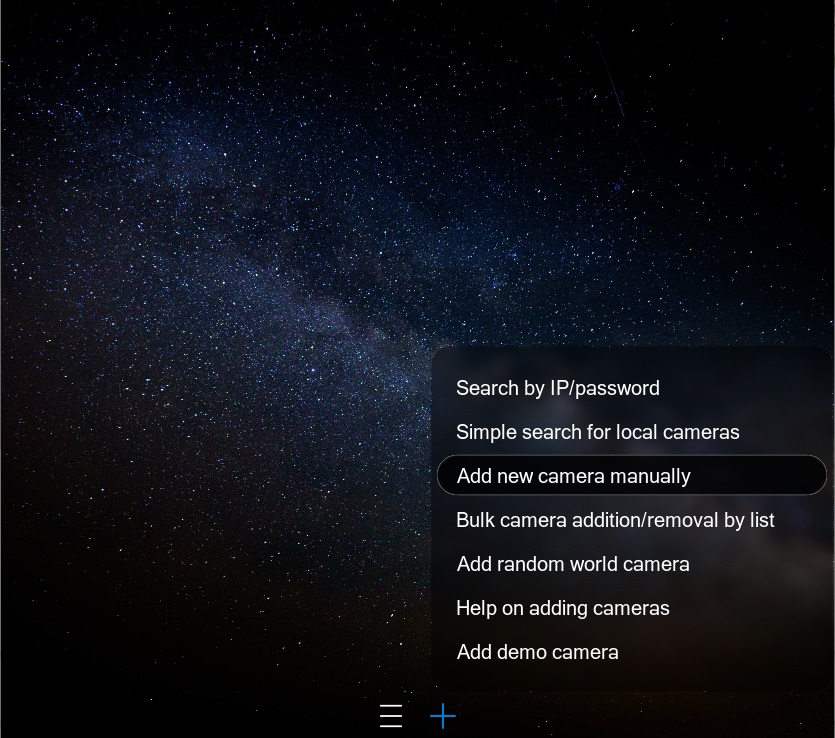
The “Universal Camera” module configuration dialog opens, where you need to paste our link. Find the field “Full IP camera URL for viewing” and paste the copied link from Opentopia using CTRL+V (or equivalent keyboard shortcut).

If you wait a little, the camera image should appear in the background and in the small preview window in the upper right. When leaving this dialog, don’t forget to click OK (checkmark)—otherwise changes will not be saved.
The camera will work like a regular IP camera:

Once such a public camera is added to your surveillance solution, you can start configuring the features you need. All Xeoma modules are briefly described in the “User Manual”, and you can read more about a specific feature by following the links there. How to work with modules is explained in the video “Xeoma Modular System”.
4.4. Instructions for the Insecam portal
Step 1. Go to the Insecam website. Select a camera based on criteria such as manufacturer, country, etc.

Step 2. In the camera window, try to find the link to its video stream as follows:
Hover over the camera image, and the camera address will appear in the lower-left corner. For some software, this is enough, and you can proceed to Step 3.
If a full link is needed, right-click on the camera image and select “Inspect”.

On the right, a panel will open, and most likely the link to the camera’s video stream will be visible. Copy this link—it is already accepted by most software.

Step 3.
You now have the camera link. Open it in your preferred surveillance software and add it as a camera.
For example, in Xeoma you can do it like this:
Step 3.1. Open the Xeoma website
On your computer, open the official Xeoma website. Find the “Download” tab in the top panel and go there.
Step 3.2. Choose the correct version
You will be immediately offered to download Xeoma for the operating system of the device you are using. However, if the system was detected incorrectly or you want to download Xeoma for another computer, manually switch to the correct OS tab by clicking on it (“1” in the illustration below).
You can choose either the “Official version” or the “Beta version” (“2” in the illustration below).
Once you select the desired option, click the “Download” button next to it.
Step 3.3. Locate the downloaded file
Xeoma will be saved to the folder set for downloads in your current browser. In many modern browsers, a popup appears; clicking it will take you to the file.
Step 3.4. (For Linux and MacOS) Extract the archive
For MacOS and Linux, extract the downloaded archive. See the step-by-step instructions for Mac here, and for Linux here.
For Windows, extraction is not required; the executable file runs directly.
Step 3.5. Launch Xeoma
Launch Xeoma like any other program on your computer—usually by double-clicking with the left mouse button, or by selecting the file and pressing Enter on your keyboard.
The Xeoma program launches and on first start displays its welcome window. Close it by clicking the X button.
Step 3.6. Add a camera template
Go to the “+” menu in the bottom panel. Select the option “Add a new camera manually”.
The “Universal Camera” module configuration dialog opens, where you need to paste our link. Find the field “Full IP camera URL for viewing” and paste the copied link from Insecam using CTRL+V (or equivalent keyboard shortcut).

If you wait a little, the camera image should appear in the background and in the small preview window in the upper right. When leaving this dialog, don’t forget to click OK (checkmark)—otherwise changes will not be saved.
The camera will work like a regular IP camera:

After such a public camera has been added to your surveillance solution, you can start configuring the functions you need. All Xeoma modules are briefly described in the “User Manual”; you can read more about a specific function by following the links provided there. And how to work with modules is explained in the video “Xeoma Modular System”.
5.1. GENERAL INFORMATION
You can create a virtual camera from almost any ready-made video.
5.2. Where to get a video clip
You can download a suitable video clip from various platforms:
- Video from a smartphone – simply record the required video on your phone, for example, a conveyor operation or an entrance checkpoint.
- Videos on social media – download videos from social networks such as VKontakte, Odnoklassniki, and others.
- Free stock videos – you can find suitable clips on Pexels, Pixabay, Freepik, and others.
- Video hosting and movie websites – YouTube, Vimeo, legal online cinemas.
- Neural networks and video generators – ask an AI to create a clip with the required content for you.
Some of these portals allow you to download video materials without any additional steps. If the selected portal does not allow downloading materials, you can search online for special tools for this purpose (these may be browser extensions or separate programs installed on a computer or smartphone), or use the following method (screen recording) below.
5.3. Instructions for converting a video into a camera using VLC
Step 1. Download the video – preferably in mp4 format.
Step 2. Once the video is obtained, we will emulate a network camera stream from it using the free VLC program.
Download VLC from the official website https://www.videolan.org/vlc/ and install it.
Step 3. After installation, open VLC and in its top panel click “Media”, then select “Stream” from the drop-down menu.
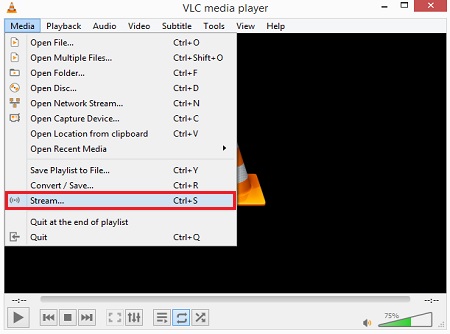
Step 4. A settings dialog will open. While on the “File” tab, select your video using the “+ Add” button. A file browser will open; use it to locate your video on the computer and click OK. At the bottom of the dialog, click the “Stream” button.
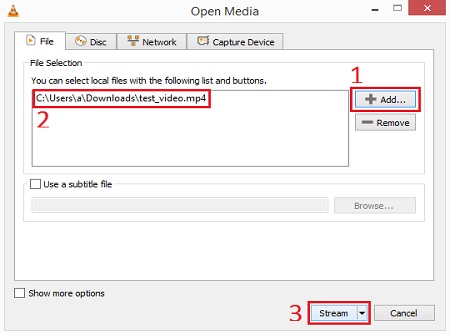
Step 5. In the next window, click the “Next” button.
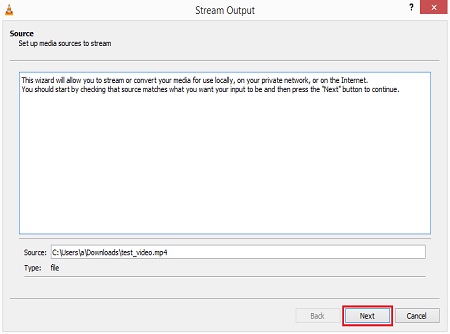
Step 6. In the next window, next to “New destination” it usually shows “File”. Click on “File” to see the drop-down list. In this list, select either “HTTP” (heavier on the network but lighter on the processor) or “RTSP” (heavier on the processor but lighter on the network). After selecting one, click “Next”.

Step 7. In the next window, next to “Profile” it usually shows “Video – H.264 + MP3 (MP4)”. You can leave this option and click “Next”.
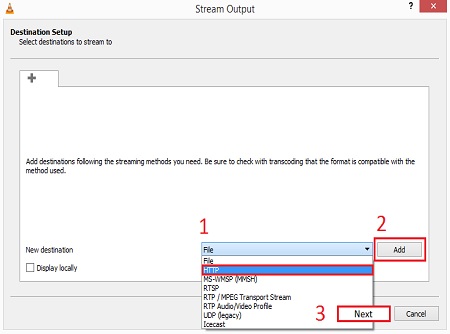
Step 8. In the new window, click “Stream” to finalize the camera emulation and start streaming.
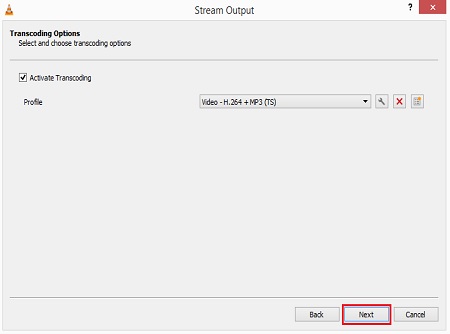
Step 9. You need to assemble the link that you will be able to use in video surveillance.
The link consists of http:// (for HTTP) or rtsp:// (for RTSP), your IP address, and the port (usually 8080 if you selected HTTP, or 8554 if you selected RTSP).
If you know the IP address of your computer with VLC, simply substitute it into this formula and you will get something like
http://192.168.0.11:8080/
rtsp://192.168.0.131:8554/
Life hack: If you do not know the IP address of your computer, there is a simple way to find it out using Xeoma. Launch Xeoma on this computer and view the address via Main menu – Remote access – Connect to remote server:

Step 10. When the link is assembled, you can use it in other programs within your network. The programs will recognize it as a camera stream.

Please note that this stream is available only within your local network. This stream will not be “visible” from devices connected to any other networks.
5.4. Instructions for converting video into a camera using Xeoma
The Xeoma video surveillance software and app include a module that allows you to use a video file instead of a real camera — “File reading”. This module works with MJPEG video format, while video clips are usually in .mp4, .avi, .wmv and other formats. Therefore, for most video clips, preliminary conversion will be required, i.e., the process of changing the video format.
First, you need to prepare an MJPEG video. If your video is in another format — and videos are quite rarely in MJPEG format — you need to convert it to the required format. To do this, you can search online for free converter platforms, for example, using the query “convert video to MJPEG”. As a result, you will be offered various portals, for example, Convertio, AnyConv, MovAvi, ConvertFiles. Unfortunately, we were unable to find any simple free method to convert a video file into a true MJPEG.
- Convertio – at first glance, it does what is needed: it includes MJPEG in the list of formats, allows you to upload a video and even provides a result. However, the resulting video from Convertio is not suitable for Xeoma’s “File reading” module, as it turns out to be wrapped in an unsupported container and, accordingly, does not work in Xeoma. The portal also has a limitation: the uploaded source video must not exceed 100 MB.
- Anyconv – although in our request we clearly specified that we need conversion to MJPEG, the Anyconv portal seems to offer conversion only from this format, but not to it. MJPEG is not available in the list of “output” formats when attempting conversion. The portal also has a limitation: the uploaded source video must not exceed 80 MB.
- MovAvi – is not an online converter but offers downloading its MovAvi software. It is quite possible that the video editor would handle conversion to MJPEG, but this method seemed too time-consuming and potentially requiring additional financial investment.
- ConvertFiles – at the time of writing this article, the portal returned an error and did not open.
As you can see, this task turns out to be much more complex than it seems at first glance. But do not despair: there is an accessible and reliable method — conversion using the free ffmpeg program. We will discuss this below.
5.4.1. Converting video to the required format
Re-encoding a video clip mp4, mov, avi and others into MJPEG (without size limitations)
The easiest way is to take ffmpeg from the Xeoma folder, as it is supplied together with Xeoma. If you already have Xeoma installed, proceed directly to step 6. If not, let’s start from the very beginning.
Step 1. Open the Xeoma website
On your computer, open the official Xeoma website. In the top panel of the website, find the “Download” tab and go to it.
Step 2. Select the required version
You will immediately be offered to download Xeoma for the operating system of the device from which you accessed this page. However, if the system was detected incorrectly or you want to download Xeoma for another computer, manually switch to the tab with the required operating system by clicking on it (“1” in the illustration below).
You can use either the “Official version” or the “Beta version” (“2” in the illustration below).
After selecting the required version, click the “Download” button next to it.
Step 3. Locate the downloaded file
Xeoma will be saved to the directory specified for downloads in the browser you are currently using. In many modern browsers, a similar pop-up window appears, clicking on which allows you to open the folder with the file.
Step 4. (For Linux and MacOS) Extract the archive
For MacOS and Linux, the downloaded archive needs to be extracted. See the step-by-step instructions for Mac here, and for Linux – here.
For Windows, extraction is not required: an executable file is downloaded directly.
Step 5. Launch Xeoma
Launch Xeoma like any other program on your computer — usually by double-clicking the left mouse button, or by selecting the file and pressing the Enter key on the keyboard.
The Xeoma program will start. For now, you can close or minimize it, as we do not need Xeoma itself but its folder.
Step 6. Locate the Xeoma folder.
The ffmpeg we need will be located in the Xeoma folder. The location of this folder depends on the operating system. Thus,
for Windows it is C:\Users\Public\Documents\Xeoma\,
for Linux: /home/User_name/.config/Xeoma/ (if Xeoma is not installed) or /usr/local/Xeoma/ (if Xeoma is installed),
for macOS: Users/User_name/Xeoma/ (if Xeoma is not installed) or Users/Shared/Xeoma/ (if Xeoma is installed).

Step 7. Open Additional
In the Xeoma folder, find and open the Additional subfolder. There will be several ffmpeg files — you can use any of them (except .dll and .so).

Step 8. Find the command line
Next, we need to open the console (also called the command line, cmd, and for Linux and MacOS systems — Terminal).
For example, in Windows you can find the console by typing the words “Command Prompt” in the “Search” menu:

Click on the suggested option to open this program in a separate window.
Step 9. Specify the path to ffmpeg in the console
Next, we need to specify the path to your ffmpeg in the console. In Windows, you can drag the file itself into the console window, and the path will be inserted automatically:

In some operating systems, drag-and-drop does not work, so you need to find out and specify the file path manually. For example, you can select the ffmpeg file in the folder, hold down the Shift key on the keyboard and simultaneously right-click the mouse: a context menu will appear, where near the bottom there will be the item “Copy as path” — select it, and the file path will be copied so you can paste it into the console.
Step 10. Manually add the first part of the command
Place the cursor in the command line window. After the path to ffmpeg, add a space and type two characters: -i
After -i, also add a space.
For now, it should look like this:
PathToFfmpeg[SPACE]-i[SPACE]
Step 11. Specify the path to our video file in the console
Next, we need to specify in the console the path to our video file that we want to convert to MJPEG format. For convenience, we copied the file to the same Additional folder of Xeoma. Again, drag the file into the console:

And again, note that in some operating systems drag-and-drop does not work, so you need to find out and specify the file path manually. For example, you can select your video file in the folder, hold down the Shift key on the keyboard and simultaneously right-click the mouse: a context menu will appear, where near the bottom there will be the item “Copy as path” — select it, and the file path will be copied so you can paste it into the console.
Step 12. Manually add the remaining part of the command
After the file path, add a space and type the following parameters:
-an -b:v 2000K -f fsmjpeg NEWthief.mjpeg
Please note that there are spaces between the “words” in this formula: -an[SPACE]-b:v[SPACE]2000K[SPACE]-f[SPACE]fsmjpeg[SPACE]NEWthief.mjpeg

In this formula, NEWthief.mjpeg will be the name of our video after the operation is completed. You can specify a different name, but preferably something unique so that it is easier to find. Alternatively, keep the name as in the example and rename it later in the following steps if necessary.
Step 13. Perform the conversion
While in the console window, press Enter on the keyboard and wait for the command line to finish. If you see the cursor appear again in a new line, the process is complete.
Next, we need to find where our MJPEG file was saved. The easiest way is to search for it across the system (this is why in step 12 we recommended giving the file an unusual name) — go to “Search” and type the file name:

Step 14
If the search finds your file, click “Copy path” in the list on the right — this will be needed in Xeoma. Alternatively, you can right-click the file and also select the “Copy path” option.

Alternatively, you can choose “Open folder”. Once inside the folder with the file, copy its path for use in Xeoma. We already explained above how to copy the path.
5.4.2. Applying the obtained MJPEG file in Xeoma
So, having obtained the MJPEG video file, we can proceed to add it as a camera in Xeoma. Launch Xeoma again or restore it if it was minimized. Then perform the following steps:
Step 1. Add a camera template
Add a camera template — later we will edit it to use the “File Reading” module. Go to the “+” menu on the bottom panel. Either “Add a new camera manually” or “Add a demo camera” works here. For this example, we will choose “Add a demo camera”.
Step 2. Remove the unnecessary module
After adding the demo camera, you will see the module chain window. We need to remove the existing video source — the demo camera — so that we can use the “File Reading” module with our MJPEG video. To do this, drag the “Universal Camera” icon (the first in the chain) to the top to remove it.
Alternatively, click on the “Universal Camera” module icon to open its settings and remove the module by clicking the “Trash” icon:
Step 3. Find the needed module — “File Reading”
Now our chain has no video source. Instead of the removed camera, we need to add the “File Reading” module. You can find it in three ways:
a) Place the mouse cursor in the search field and start typing “File Reading”.

b) Go to the “Devices” tab and find the “File Reading” module there.

c) Simply scroll through all modules on the top panel using the arrows until you see the “File Reading” icon.

Step 4. Add “File Reading” to the chain
After finding the “File Reading” module, add it to the chain. Click on the module with the mouse and release (it will be added in a random place in the chain) or hold it on the top panel and drag it to the desired position in the chain.

If the module connected to the wrong place, delete the incorrect connection by clicking on it.

Drag a new connection from the right edge of the module as if you are drawing it with the mouse, to the required next module.

Step 5. Configure “File Reading”
Next, click on the “File Reading” module icon in the chain to open the module settings. In the module settings, you need to specify the path to our video file obtained after completing the steps in section 5.4.1.


Done!
Further actions depend on how exactly we want to use the video as a camera.
First option: we can use our video directly here in Xeoma, since this program has over 100 features for convenient video surveillance. For this case, see the instruction in Step 6. Using the video in Xeoma video surveillance
Second option: we can turn the video into a network-accessible stream and transmit it to another device or program. For this option, see the instructions in 5.4.3. Additional steps for emulation using the “RTSP Translator” module
Step 6. Using the video in Xeoma video surveillance
You already have the chain template. Simply start configuring the functions you need for this stream. A brief overview of all Xeoma modules is in the “User Manual”, and more details about the required function can be read via the links there. Instructions on working with modules are in the video “Xeoma Modular System”.
5.4.3. Additional steps for emulation using the “RTSP Translator” module
After completing the previous steps, we can turn the video into a network-accessible stream and transmit it to another device or program. For this, the Xeoma video surveillance program uses the “RTSP Translator” module. Instructions for adding it are below.
Step 7. Converting the video to a stream for other programs
So, if we need to emulate a camera for use in another program, the next step after completing sections 5.4.1 and 5.4.2 is to open the Xeoma module chain. Remove all modules except the “Universal Camera,” and add the “RTSP Translator” module to the chain.
Step 8. Remove unnecessary modules
To remove modules, either drag the module icon to the top, or click on the module and select the “Trash” icon in the settings.
Step 9. Find the required module – “RTSP Translator”
The “RTSP Translator” module can be found in three ways:
a) Place the mouse cursor in the search field and start typing “RTSP Translator”.
b) Go to the “Destinations” tab and find the “RTSP Translator” module there.
c) Simply scroll through all modules in the top panel using the arrow until you see the “RTSP Translator” icon.
Step 10. Add “RTSP Translator” to the chain
Once we have found the required “RTSP Translator” module, add it to the chain. Click on the module with the mouse and release it, or hold it on the top panel and drag it to the desired place in the chain.
Next, open the “RTSP Translator” module settings by clicking on it. Configure the settings according to what you want to achieve. There is a separate guide for configuring this module, see it here. Briefly, it is recommended to select the utility that will perform the broadcast (in the list “Tool to perform the broadcast” choose ffserver or live555), select the broadcast codec (drop-down “Encoder type”), and if necessary specify the compression level and path to an alternative encoder utility on your device. You can also set the stream name, its URL, and broadcast port (or use the defaults suggested by Xeoma).
Copy the link in the field “Path for RTSP broadcast” to the required computer.
Done!
|
|
If you are unable to perform the re-encoding and the file does not play in Xeoma, try recording the video from the screen instead. See instructions below. |
Screen recording is the ability to record what you see on your computer desktop.
Earlier we mentioned that a video can be used as a surveillance camera. However, if the video cannot be downloaded, as an alternative, you can record it from the screen and then emulate a video camera from this video as described in the section above.
Alternatively, you can stream the screen content directly to the video surveillance program for real-time analytics, which can produce alerts, recordings, or other actions. For example, if you want to know what happens on your laptop in your absence, screen recording can help.
Various tools can be used to create screen recordings, such as specialized programs like Captura, OBS Studio, or video editors like AVS. Still, one of the simplest solutions without pitfalls is Xeoma’s “Screen Capture.” Below we will explain how to use Xeoma screen recording directly as a surveillance camera or to create video.
Step 1. Open the Xeoma website
On your computer, open the official Xeoma website. Find the “Download” tab in the top panel and go to it.
Step 2. Choose the required option
You will immediately be offered to download Xeoma for the operating system of the device you are using to access this page. However, if the system was detected incorrectly or you want to download Xeoma for another computer, manually go to the tab with the required operating system by clicking on it (“1” in the illustration below).
You can use either the “Official version” or the “Beta version” option (“2” in the illustration below).
After selecting the desired option, click the “Download” button next to it.
Step 3. Find the downloaded file
Xeoma will be saved in the directory set for downloads in your current browser. In many modern browsers, a pop-up window appears, which you can click to go directly to the folder containing the file.
Step 4. (For Linux and MacOS) Extract the archive
For MacOS and Linux, the downloaded archive needs to be extracted. Step-by-step instructions for Mac are here, and for Linux – here.
For Windows, extraction is not required: an executable file is downloaded directly.
Step 5. Launch Xeoma
Launch Xeoma like any other program on your computer – usually by double-clicking the left mouse button, or by selecting the file and pressing Enter on your keyboard.
Step 6. Add a camera template
At the first launch, you will see the so-called Xeoma Welcome Window. It contains options that may be useful for beginners. In this case, we recommend closing the welcome window for simplicity by clicking the cross in the upper right corner, i.e., not selecting any options.
Instead, we recommend clicking the “+” icon on the bottom panel to open the add camera dialog. Here we need to add a camera template – later we will edit it for screen capture. Both “Add new camera manually” and “Add demo camera” options will work. For the example, we will choose “Add new camera manually”.
Step 7. Remove the unnecessary module
If in the previous step you chose “Add new camera manually,” the camera settings dialog will open immediately. We do not need it since we do not need a camera. Safely remove this module by clicking the “Trash” button.
Step 8. Now our chain has no video source. Instead of the removed camera, we need to add the “Screen Capture” module. There are three ways to find it:
a) Place the mouse cursor in the search field and start typing “Screen Capture”.

b) Go to the “Devices” tab and find the “Screen Capture” module there.

c) Simply scroll through all modules in the top panel using the arrow until you see the “Screen Capture” icon.
By the way, you can also add a ready-made “Screen Capture” scheme – for this, select the “Examples” tab and click on the “Screen Capture” example. We recommend first removing all modules in this chain so they do not interfere.

Step 9. After finding the required “Screen Capture” module, you need to add it to the chain. Click on the module with the mouse and release it (the module will then be added to a random place in the chain) or hold it on the top panel with the mouse and drag it to the desired position in the chain.

If the module is connected incorrectly, remove the wrong connection by clicking on it.

Drag a new connection from the right edge of the module, as if you are drawing it with the mouse, to the required subsequent module.

Step 10. Next, you have two options: record what is happening on the screen and use this video as a camera (see above), or continue using Xeoma for the required video analytics of what is happening on the screen.
Since in this case it is important to create a recording for “external” use not linked to Xeoma, it might be a good idea to replace the default “Preview and Archive” module in the chain with the “Save to File” module:
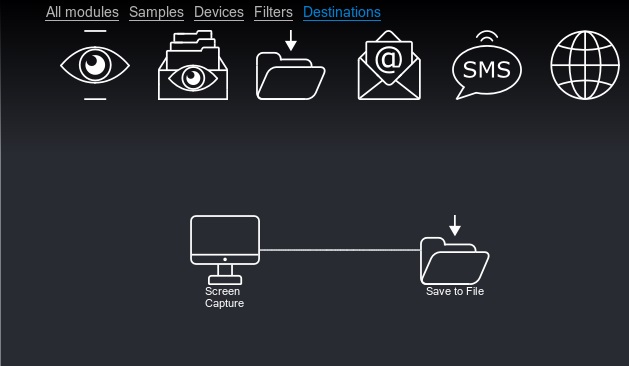
The Xeoma “Save to File” module allows you to configure for files:
- name,
- duration,
- format,
- storage location.
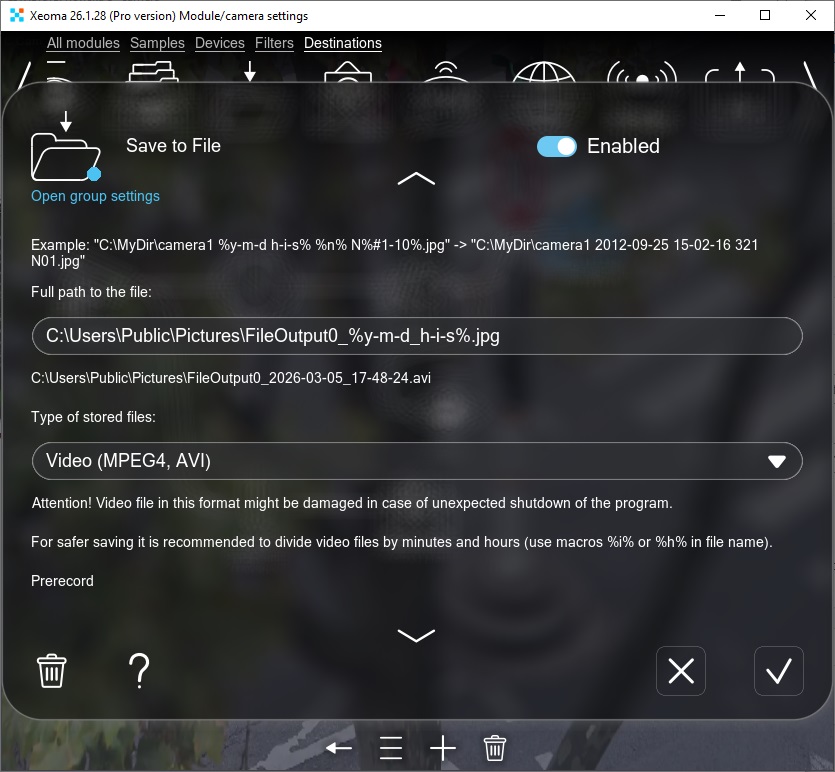
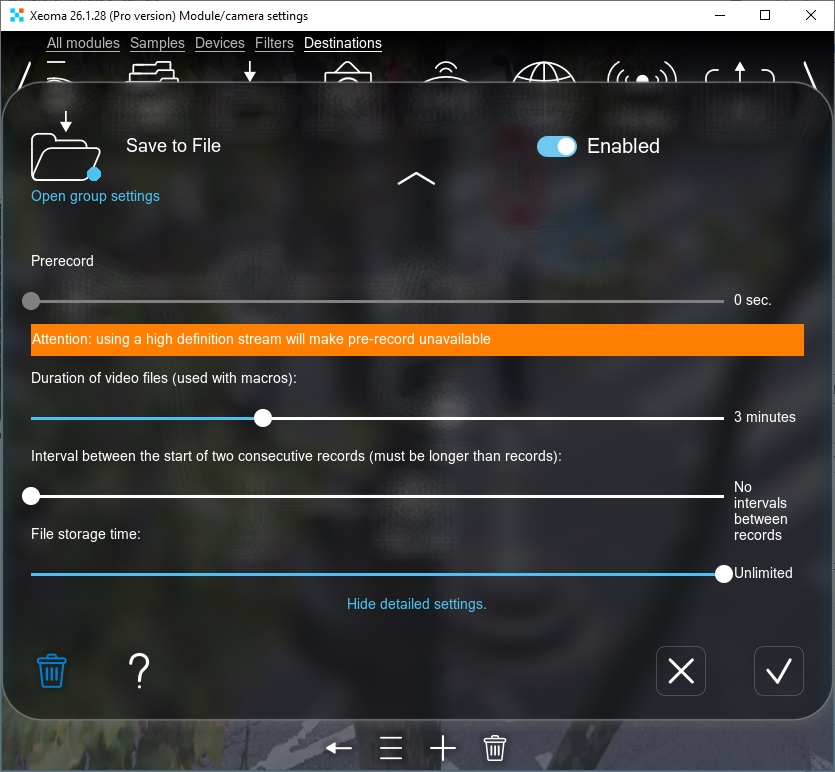
Files of the specified duration will be created at the chosen path. While they are being recorded, they will look like this:

When the recording is finished (finalized), it will look like this:

Step 11. Alternatively:
After setting up Screen Capture, you can start configuring the functions you need for this stream. All Xeoma modules are briefly described in the “User Manual”, and more details about the required function can be found via the links provided there. Instructions on working with modules are shown in the video “Xeoma Modular System”.
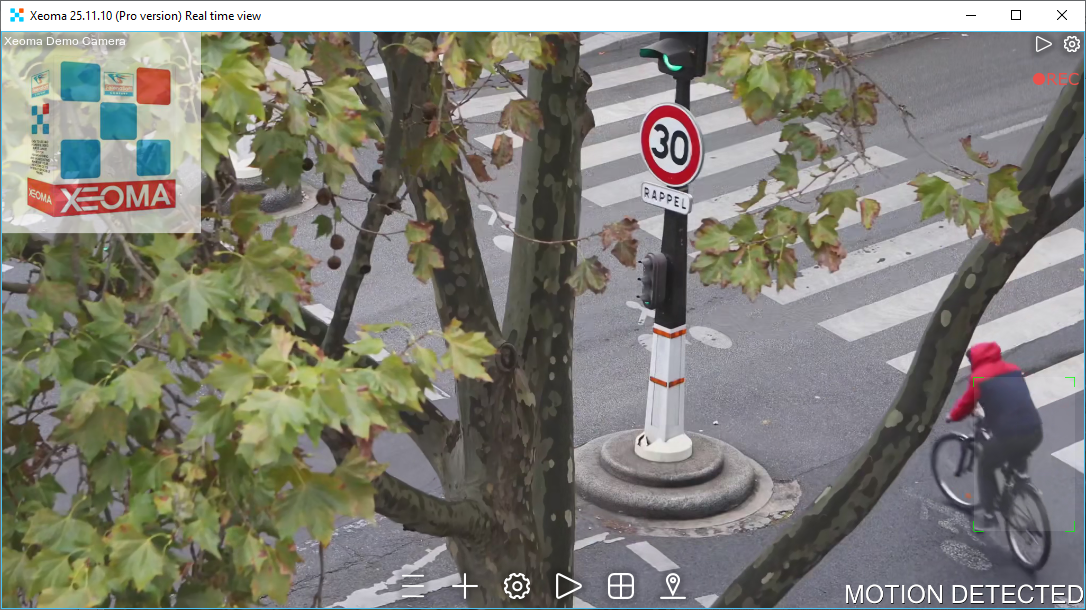
You want to try Xeoma, but you don’t have a camera? No problem! Xeoma has everything you need for video surveillance — including a free demo camera. Use it to test the program and its features.
To do this, you only need to follow a few simple steps.
Step 1. Open the Xeoma website
On your computer, open the official Xeoma website. In the top panel of the site, find the “Download” tab and go to it.
Step 2. Choose the required version
You will immediately be offered a Xeoma download for the operating system of the device from which you accessed this page. However, if the system was detected incorrectly or you want to download Xeoma for another computer, manually switch to the tab with the required operating system by clicking on it (“1” in the illustration below).
You can use either the “Official version” or the “Beta version” option (“2” in the illustration below).
After choosing the required option, click the “Download” button next to it.
Step 3. Locate the downloaded file
Xeoma will be saved to the folder that is set for downloads in the browser you are currently using. In many modern browsers, a pop-up window like this appears, which you can click to go to the folder with the file.
Step 4. (For Linux and MacOS) Extract the archive
For MacOS and Linux, the downloaded archive needs to be extracted. See the step-by-step instructions for Mac here, and for Linux here.
For Windows, extraction is not required: an executable file is downloaded immediately.
Step 5. Launch Xeoma
Launch Xeoma like any other program on your computer — usually by double-clicking the left mouse button, or by selecting the file and pressing the Enter key on your keyboard.
Step 6. Add a demo camera
You can add a demo camera directly from the welcome window that appears when you first launch the program:
If you accidentally closed this window or are simply launching Xeoma not for the first time, you can add a demo camera to the screen from the + menu in the bottom panel:
The test camera is added with a chain of the most popular modules and is perfect for trying out video surveillance capabilities with Xeoma. You can use this chain as is or reconfigure it: add or remove modules to enable exactly the functions you need. In our video “Xeoma Modular System”, we explain how to work with the Xeoma modular system, and in the Xeoma User Manual you will find a detailed list of all modules and other Xeoma features.
Try Xeoma for free! Enter your name and your email to send the license to in the fields below, and click the ‘Get Xeoma free demo licenses to email’ button.
We urge you to refrain from using emails that contain personal data, and from sending us personal data in any other way. If you still do, by submitting this form, you confirm your consent to processing of your personal data
The video surveillance software also has built-in public cameras, so you can work with them directly. To do this, you need to follow a few simple steps:
Step 1. Open the Xeoma website
On your computer, open the official Xeoma website. In the top panel of the site, find the “Download” tab and go to it.
Step 2. Choose the required version
You will immediately be offered a Xeoma download for the operating system of the device from which you accessed this page. However, if the system was detected incorrectly or you want to download Xeoma for another computer, manually switch to the tab with the required operating system by clicking on it (“1” in the illustration below).
You can use either the “Official version” or the “Beta version” option (“2” in the illustration below).
After choosing the required option, click the “Download” button next to it.
Step 3. Locate the downloaded file
Xeoma will be saved to the folder that is set for downloads in the browser you are currently using. In many modern browsers, a similar pop-up window appears, which you can click to go to the folder with the file.
Step 4. (For Linux and MacOS) Extract the archive
For MacOS and Linux, the downloaded archive needs to be extracted. See the step-by-step instructions for Mac here, and for Linux here.
For Windows, extraction is not required: an executable file is downloaded immediately.
Step 5. Launch Xeoma
Launch Xeoma like any other program on your computer — usually by double-clicking the left mouse button, or by selecting the file and pressing the Enter key on your keyboard.
Step 6. Add a camera template
When you first launch Xeoma, you will see the so-called Xeoma Welcome Window. It contains options that may be useful for those who are just starting to work with Xeoma. In this case, we recommend closing the welcome window for simplicity by clicking the cross in the upper right corner, i.e., without selecting any options in it.
Instead, we recommend clicking the “+” icon in the bottom panel to open the add camera dialog. Here you need to choose the option “Add random world camera”. After that, the public camera will be immediately added to the screen.
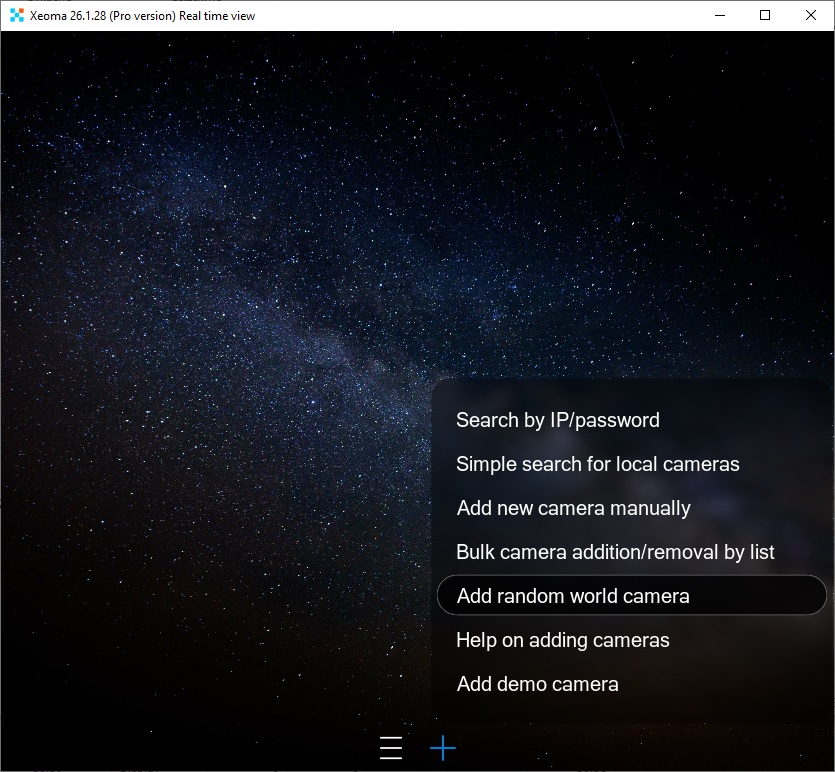
The public camera in Xeoma is added with a chain of the most popular modules and is perfectly suited for testing video surveillance capabilities with Xeoma.
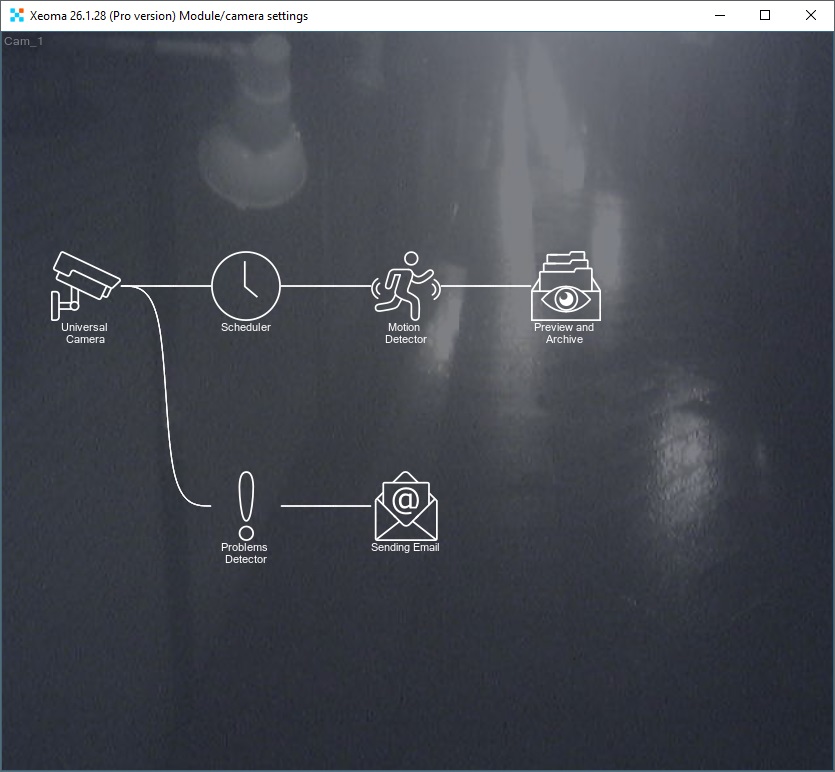
You can use this chain as is or reconfigure it: add or remove modules to enable exactly the functions you need. In our video “Xeoma Modular System”, we explain how to work with the Xeoma modular system, and in the Xeoma User Manual you will find a detailed list of all modules and other Xeoma features.
Alternatively, you can emulate a video stream from a public camera that can be used in another video surveillance solution. To do this, follow the tips from this section, as they are identical for a public camera and, for example, a laptop camera.
|
|
The public cameras available in Xeoma are taken from open sources not related to Xeoma. Your cameras used in Xeoma will not become public and will not be shown to other users — we do not have access to them. |
Some cameras around the world stop working over time, so you may need to change the public camera that Xeoma offers when adding the module. You can either wait 15 seconds for it to switch to another camera or speed up this process: click on the “Universal Camera” module in the chain to open the module settings. Move the “Frame Change Interval” slider to a lower value. Then you can move the slider to the far left position so the camera no longer changes.
 For more convenient testing, you can request a trial license here.
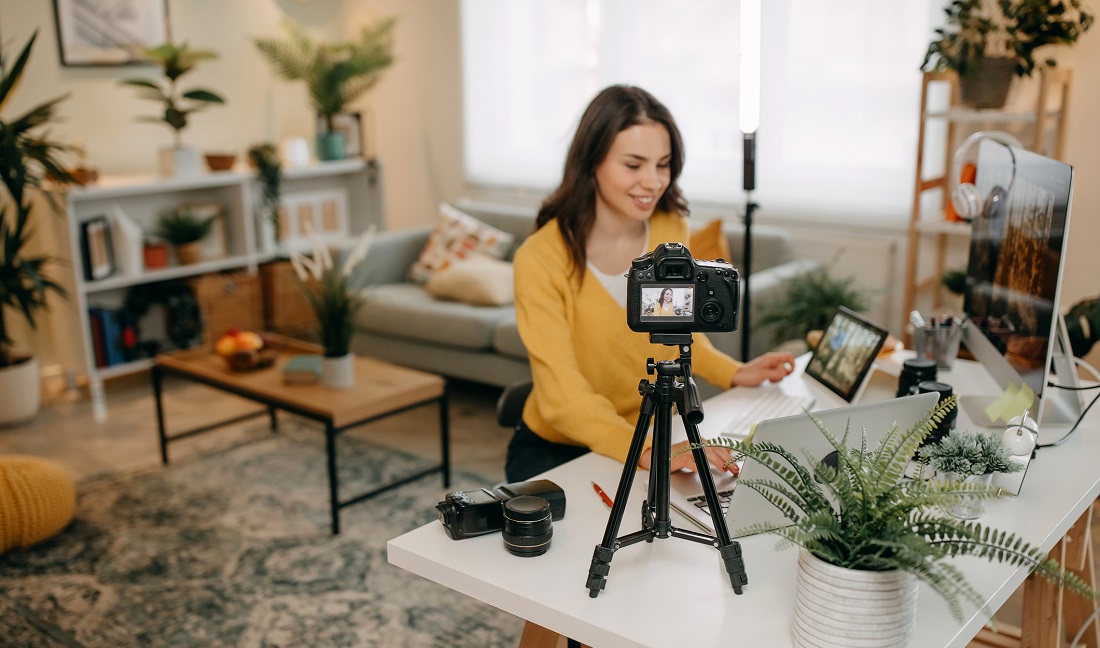
A photo camera is another answer to the question “What can replace a video surveillance camera?”. Indeed, an action camera can also be used for video surveillance. To do this, it needs to emulate a webcam.
To use a photo camera as a webcam for video surveillance, you need to consider mounting your camera and its power supply, and sometimes even cooling, since the device may heat up from continuous operation.
But most importantly, you need to study the camera’s capabilities: some work well just by connecting via a standard USB cable to a computer, as many modern cameras have a built-in webcam mode. Sometimes this method requires installing additional software (either provided with the camera by the manufacturer or third-party).
If connection via USB is not possible or works poorly, there is an option to connect the camera via HDMI — but in this case, a video capture device is needed to transfer the signal to the computer. This method may also require additional software or not — it depends on the capture card — but usually, the capture card alone is sufficient.
Below are the steps to follow:
9.1. USB Connection:
Step 1. Download and install software from the camera manufacturer’s website or a third-party program like Ecamm Live or SparkoCam.
Step 2. Connect the camera to the computer using a USB cable.
Step 3. Turn on the camera and select video recording mode.
Step 4. Open your video surveillance software and select your camera in the settings. Usually, it will appear as a webcam.
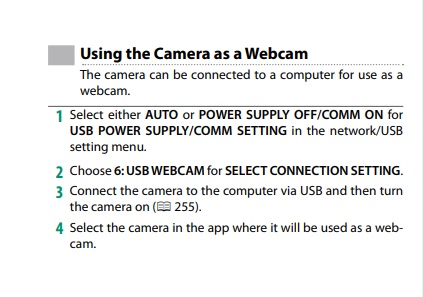
Excerpt from the Fuji camera manual on how to use it as a webcam
9.2. HDMI Connection:
Step 1. Purchase a video capture card.
Step 2. Connect the camera to the capture card via HDMI (usually “type D” or “micro” HDMI).
Step 3. Connect the capture device to the computer using a USB cable.
Step 4. Turn on the camera and select video recording mode.
Step 5. Open your video surveillance software and select your camera in its settings. Usually, it will appear as a webcam.
Professionals recommend setting the camera to output “clean” video on HDMI — without displaying information needed for photography. This setting is usually done once. Modern cameras (released in the last five years) typically have this option, but when buying a used older model, ensure it supports “clean” HDMI output.
We also want to note that if a separate capture device needs to be purchased, it may be worth considering buying a specialized surveillance camera instead. Unlike a photo camera, network cameras are designed for 24/7 operation, so they do not overheat or deteriorate under such conditions. It is quite possible to find a budget-friendly video camera. See this section below
Using USB and IP cameras as surveillance cameras is not unusual, but rather a standard and expected method; without it, the article would be incomplete. Special network cameras, also known as IP cameras, are most commonly used for video surveillance. This is because they provide convenient video signal transmission over existing network infrastructure.
Unlike analog cameras, which require coaxial cables and specialized recording equipment, IP cameras convert video to digital format and transmit it over the network, making it easy to integrate into Video Management Systems (VMS), provide remote access, and store recordings on network storage (NAS) or in the cloud. Additionally, IP cameras often have advanced features such as built-in analytics, motion detection, two-way audio, and high resolution, making them the optimal choice for modern security systems.
Almost all video surveillance solutions work with network IP cameras, and some — like Xeoma — also support USB and analog cameras. With the “right” software, having a standard standalone webcam, you can connect it to a surveillance system and even perform video analytics from intrusion detection to emotion recognition and gaze tracking.
IP cameras and even USB cameras suitable for video surveillance can be quite affordable. The market offers a wide range of models with various features and price points. For basic monitoring at home or a small office, it is entirely possible to find a quality IP camera or USB camera with good resolution and necessary features at a reasonable price. The main thing is to correctly identify your needs and not overpay for features you don’t require. It is important to remember that security does not have to be expensive – affordable solutions can provide the necessary level of protection.
If you are open to purchasing a specialized surveillance camera but are unsure which one to choose, our guide “How to Choose a Video Surveillance Camera” will help you.
In the era of digital technology, video surveillance has become accessible to everyone. In the past, organizing a security system required specialized cameras and expensive equipment, but today the options are much broader. You can purchase a specialized IP camera, but there is also an alternative path – using readily available devices. A laptop camera, an old smartphone, a monitor webcam, or even a TV – all of these can be turned into a surveillance system! Thanks to our guide, you have learned how to use these familiar devices to ensure the security of your home or office, as well as how to create the illusion of surveillance using pre-recorded videos.
The possibilities of the modern world allow for a flexible approach to organizing security, adapting it to your budget and needs. Do not assume that quality video surveillance must be expensive. The key is to be resourceful and use available tools. Ultimately, what matters is not just having a camera, but being aware that you are taking steps to protect yourself and your loved ones.
April 10, 2026
Also read: Running Xeoma VSS on Android TV