
Xeoma’s Face Detection And Face Recognition:
Setup Instruction

Among other features Xeoma enables your camera to detect people’s faces and recognize specific faces. As Xeoma is unique in its flexibility, Face Recognition also offers several ways to recognize faces. Please note that both options are independent of each other and have separate databases.
Face Recognition can also store a full list of people within its range. This comes especially useful in monitoring staff activity or creating automatic security systems preventing trespassing. It can be set to ignore low numbers of people or stop recording when a certain number is exceeded. Don’t want the camera to detect people that simply pass by? Want to make sure that Xeoma doesn’t mistake one person for another?
Default chain with the Face Recognition module
You can do it via the module “Face Recognition”. Put it in your chain so that it is connected to the “Preview and Archive” (this is essential to ensure its proper operation).
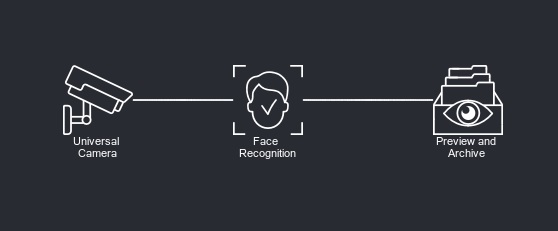
Starting to work with the Face Recognition module
Click on the Face Recognition module to open its settings:
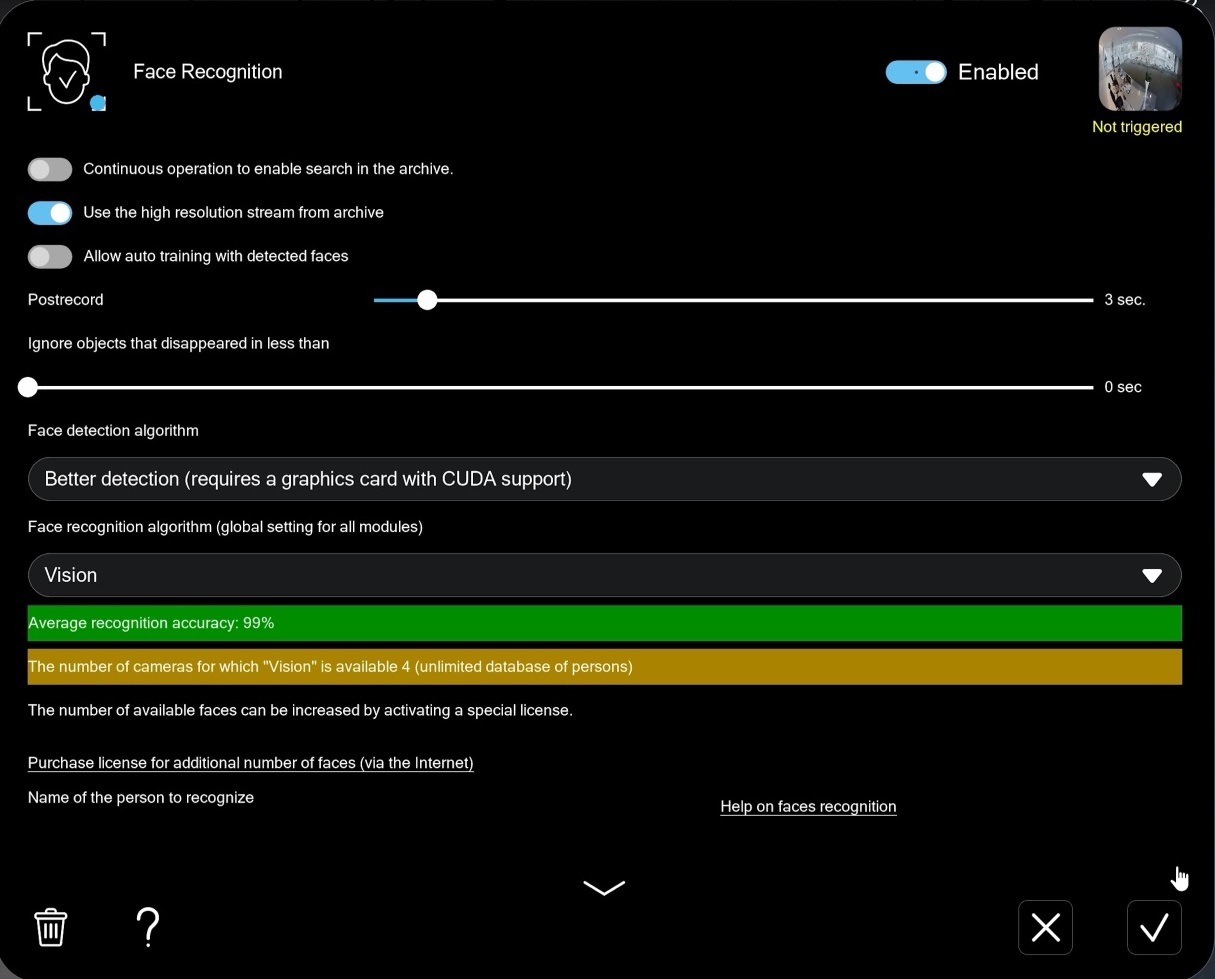
The first step is setting up the Face Recognition module is choosing the recognition algorithm, a combination of settings used to recognize faces.
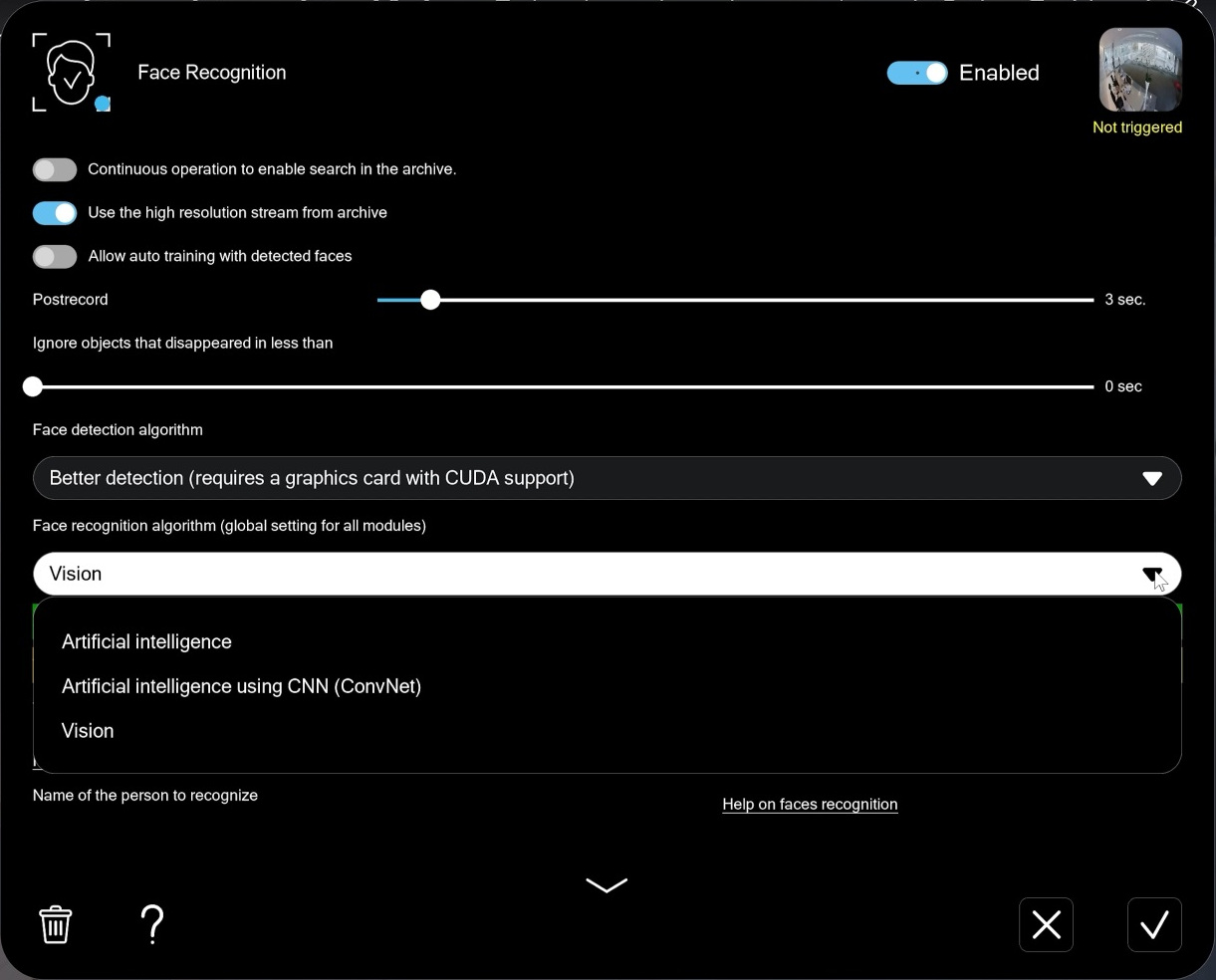
You will see three options in the “Face recognition algorithm (global setting for all modules)” dropdown menu:
- The ‘Artificial intelligence‘ algorithm is included in Xeoma Pro and provides around 90% accuracy of recognition. It works well for tasks like employee time tracking in offices or production facilities, access control, and intrusion detection in protected areas.
- The ‘Artificial intelligence using CNN (ConvNet)‘ algorithm is the same model, adapted for recognizing Asian-type faces.
- The ‘Vision‘ algorithm is Xeoma’s flagship face recognition model. It delivers 99% accuracy and can recognize faces in difficult conditions, at sharp angles, in low light, and even when a person’s appearance has changed – for example, with headwear, sunglasses, or even a mask. ‘Vision’ is ideal for large-scale tasks, such as access control at major enterprises, suspect detection in public places, and counting unique visitors in shopping centers.
Please note: the ‘Vision’ algorithm requires additional resources to be downloaded. Downloading starts automatically after you select the algorithm, and may take more than 10 minutes.
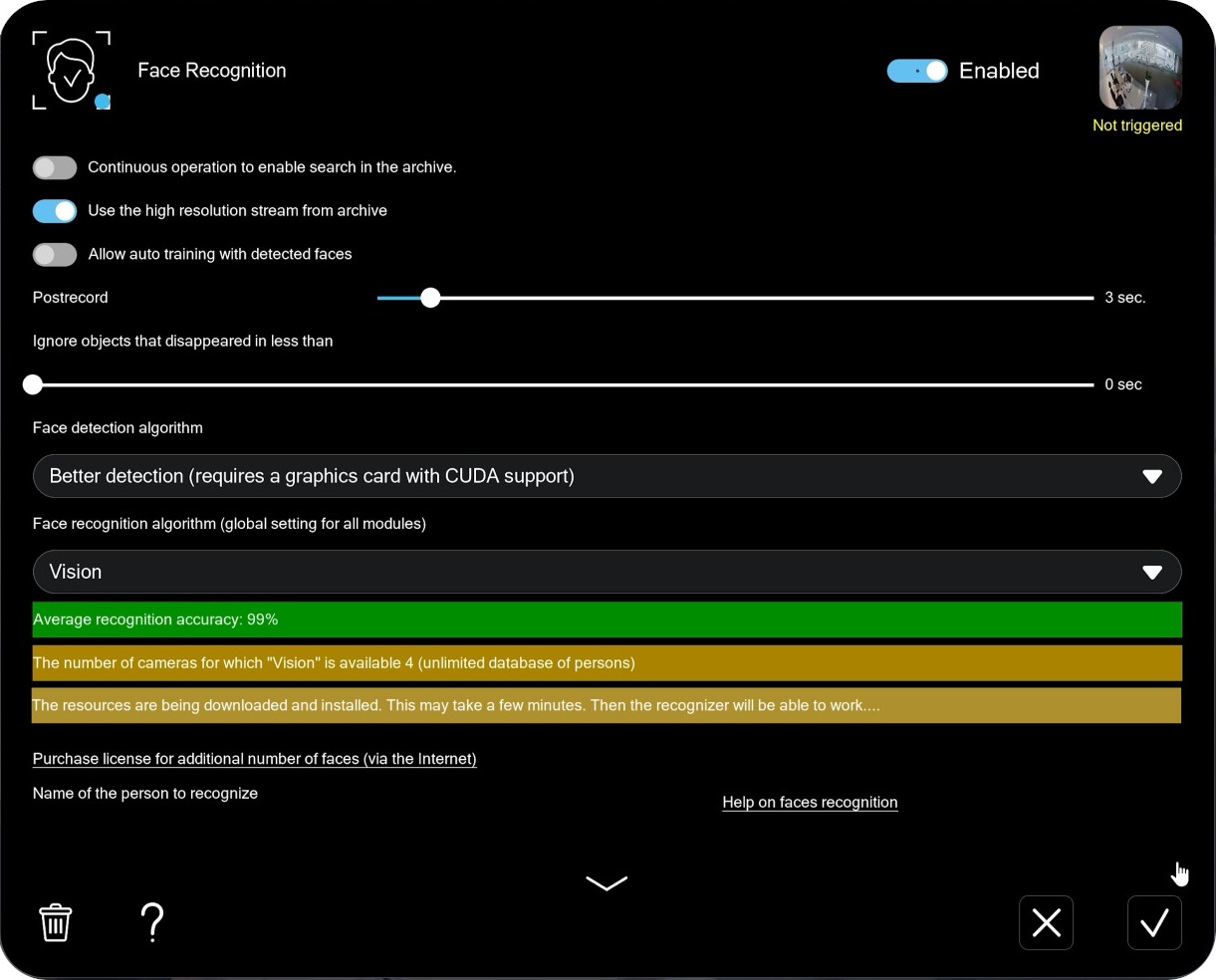
Additional settings in the Face Recognition module
Next step is configuring the module’s basic settings. No matter which algorithm you choose, the core settings will be similar.
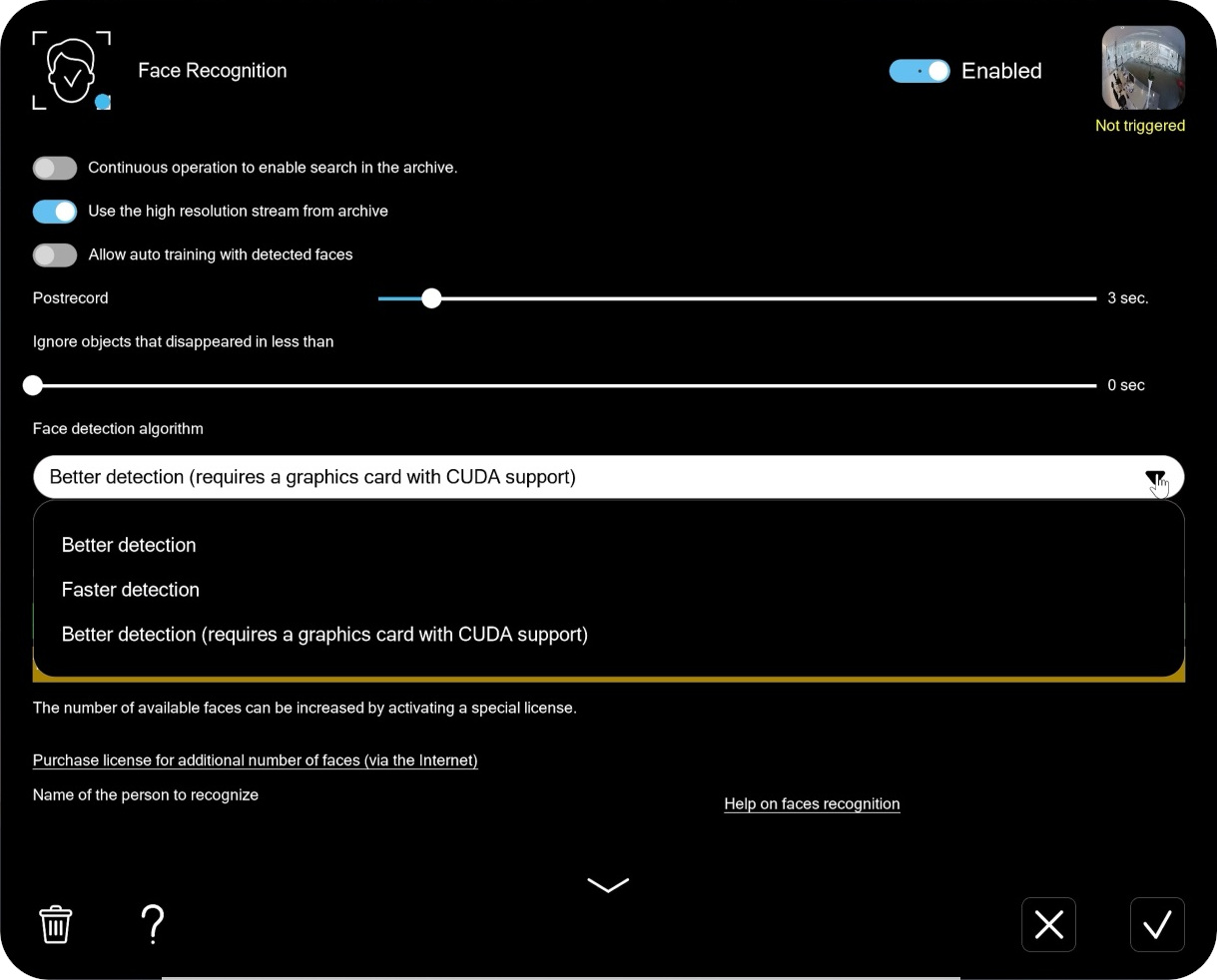
Face detection algorithm: First, select the ‘Face detection algorithm’. This setting affects how quickly and accurately faces are detected in a frame.
- If your system has a CUDA-supporting graphics card, the corresponding option – Better detection (requires a graphics card with CUDA support) – will appear in the download list. Choose it for maximum speed and accuracy.
Otherwise select based on how long faces stay visible in the frame.
- If people pass by quickly and faces are visible for no more than 1.5 seconds, choose Faster detection.
- If faces typically remain visible for 1.5 seconds or longer, choose Better detection.
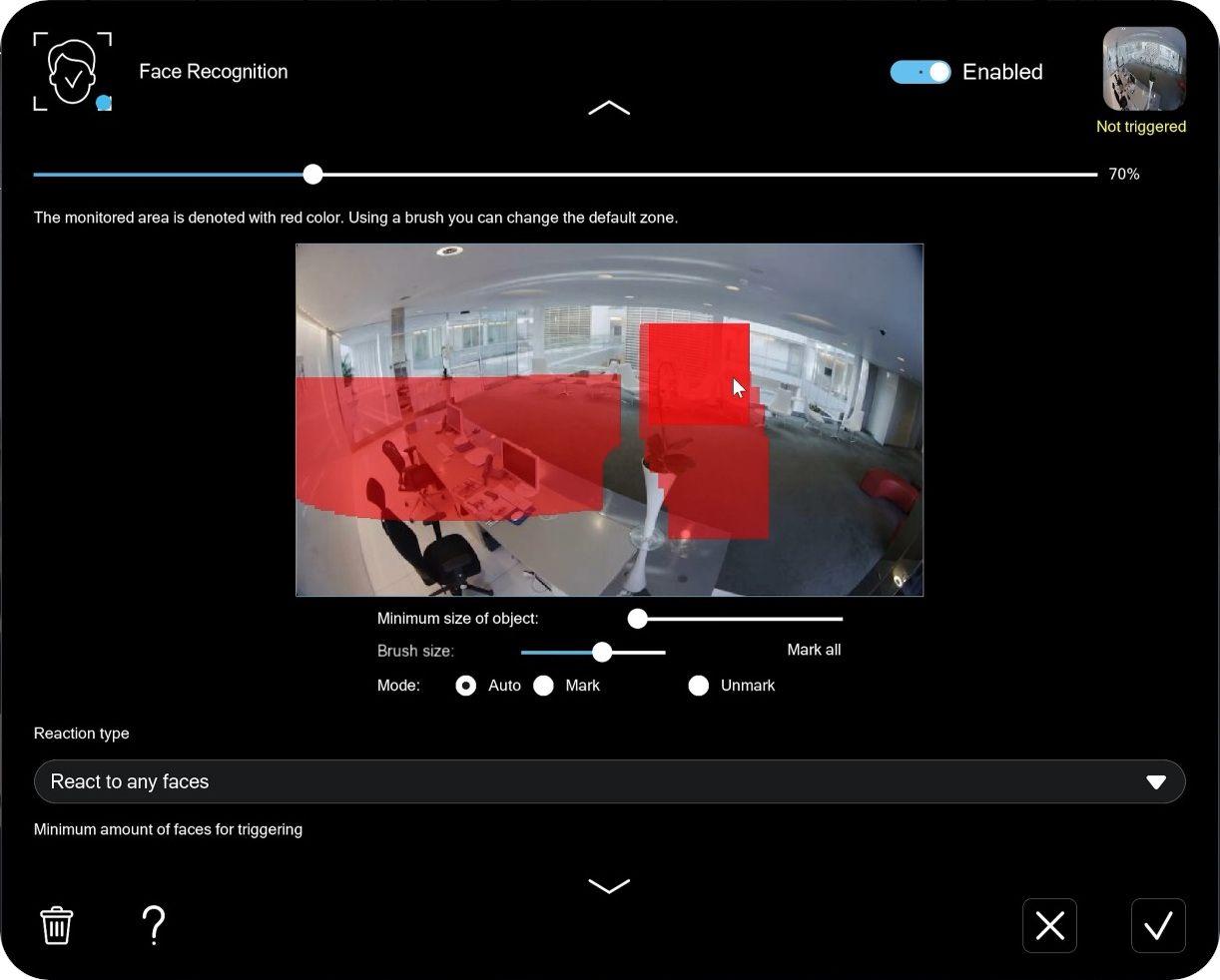
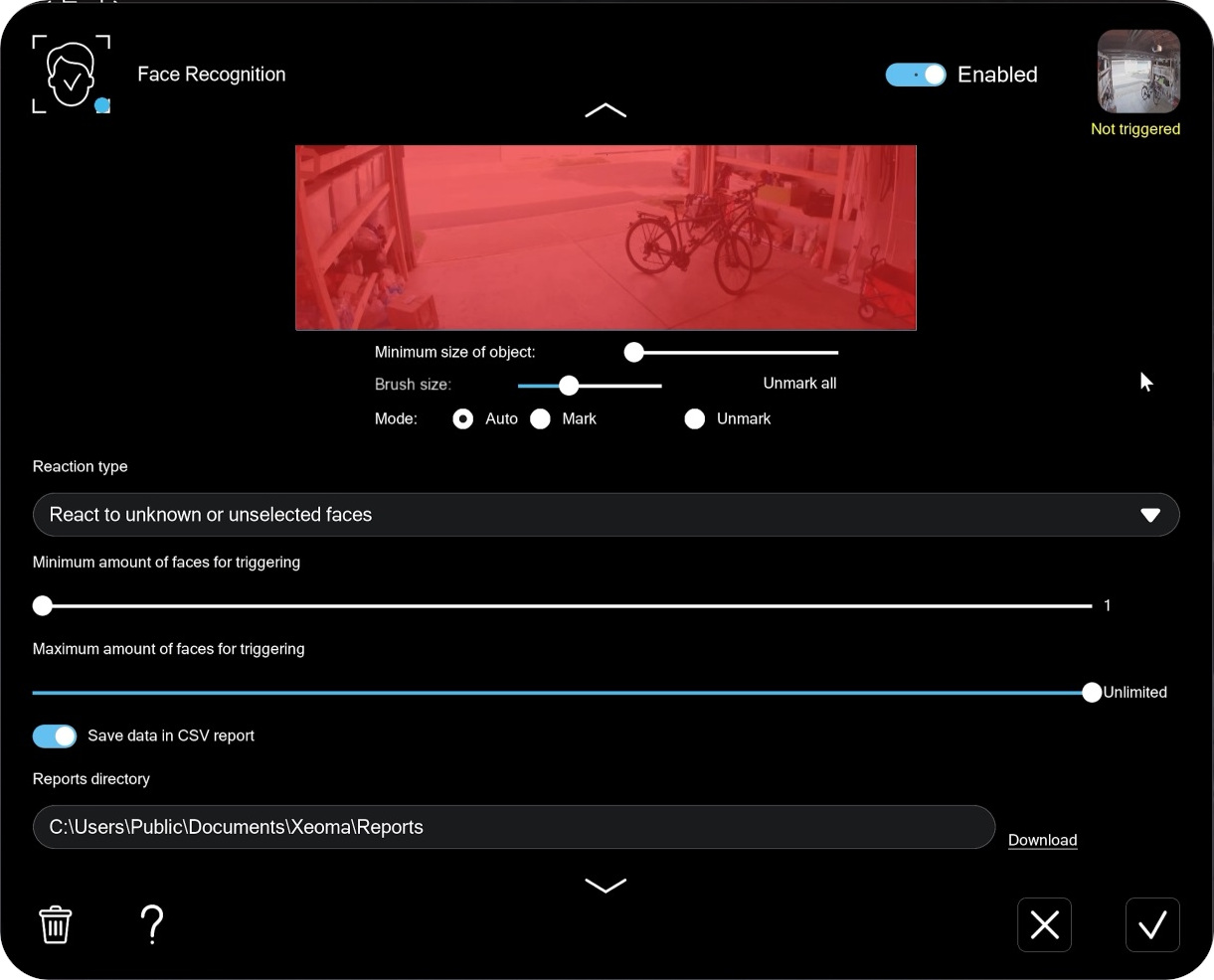
Monitoring zone: Next, scroll down and mark the part of the frame where Xeoma should look for faces. Click ‘Unmark all‘, then select the detection zone in the window. If needed, adjust the brush size using the slider. Switch the brush to Unmark mode to erase redundant drawing, or use ‘Mark all‘ to paint the entire frame.
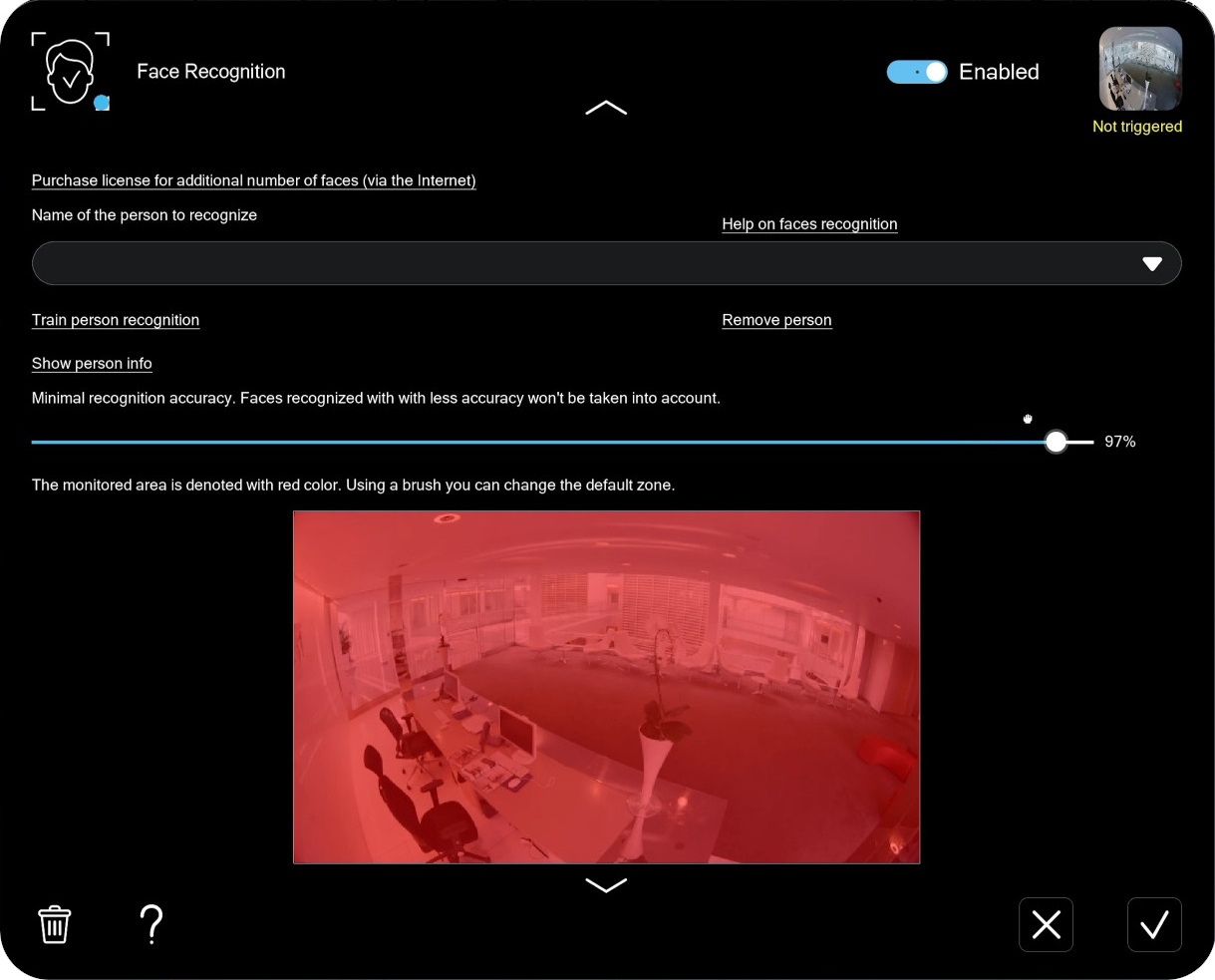
Minimum recognition accuracy: Then set the minimum recognition accuracy. For example, if you set it to 90%, any matches below that threshold will be ignored. For ‘Artificial intelligence’ recognition algorithm, we recommend an 90-95% accuracy, and a 95-99% for Vision.
Reaction type: Now, open the ‘Reaction type’ dropdown menu and choose when the face recognition module should trigger.
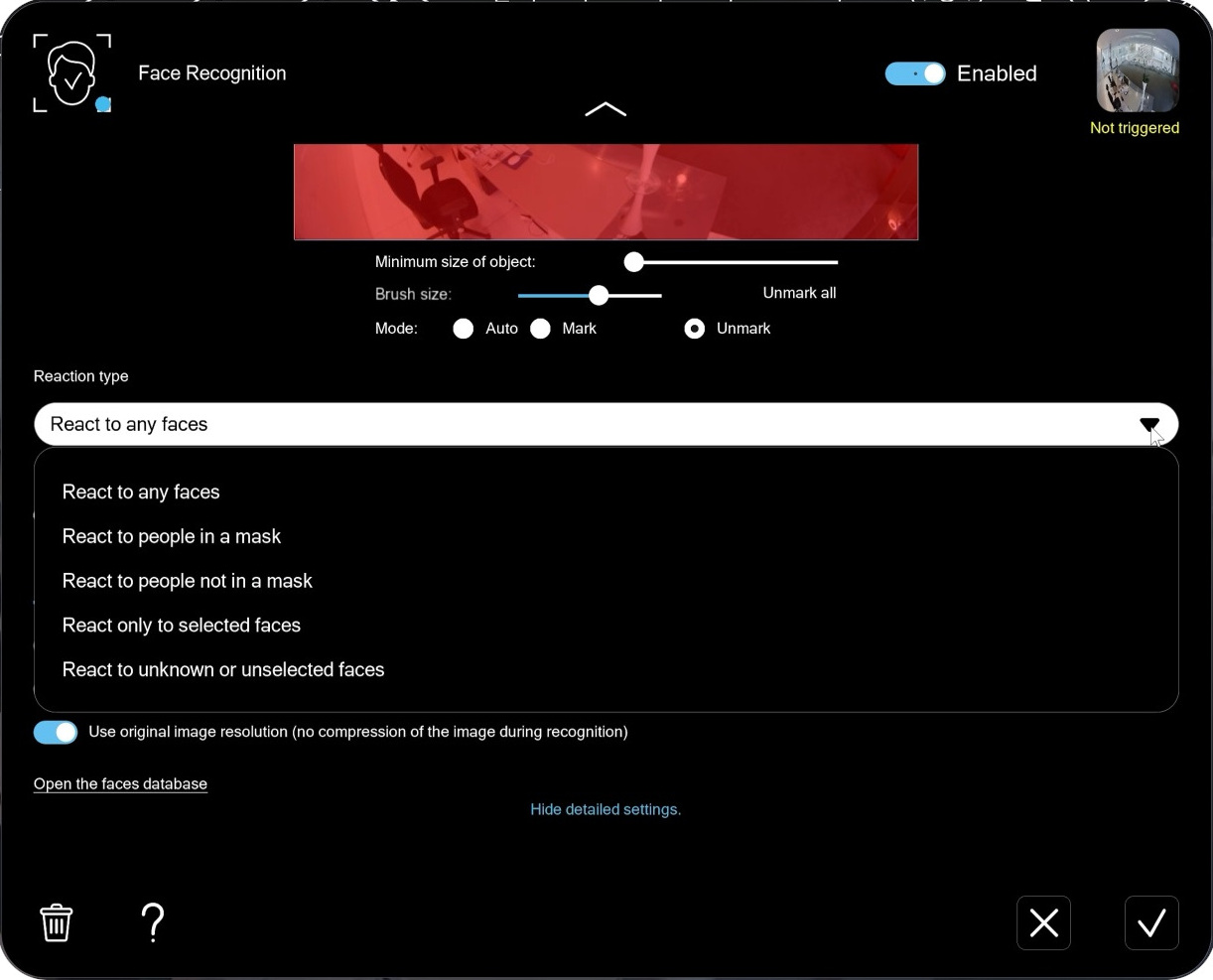
- React to any faces works like a face detector and triggers whenever any face appears in the frame.
- React only to selected faces triggers only when a face from the database appears.
- React to unknown or unselected faces triggers when faces that are not in the database or are disabled in the stored list appear in the frame. This mode is mainly used to detect unauthorized entry into protected areas.
- React to people in a mask triggers only when a face with a medical mask on appears in the frame. Designed for medical mask compliance monitoring in healthcare facilities.
- React to people not in a mask triggers when there are faces without a medical mask are detected. Designed for medical mask compliance monitoring in healthcare facilities
Please note: ‘React to people in a mask’ and ‘React to people not in a mask’ require a corresponding license.
Use the high resolution stream from the archive: After choosing the ‘Reaction type’, scroll back up. The ‘Use the high resolution stream from the archive’ option determines which stream is used for face search and recognition – high resolution or low resolution. If maximum recognition quality is important, enable the switch. Disabling it can significantly reduce server load with a moderate drop in accuracy.
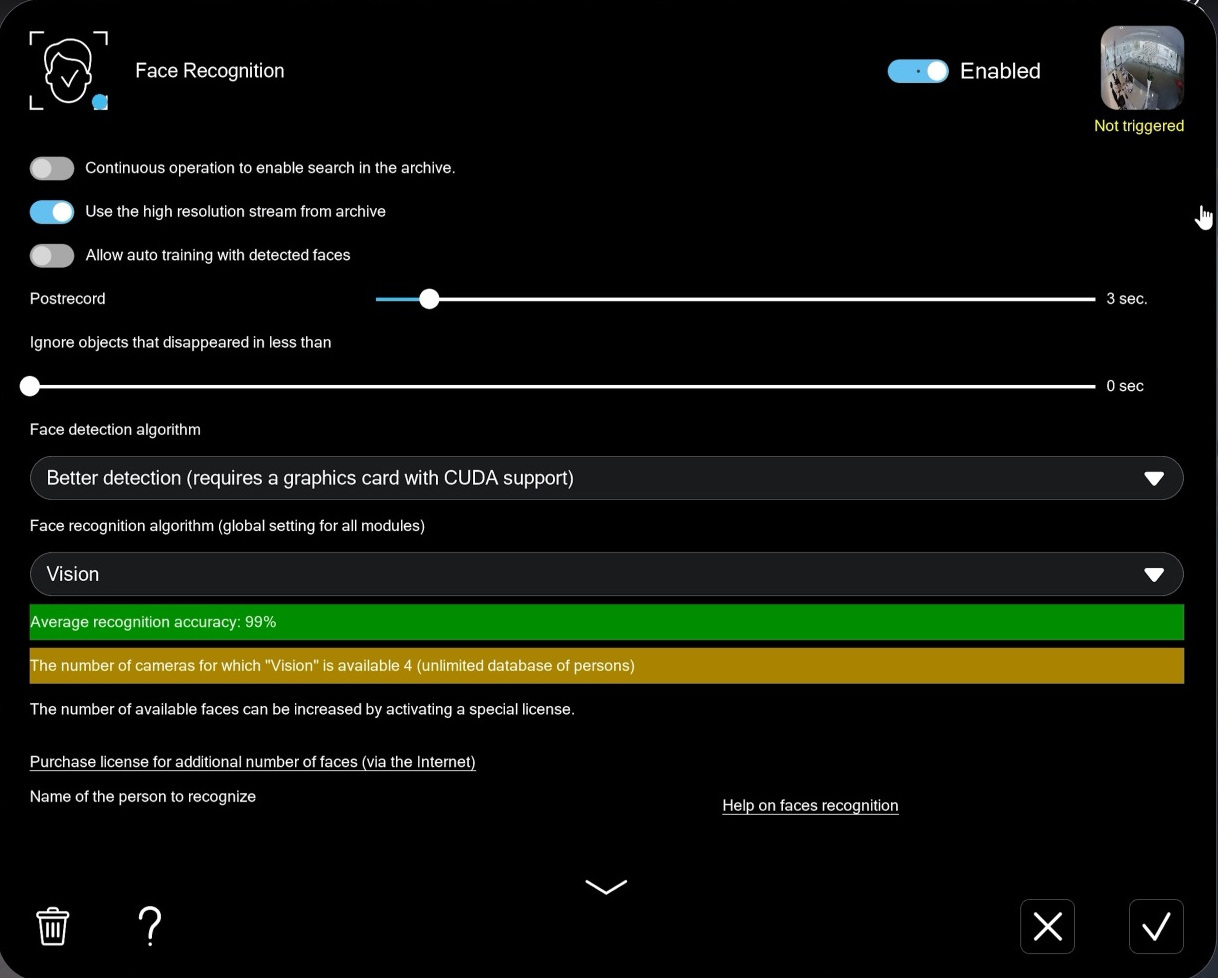
Postrecord: The ‘Postrecord’ slider controls how long the face recognition module stays triggered after the target face disappears from the frame. This is commonly used for archive recording: when a person leaves the frame, recording continues for the specified time.
Important: for this scenario, the Preview and Archive module must be connected directly to the Face Recognition module.
Ignore objects that disappeared in less than: The ‘Ignore objects that disappeared in less than’ slider helps reduce false recognitions by ignoring faces that disappeared too quickly. For example, if it’s set to 1 second, a face must remain in the frame for at least 1 second to be recognized. Otherwise, it will be ignored. We recommend leaving it at 0, since people often pass cameras quickly.
Use original image resolution (no compression of the image during recognition): Scroll down again. The ‘Use original image resolution’ option controls the image quality used for recognition. If enabled together with ‘Use the high resolution stream from the archive‘, recognition accuracy will be maximized, but server load will increase. If you disable it, Xeoma can compress images reducing server load at the cost of a slight drop in accuracy.
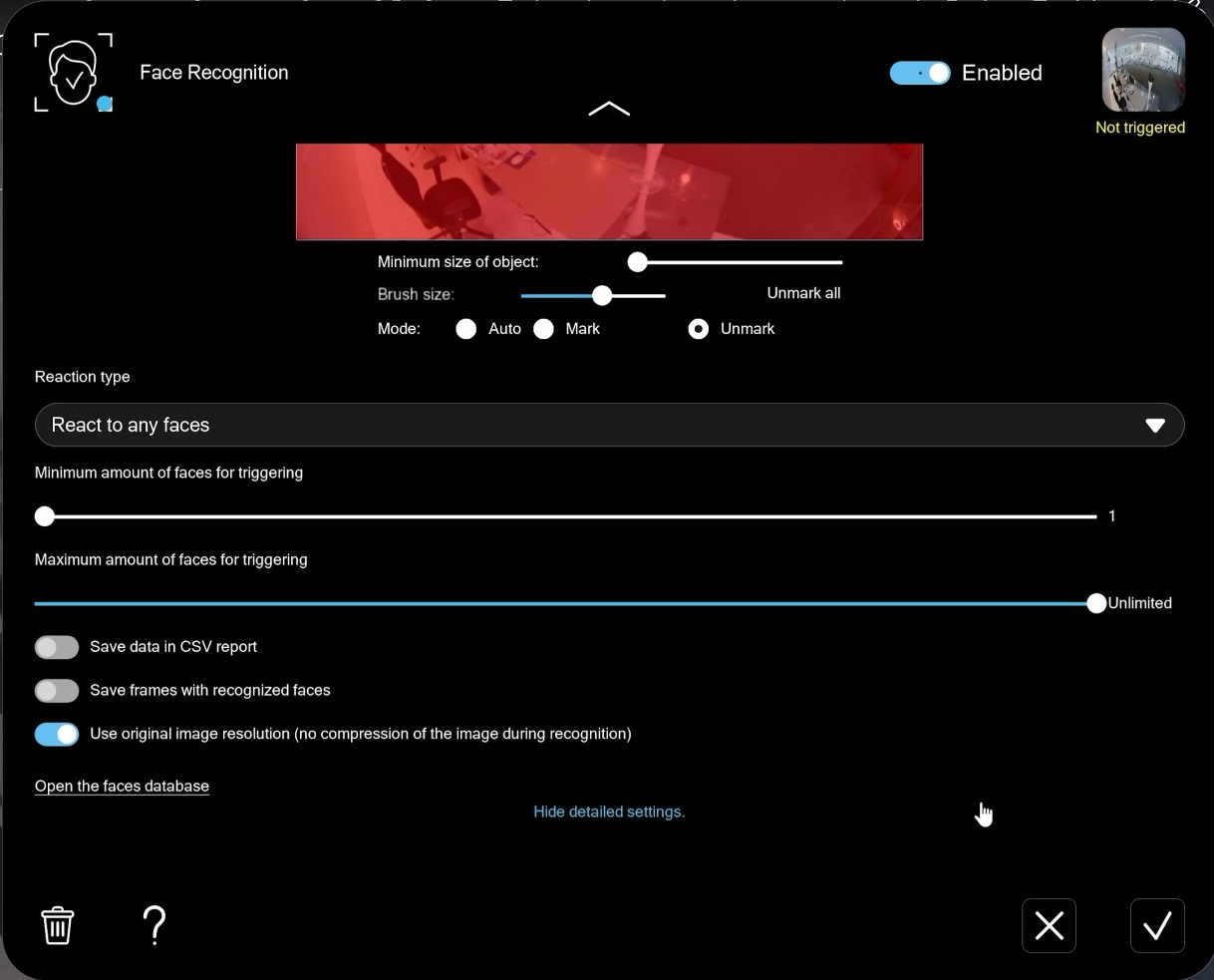
Minimum amount of faces for triggering / Maximum amount of faces for triggering: These sliders determine how many faces must be present for the module to trigger. Adjust them if you want to detect moments when several faces appear or ignore moments when too many faces are present. Otherwise, keep the defaults.
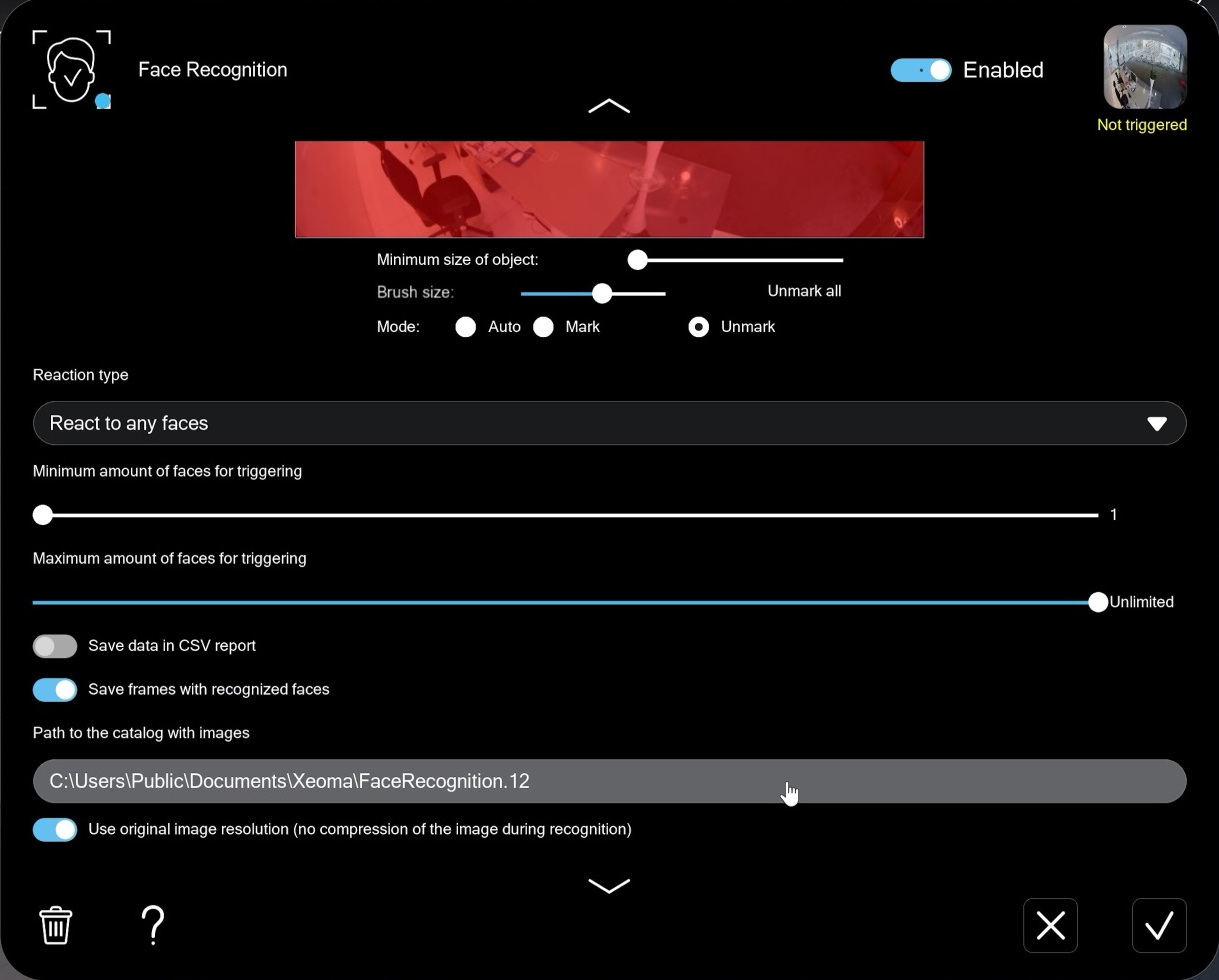
Save frames with recognized faces: The ‘Save frames with recognized faces’ option is straightforward: every recognized face will be saved as a JPG to the path specified in the corresponding field. If you need a text report on module activity, enable
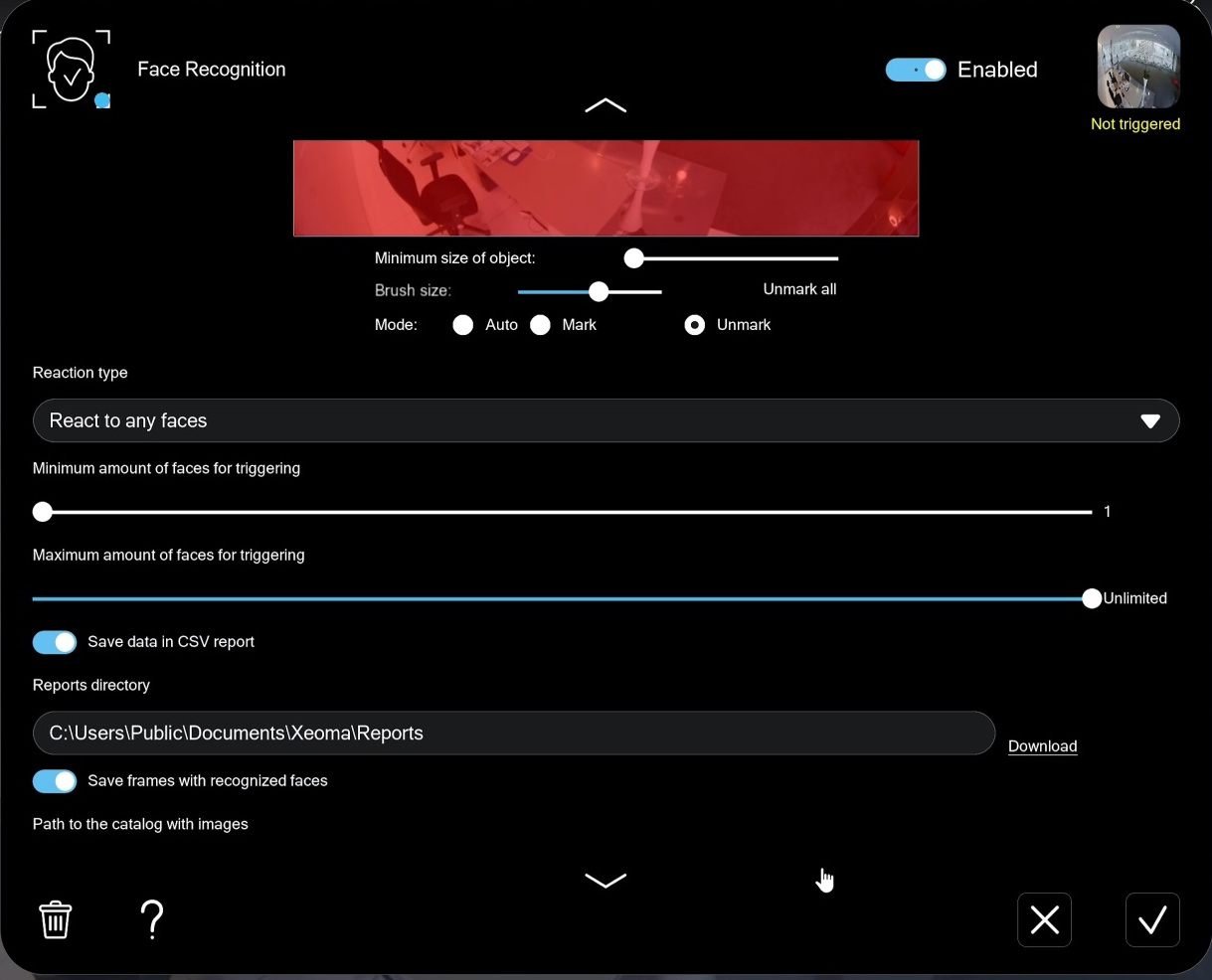
Save data in CSV report: If you need a text report of module activity, enable ‘Save data in CSV report’. Xeoma will create a CSV file in the selected folder with trigger times and and the names of recognized people if those faces are in the database.
Continuous operation to enable search in the archive: With this option enabled, faces are recognized in real time, but the ‘Search faces by photo’ option becomes available in the archive.
Allow auto training with detected faces: This is a separate operating mode that can be used to count unique visitors and apply the collected data for marketing purposes. See more here
Adding faces to the database
There are several ways to add faces to the Xeoma database.Method 1.
1. Scroll to the very bottom of the ‘Face Recognition’ module settings.
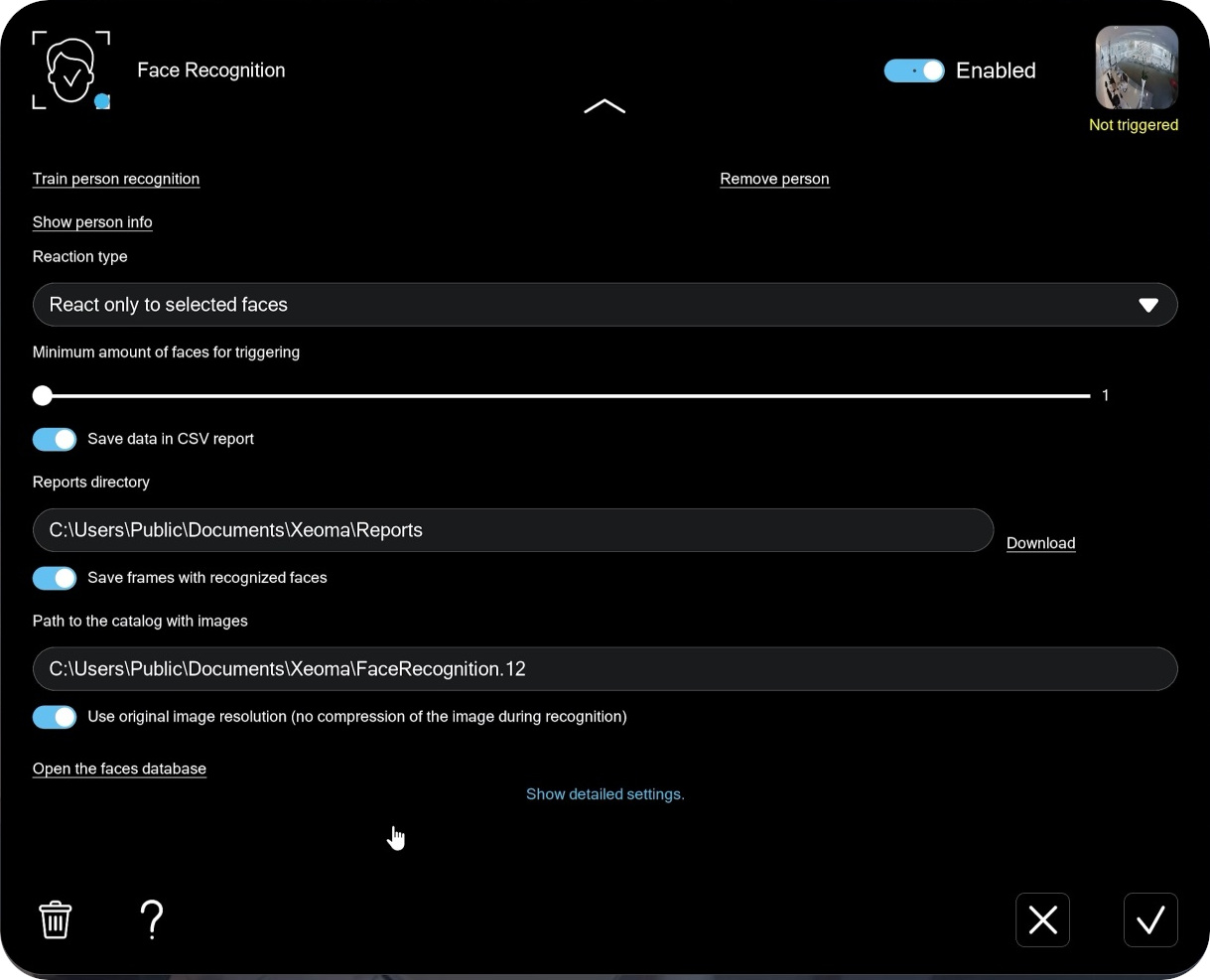
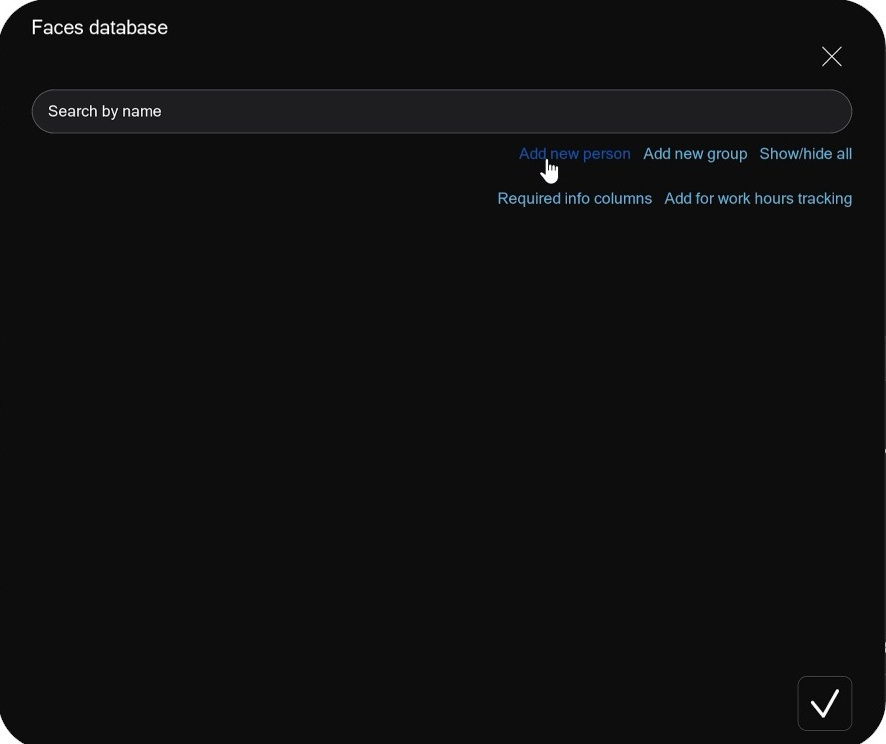
2. Click ‘Open the faces database’, then click ‘Add new person’.
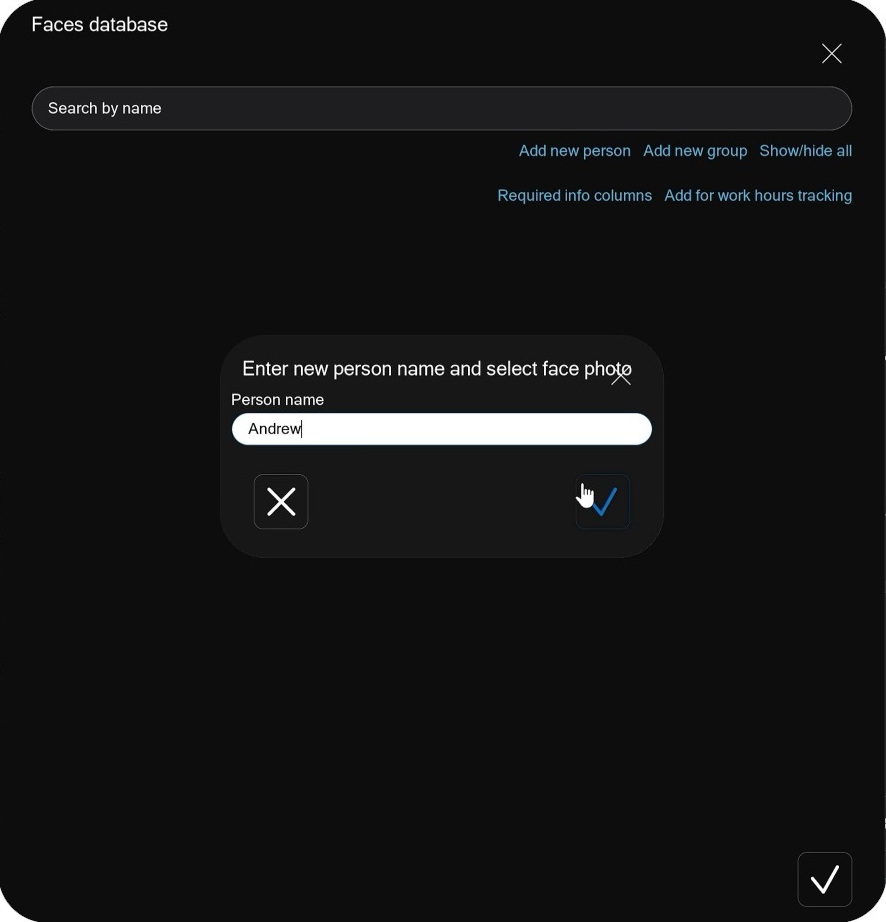
3. Enter and save the person’s name.
4. Then select their photo from the desk.
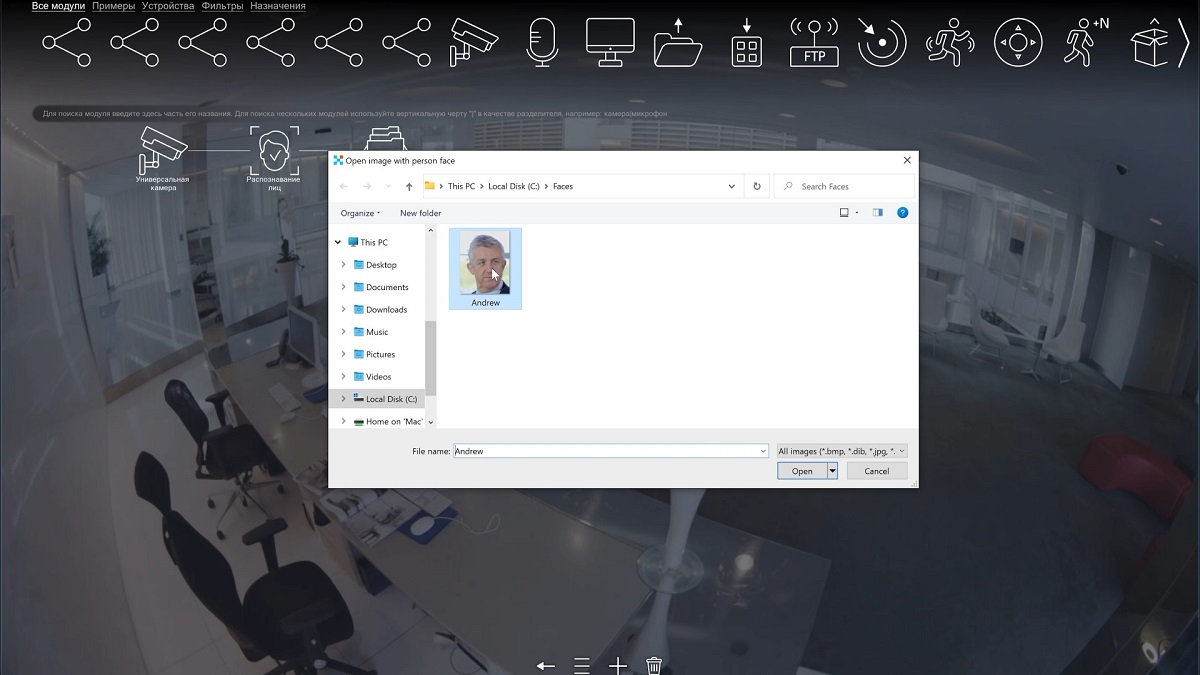
5. If a face is detected in the photo, it will be added to the database.

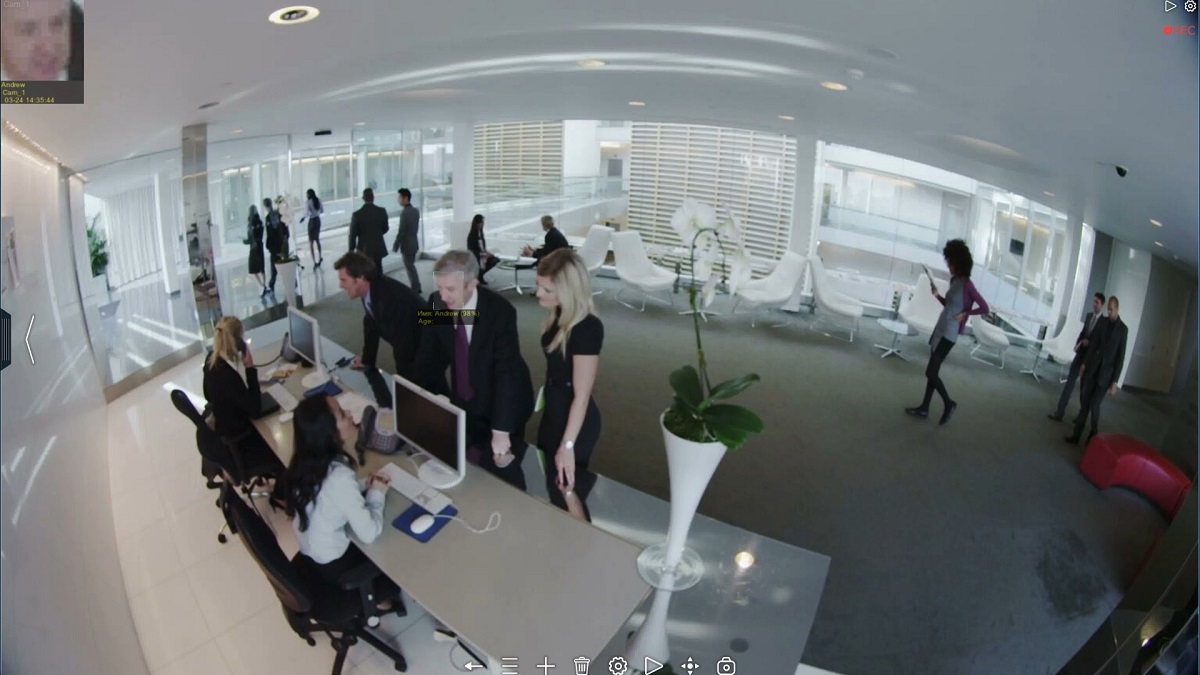
Method 2.
1. Make sure a face is currently visible in the frame.
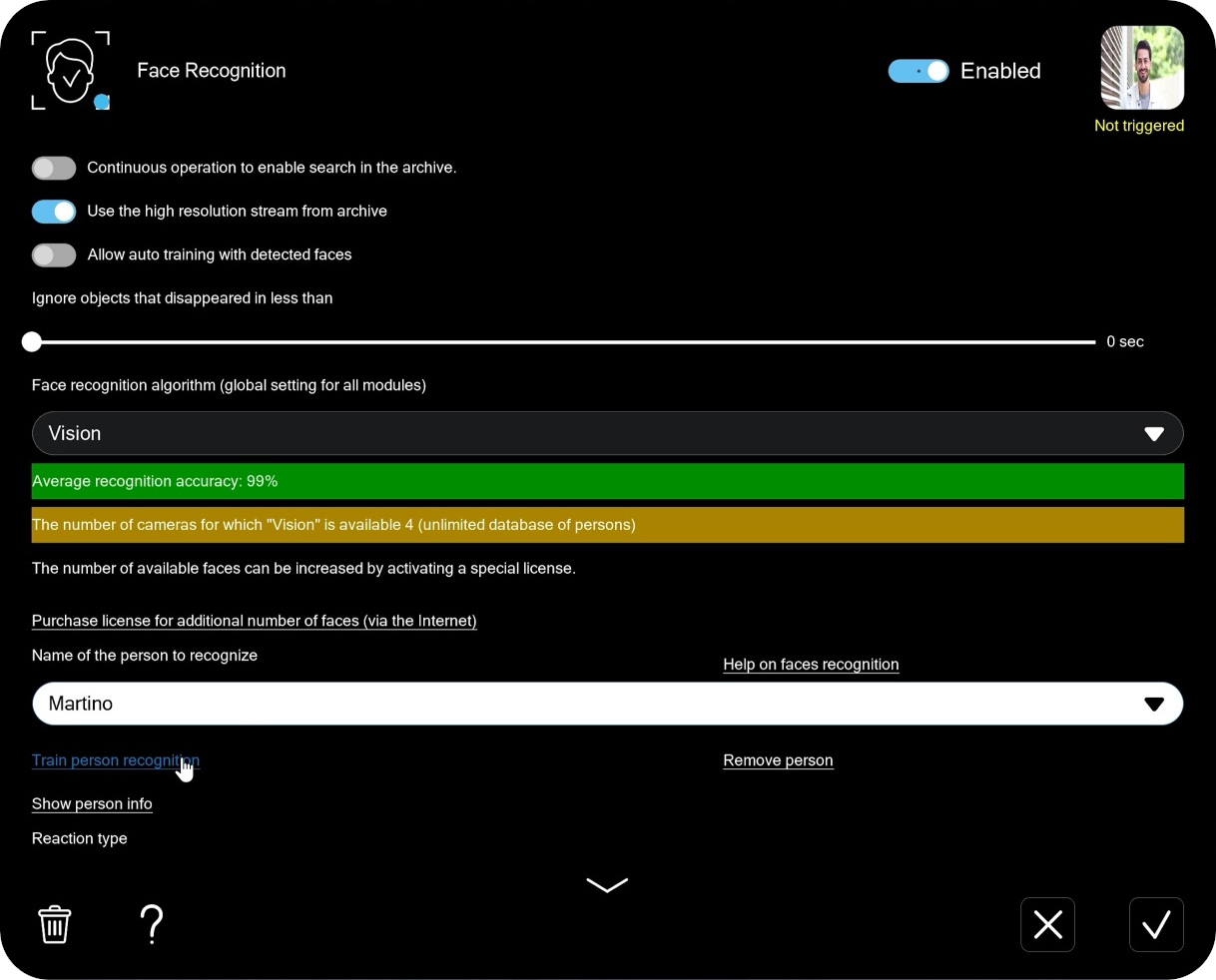
2. Open the ‘Face Recognition’ module’s settings. Enter the person name in the ‘Name of the person to recognize‘ and click ‘Train person recognition‘:
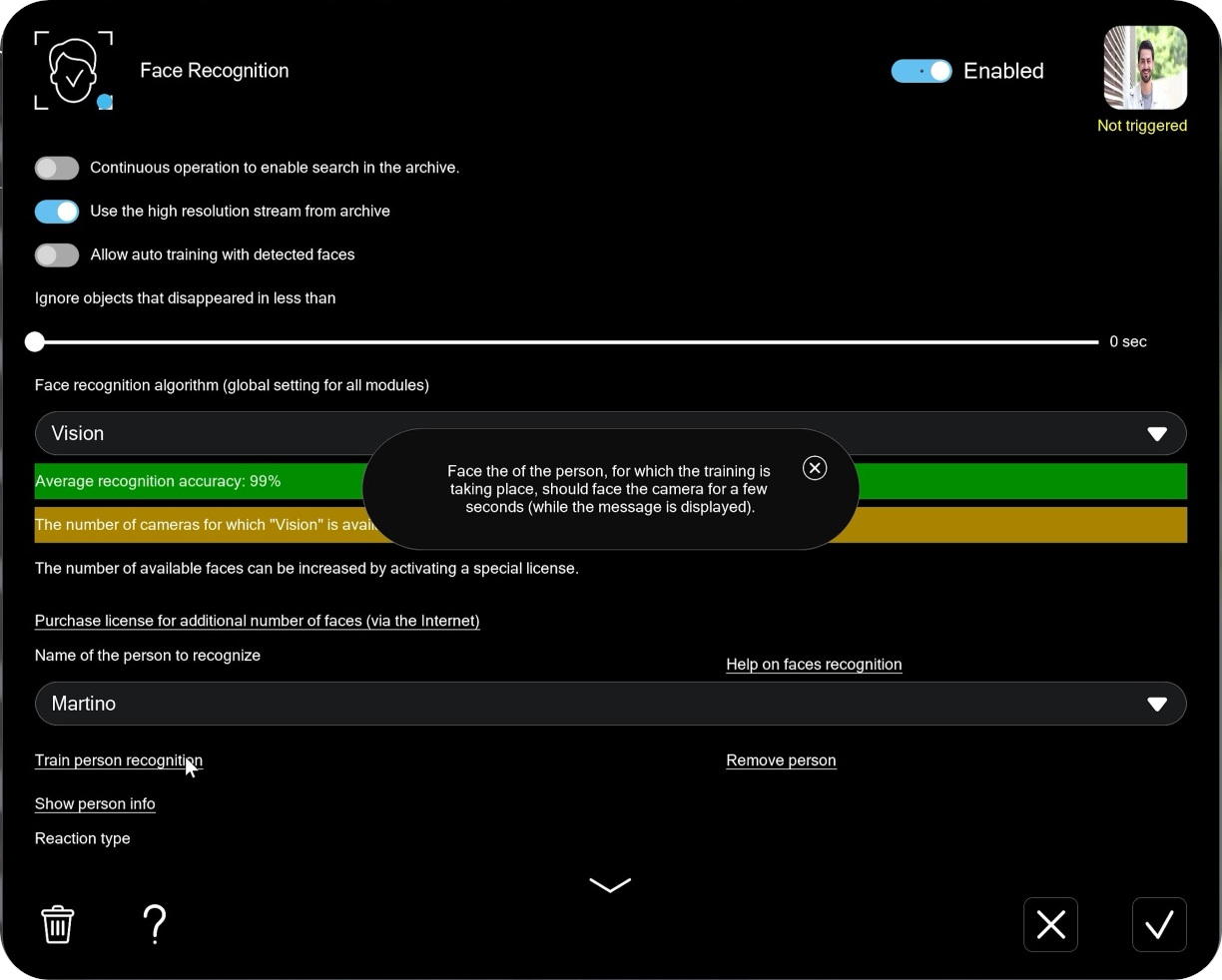
3. Wait until Xeoma detects the face and adds it to the database. During this time a warning prompt will be displayed.
4. When the warning prompt disappears, you can check that the face is now present in the database. Scroll down to the ‘Open the faces database’ – you will see the person name added to the list.
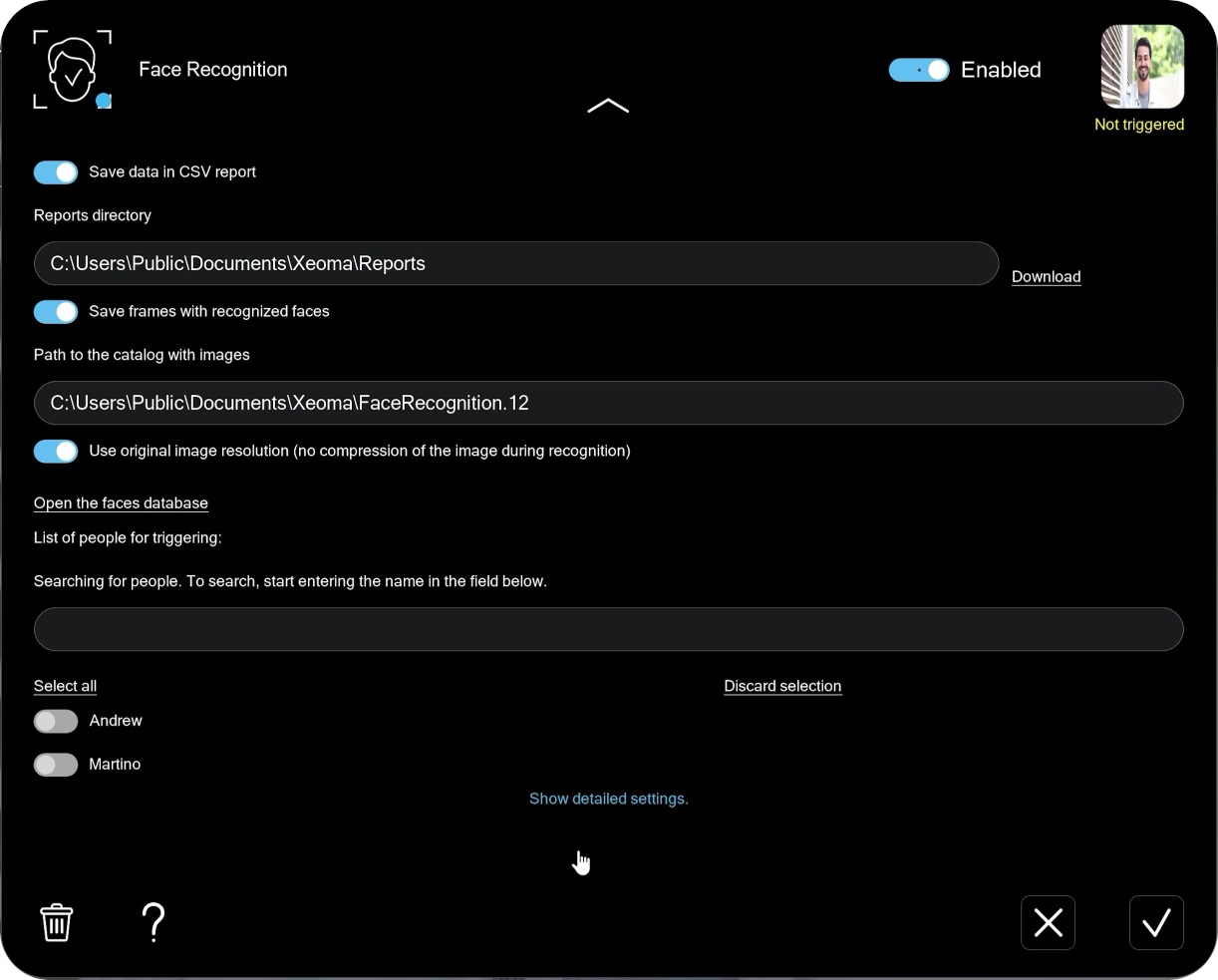
Click on ‘Open the faces database’ to access the database. The face will be there, too.
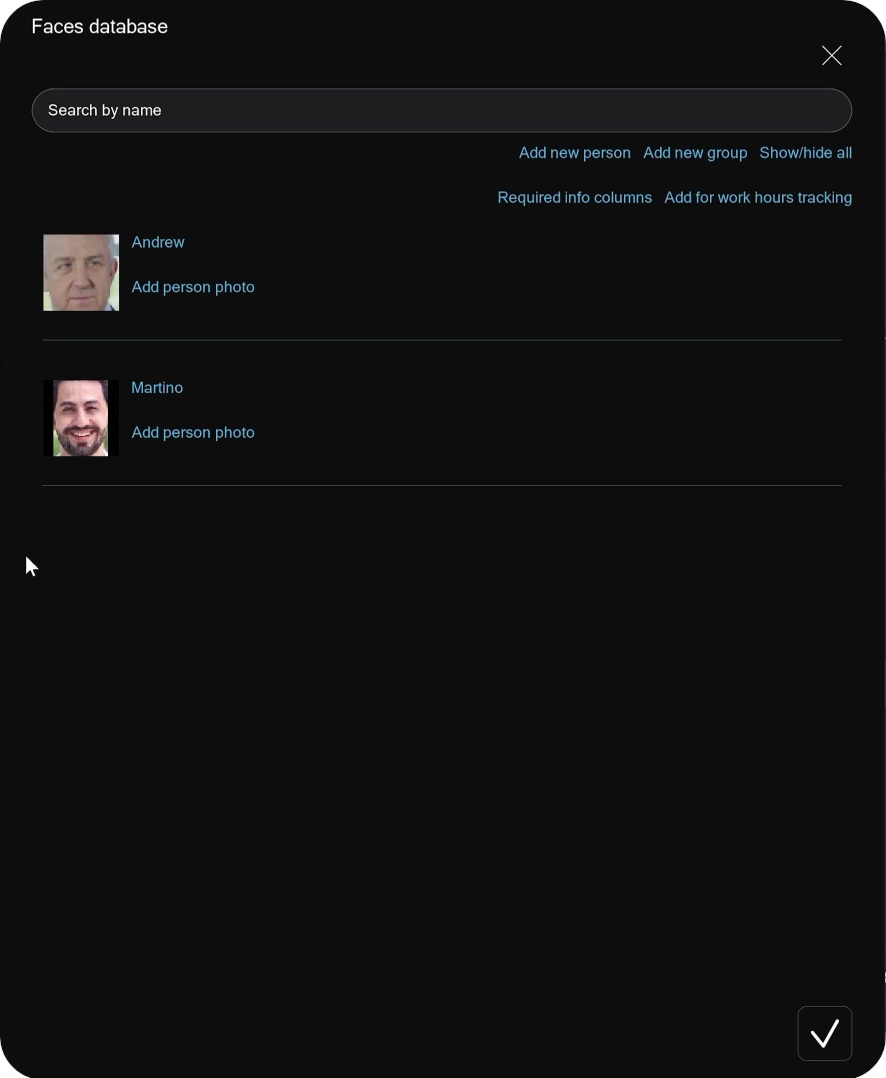
5. When the person walks past the camera, they will be recognized now.

Method 3.
1. Open the camera archive and find a fragment where the target face is visible.
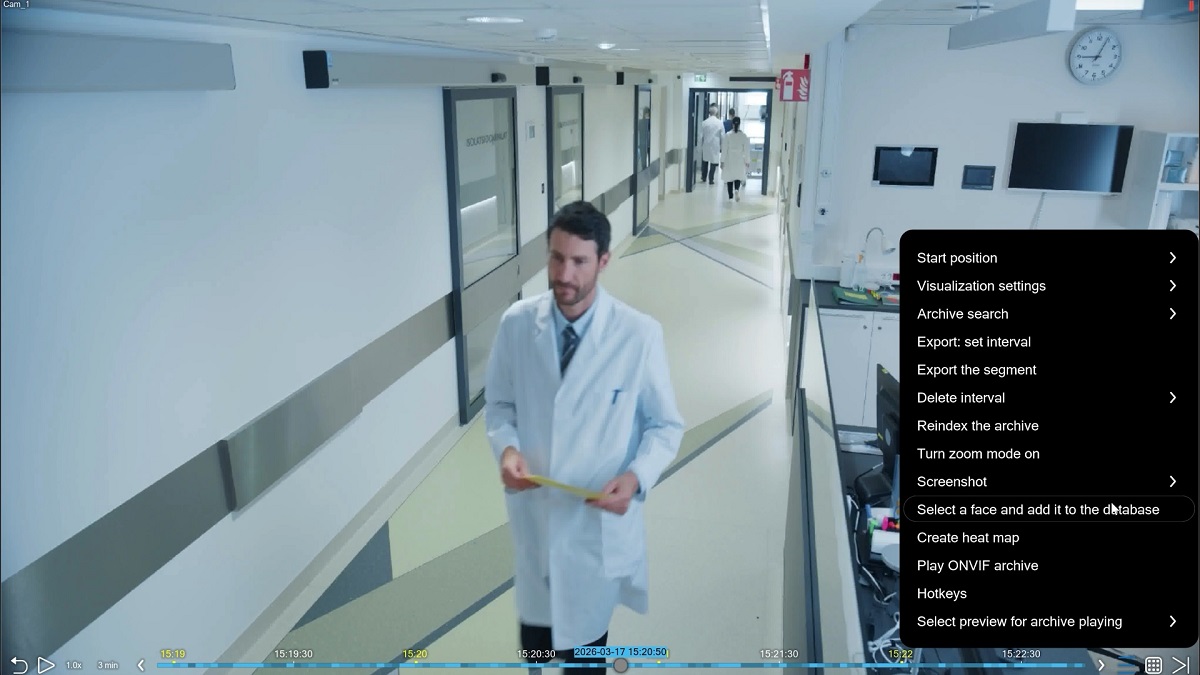
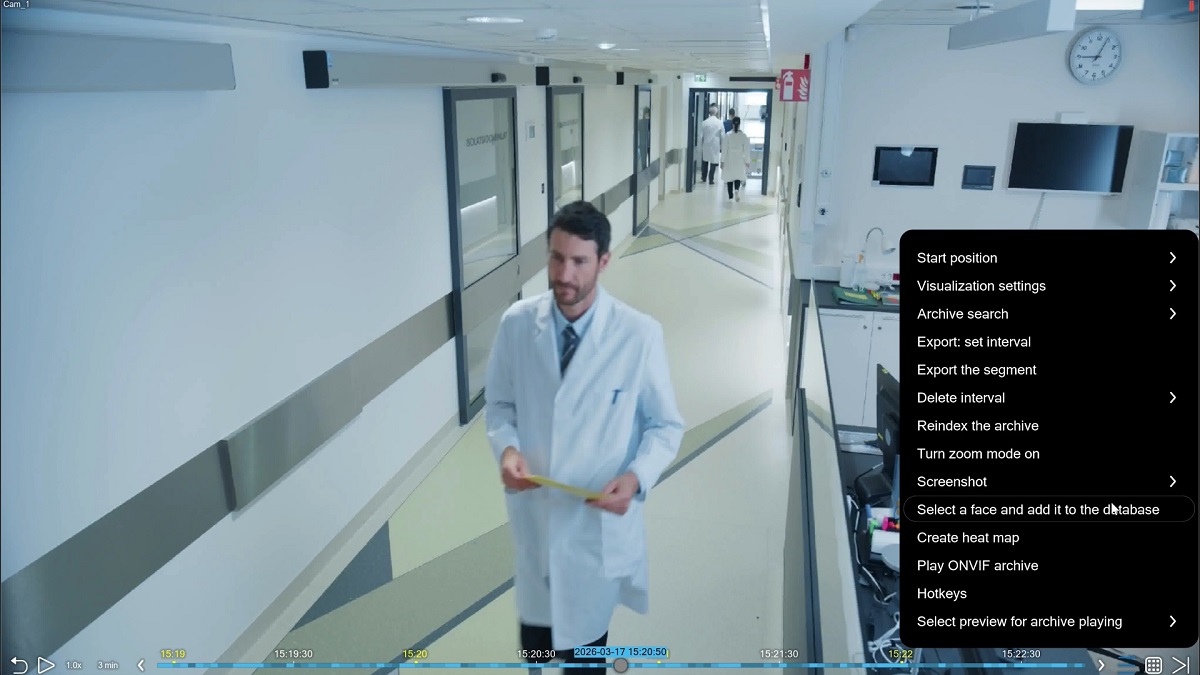
2. Open the archive menu and choose ‘Select a face and add it the database‘.
3. In the next window, enter the person’s name and, without clicking OK, select the person’s face in the frame with a mouse.
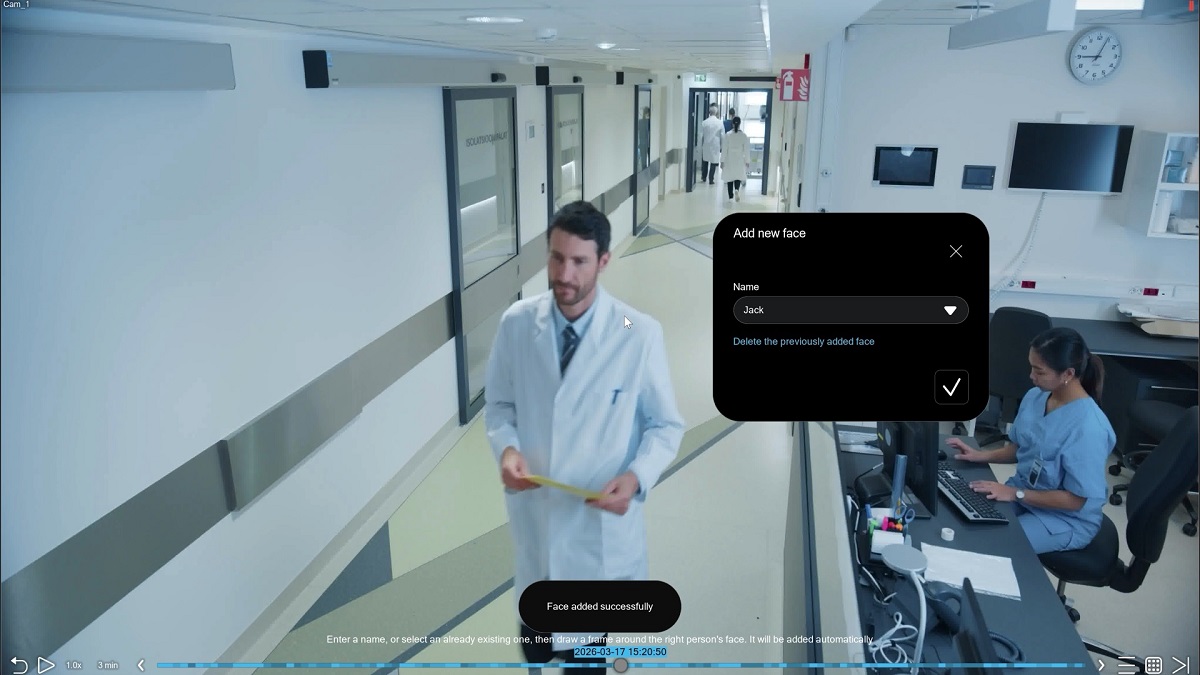
4. You can check that the face is now present in the database. Go back to the Face Recognition module settings and find the ‘Open the faces database’ option. You will see the person name added to the list.
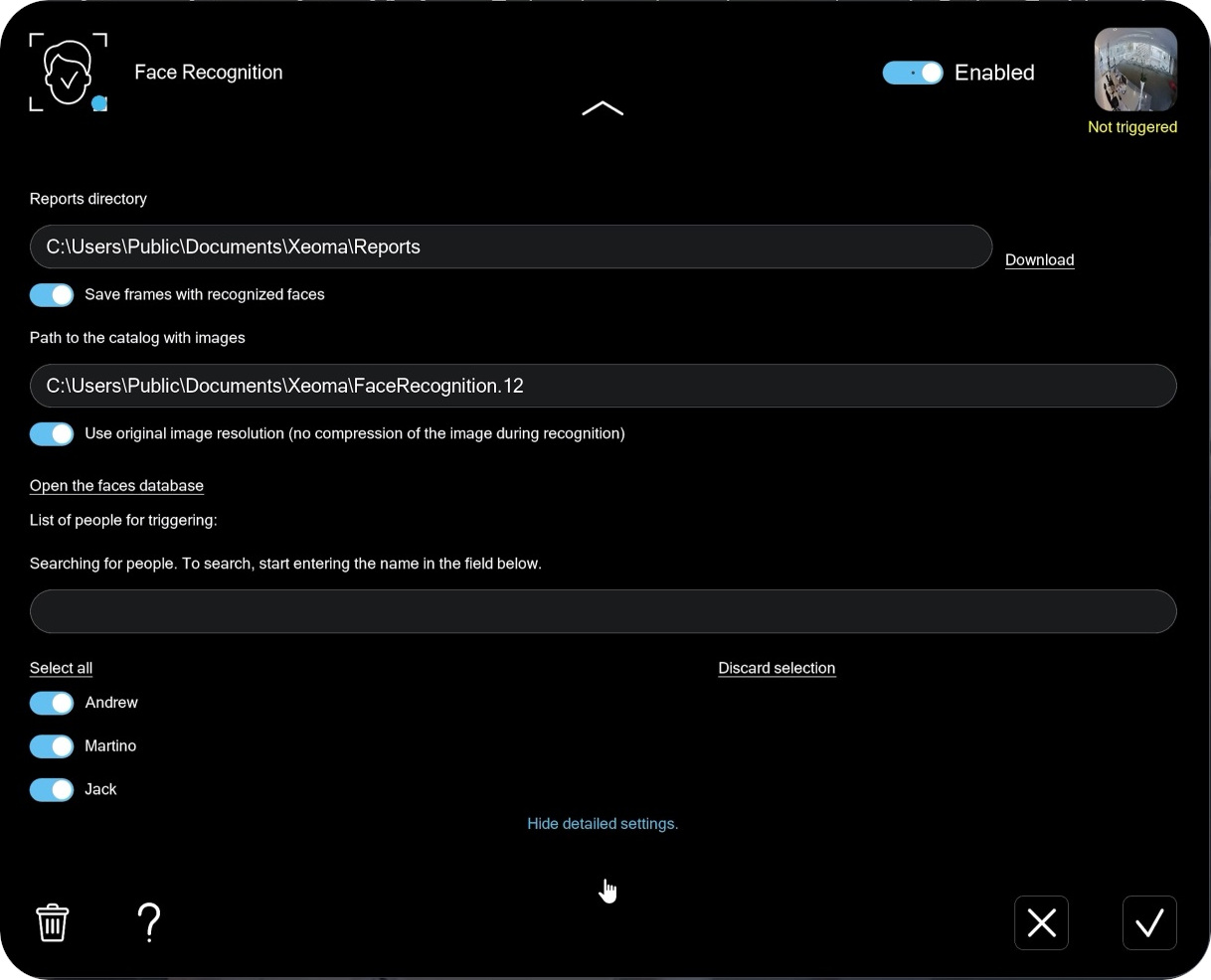
Click on ‘Open the faces database’ to access the database. The face will be there, too.
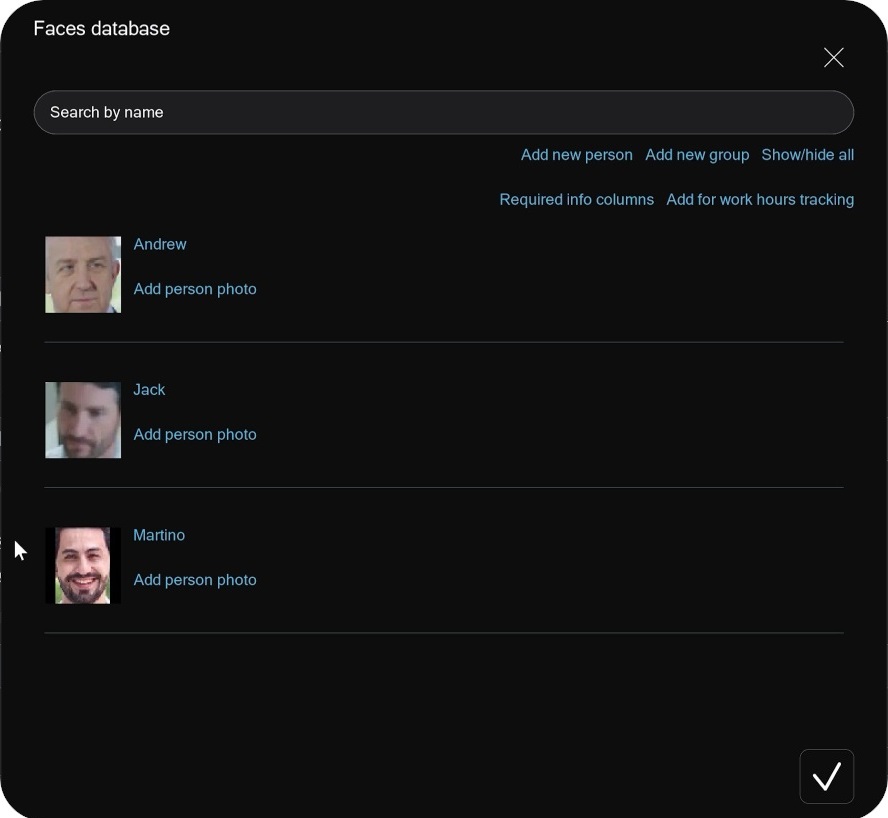
Method 4. Bulk training for extensive databases
The following algorithm can be used to train the recognizer module for thousands of faces (available only for the “Artificial Intelligence” face recognition algorithm):
1) Through Xeoma, train the program to one person (see regular training options above). This is needed to create the Xeoma\FaceDetector\DNN folder (it appears automatically after the system has been trained for at least 1 person).
2) In the Xeoma\FaceDetector\DNN\ Recognition folder, create a folder with the person’s name in HEX format only (you can convert using online converters like https://codebeautify.org/string-hex-converter).
3) Put any JPEG image of the person you want to add into this HEX-name folder. This photo will be used for training, and the recognition accuracy will depend on the quality of this photo. The image should be of good quality, the face itself should be clearly visible (it is recommended that the face should be at least 160×160 pixels). This is a photo of the whole person, as if he were in the frame.
Format: JPEG (.jpg).
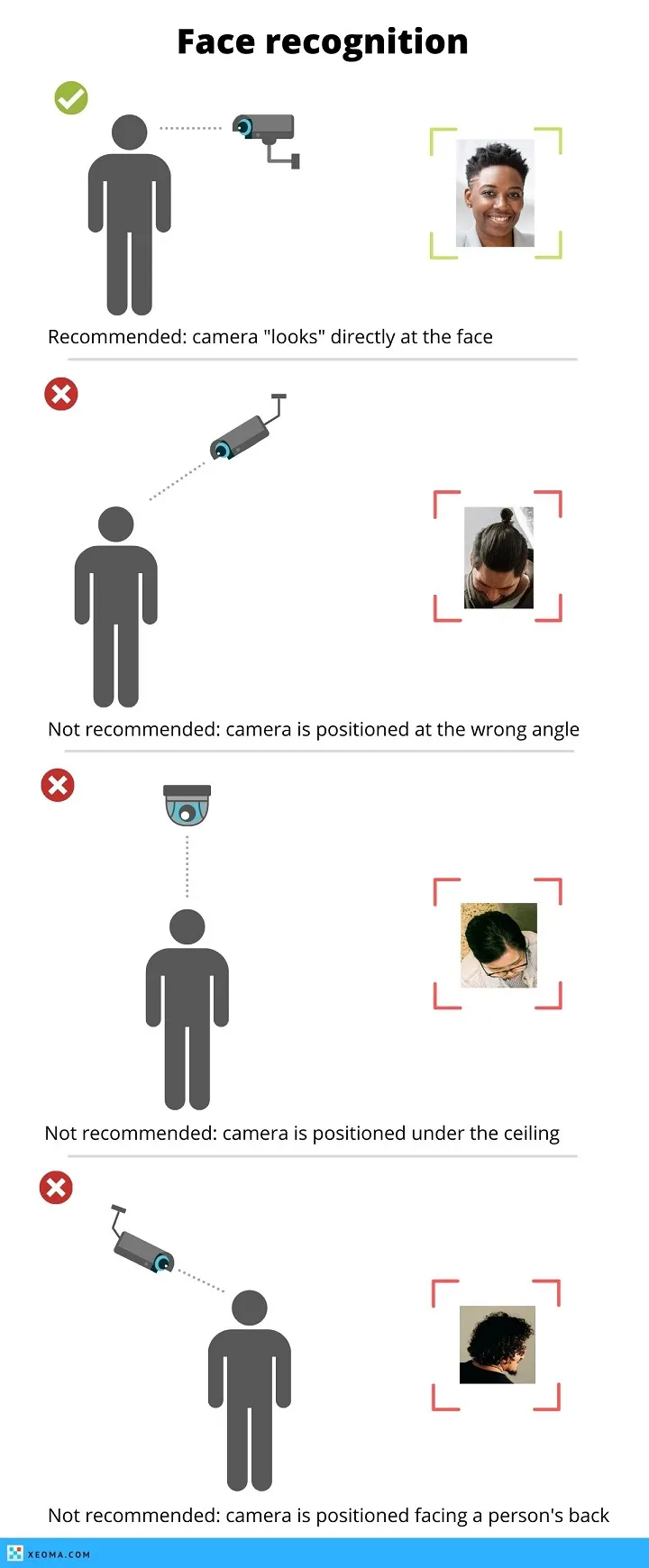
Tip: It is usually recommended to install cameras in such position that a person walks directly towards it so that their face is visible directly within a few seconds. The photo should depict the head/face in a position as similar to the one they will have in the live video (and not with the head tilted).
4) Copy the face of the same person into the Xeoma\FaceDetector\DNN\Person folder (you can cut it from the same photo that you used in pt.3 by cutting off all unnecessary). Here the quality is no longer important – it’s just for display purposes. This photo will be displayed on the preview when this person is recognized.
Format: bmp.
Important: the name of the photo file must be identical to the name of the employee from pt.2. (also HEX). For example 41a43043f44b448.bmp
5) Repeat the steps for other people from the database (for large databases it is worth creating a script for these actions).
6) Restart Xeoma. After restarting, Xeoma will auto train face recognition for all people added in this way.
Working with the face database
All added faces can be viewed in the face database. To open it, scroll to the bottom of the ‘Face Recognition’ module settings and click ‘Open the faces database’.
There, you will see a list of all added faces.
To quickly find a person by name, use the search bar.
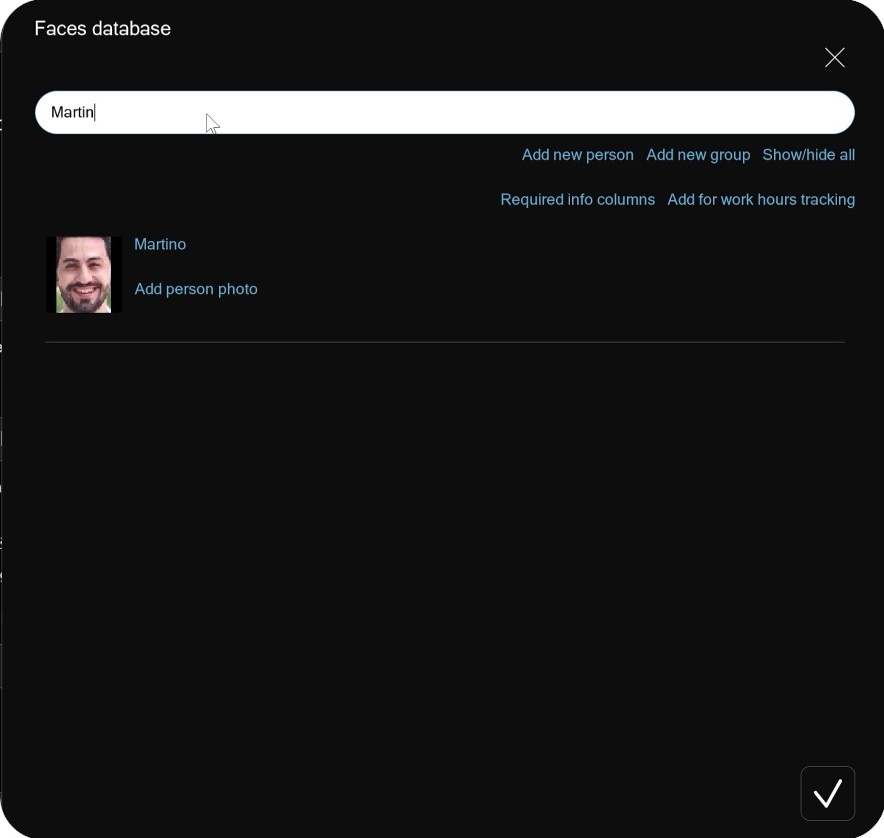
Click a person’s name to open the editing menu. Here you can rename the person and add extra details to their profile. The name can be changed in the corresponding field.
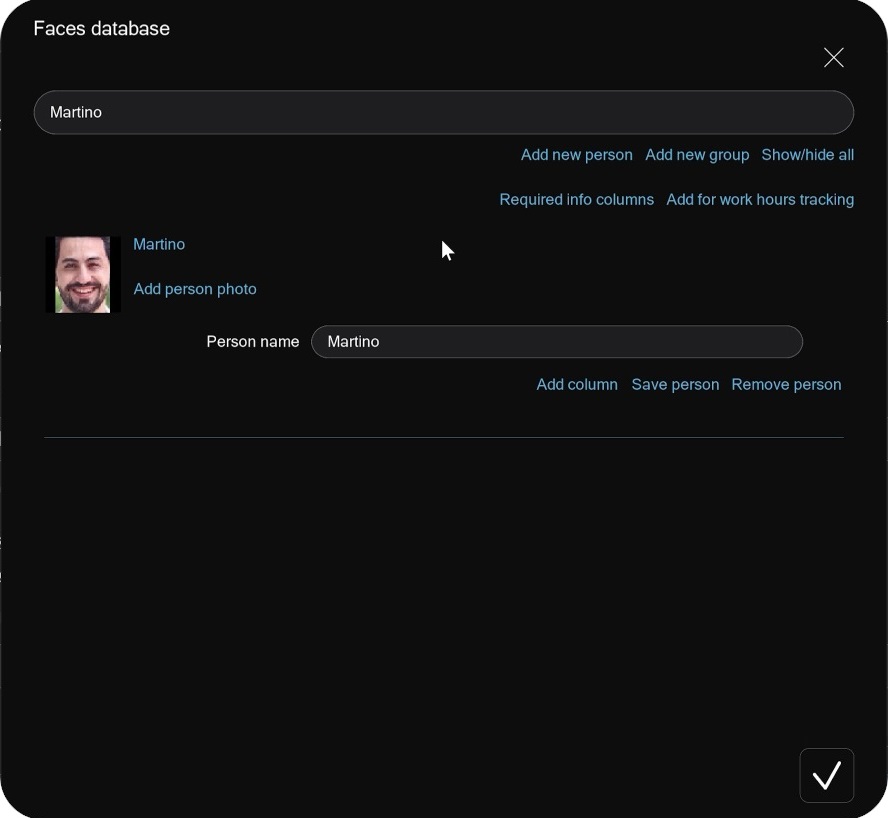
Add column: Using the ‘Add column’ button you can add a column with additional information. For example, a column named ‘Age’. Enter the value in the field below the column name field. For example, enter 31 for someone who is 31 years old. Click OK when you’re done.
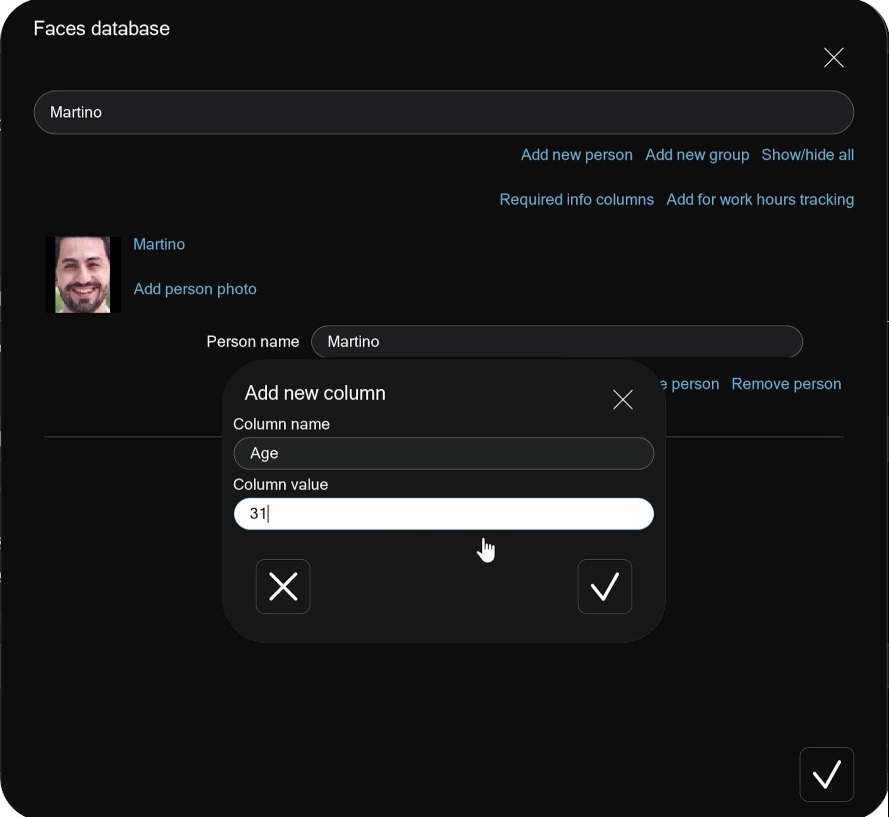
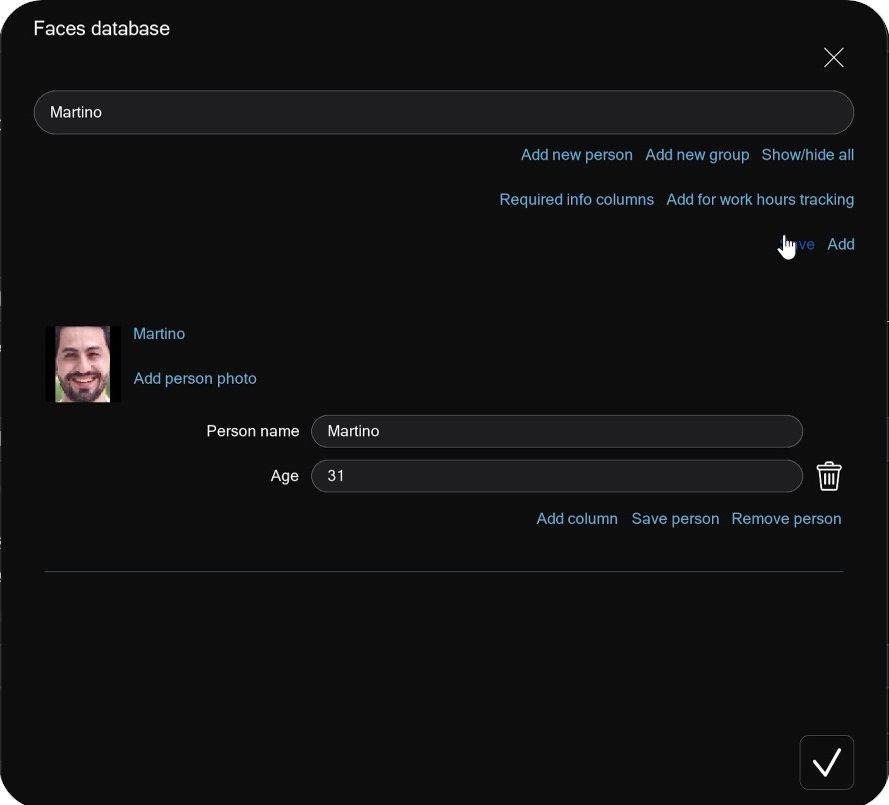
Now, when this face appears in the frame, the data from this column will be displayed under the highlighted recognition frame.
Required info columns: If you want all newly added faces to include certain columns, click ‘Required info columns‘, then ‘Add‘, and specify the column name.
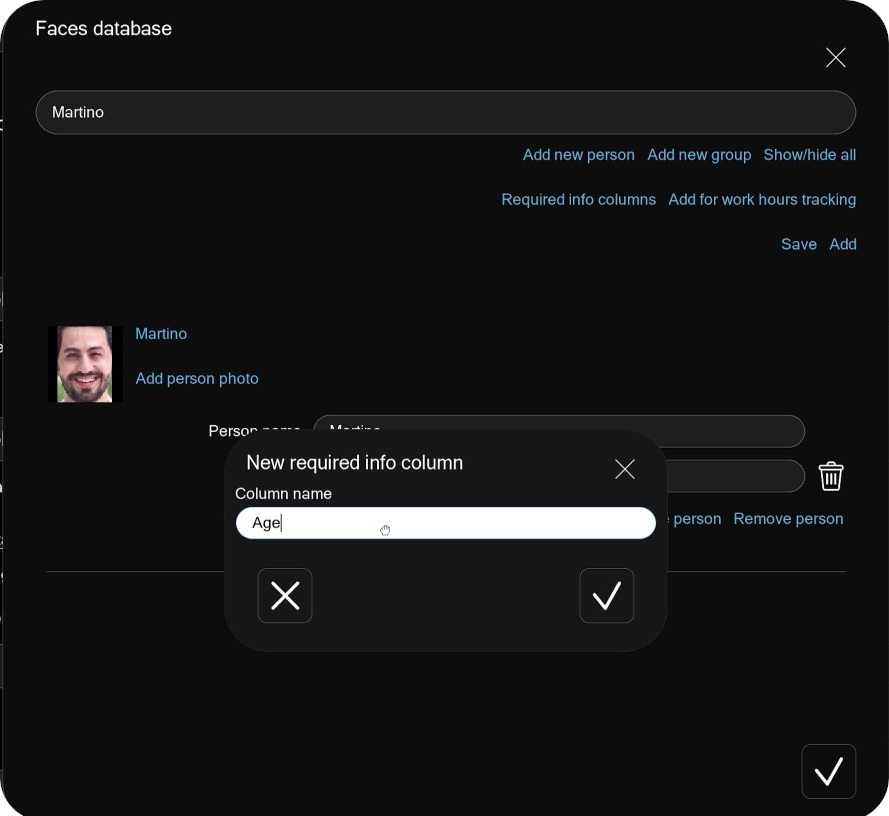
Click ‘Add person photo‘ to import an additional photo to improve recognition accuracy. Usually the initial photo is enough, but in some cases you may need frames from difficult angles or low light conditions.
Working with the list of faces
Once a face is added to the database, it also appears in the list at the bottom of the settings dialog. The switch to the left of the person’s name controls whether this face will be recognized.
If a face is switched off, Xeoma will not recognize that person even if they appear in the frame.
If you have many faces stored, use the search field to find the ones you need.
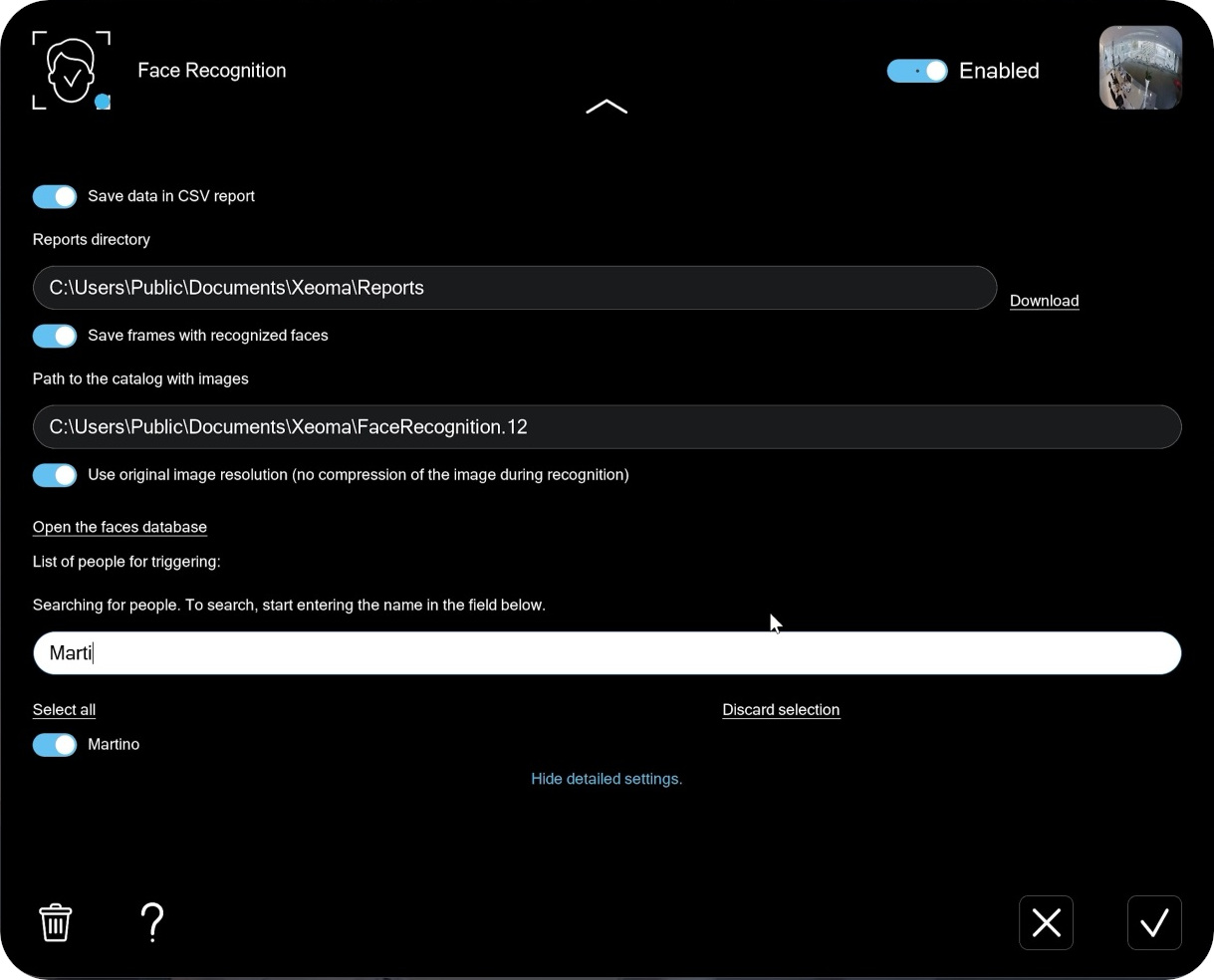
When you switch from one recognition algorithm to another, Xeoma will need some time to train the new algorithm to recognize faces that were added earlier.
Common face recognition cases
Use case 1 – Intrusion detection.
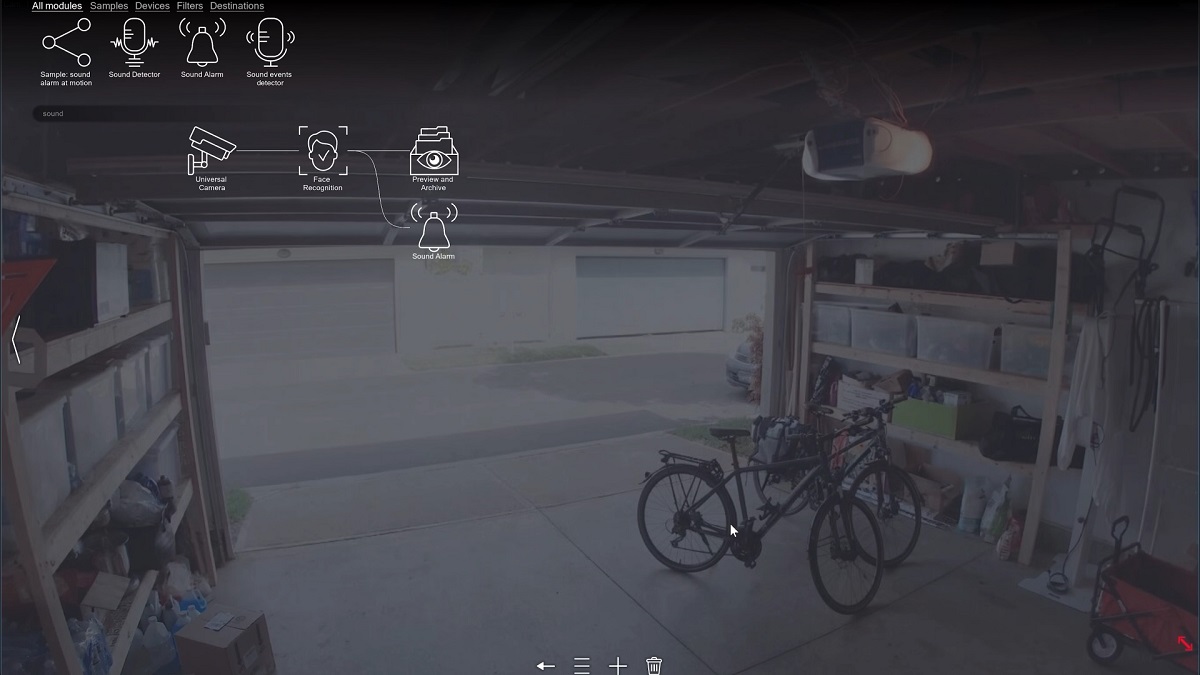
1. If only a limited group of people is allowed to enter a monitored area, unauthoried access can be detected with face Recognition. To set this up, build a module chain with ‘Universal Camera‘ as the video source, ‘Face Recognition’, ‘Preview and Archive’ for recording, and any notification module (for example, a ‘Sound Alarm‘).
2. Add faces of authorized people to the database and enable them in the list.
3. Then set the module to ‘React to unknown or unselected faces‘.
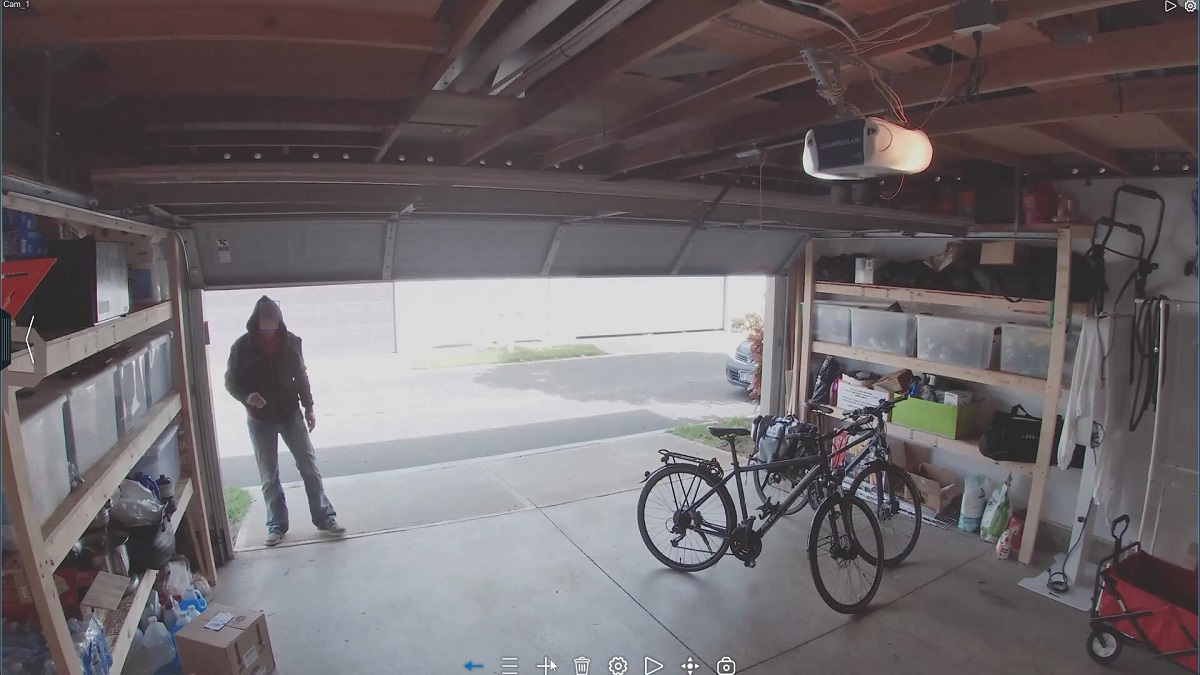
Now if an unfamiliar face appears in the frame, Xeoma will trigger: you will hear an alarm, and a video with the intruder will be recorded to the archive.
Use case 2 – Access control.
Face recognition is a great fit for access control at enterprises, as well as for automatically controlling barriers, turn stiles, and electronic locks.
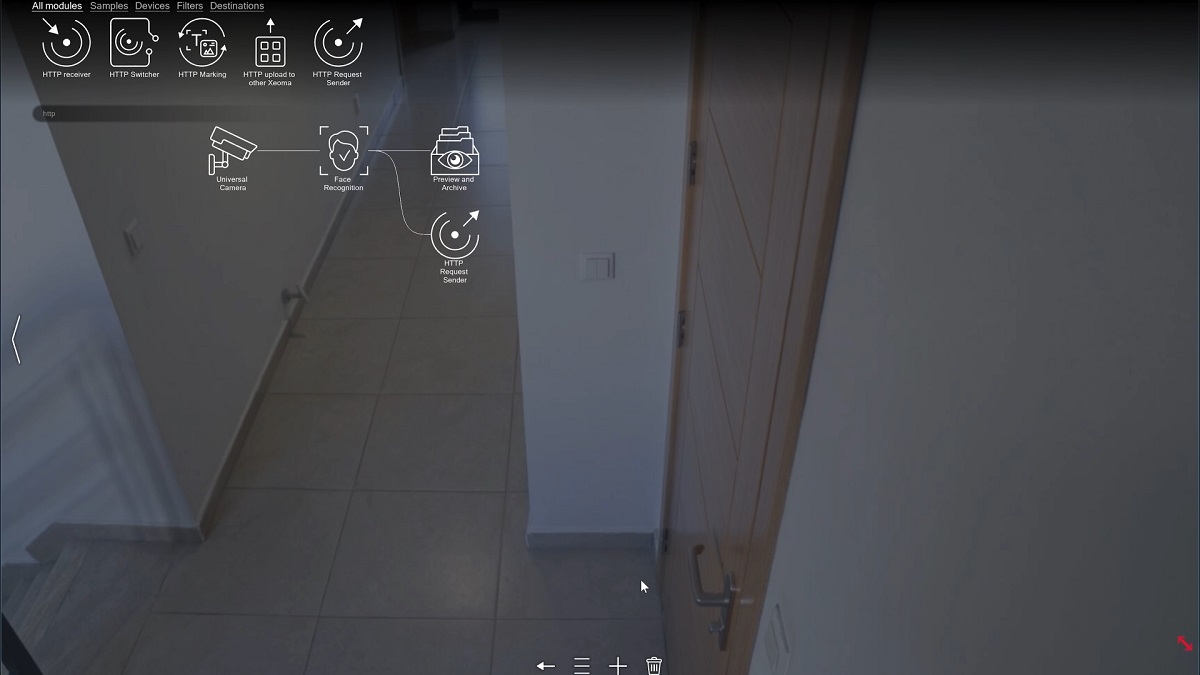
1. The module chain for this scenario is almost the same as in use case 1, but the notification module should be replaced with the ‘HTTP Request Sending‘ or ‘Application Runner‘, depending on how plan to control the locking device. More about integration with third-party devices
2. Set ‘Face Recognition’ reaction type to ‘React only to selected faces‘.
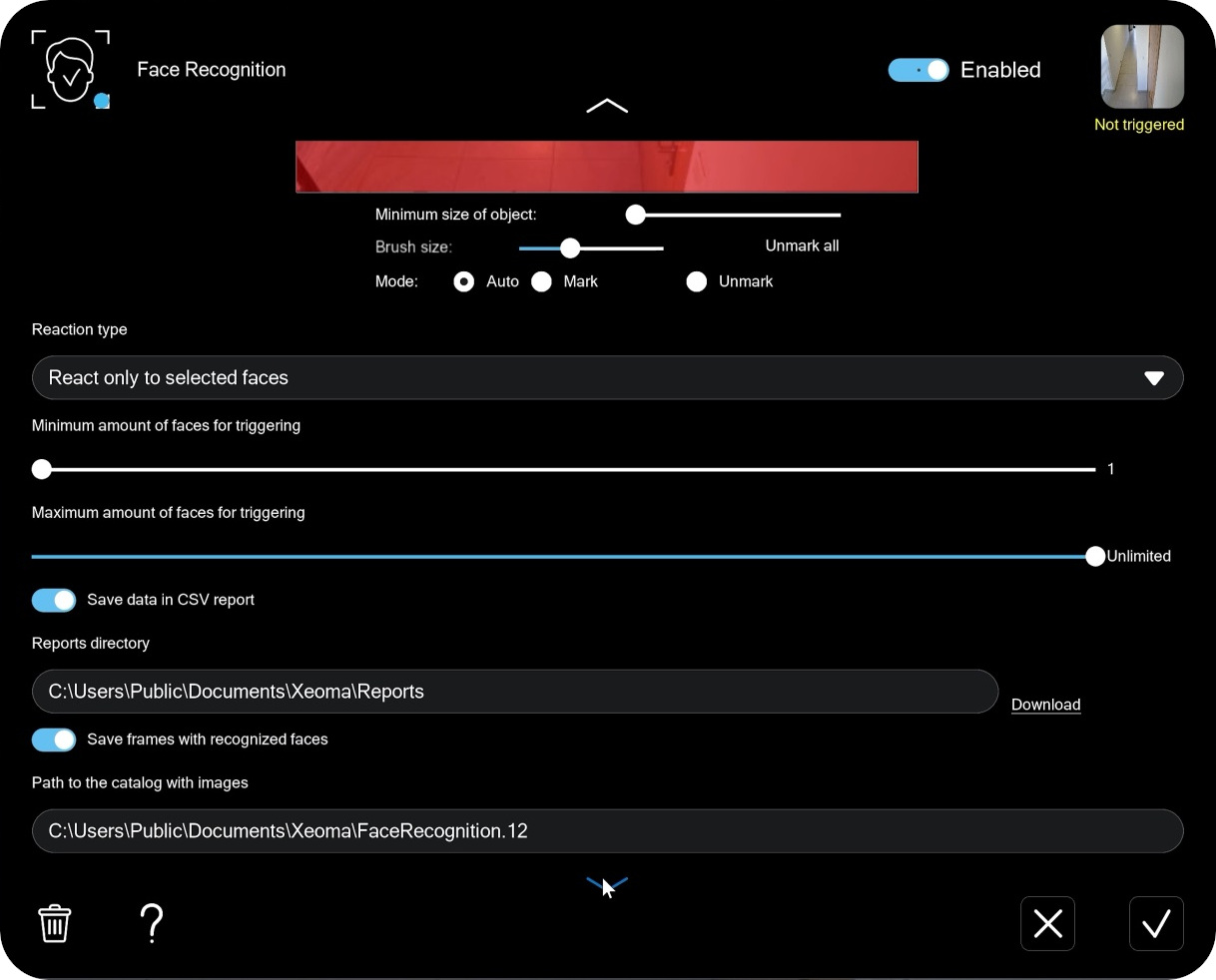
3. Enable the faces that should trigger the module in the list of faces.
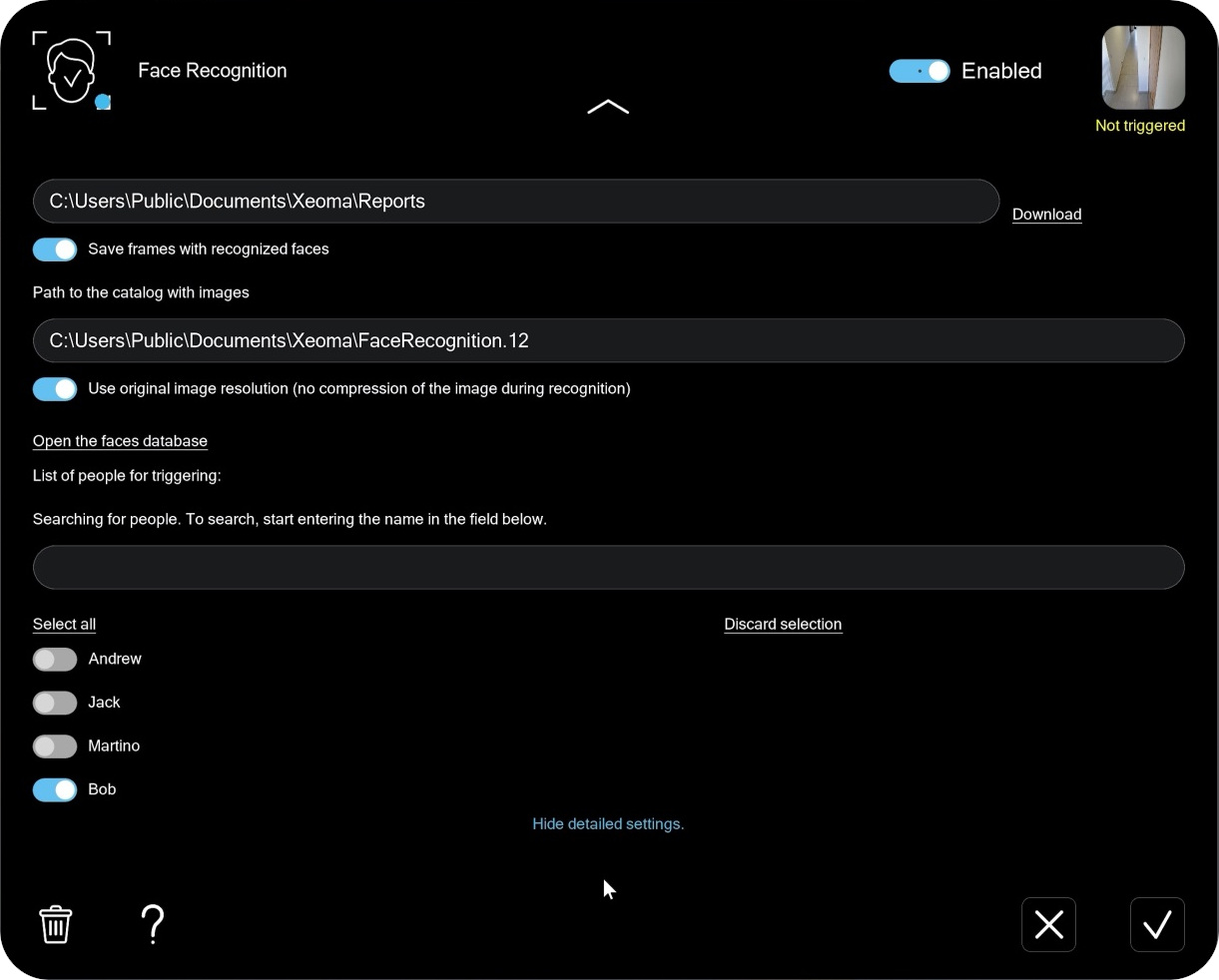
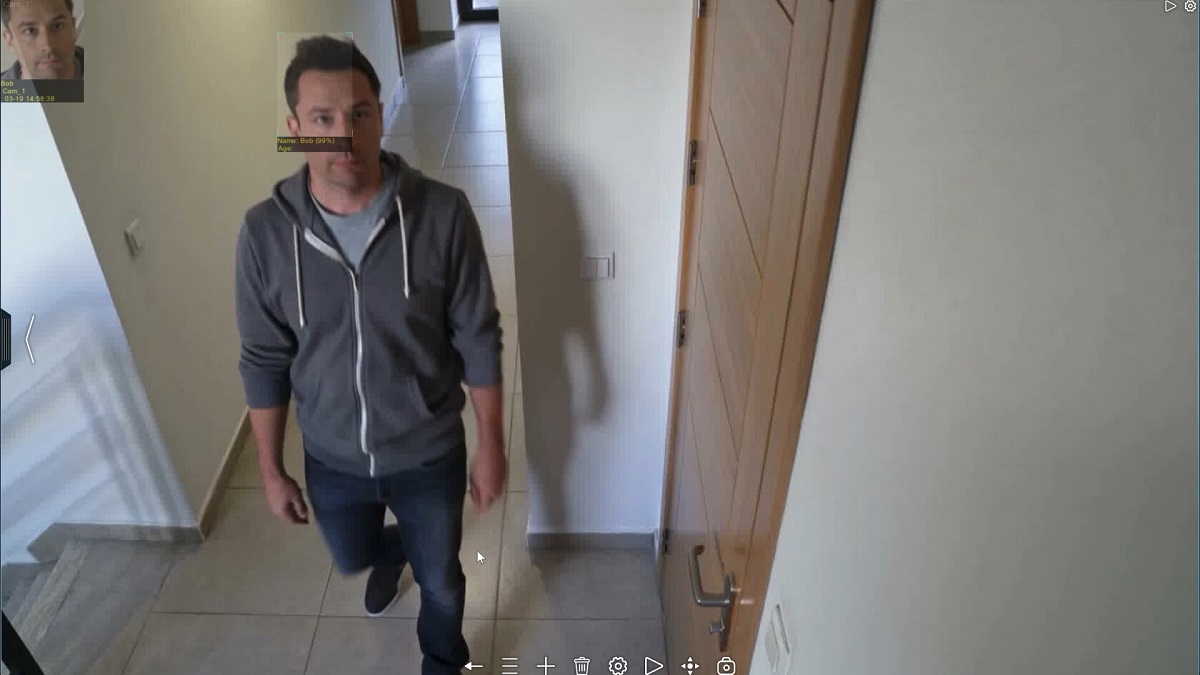
Now, when a person from the database appears in the frame, the Face Recognition module will trigger. Xeoma will send an unlock signal to the device, and the event will be recorded to the archive.
Use case 3 – Shoplifters detection.
If you run a retail store and deal with shoplifters from time to time, Xeoma’s Face Recognition can help discourage repeat offenders.
1. Install a camera at store entrance. In Xeoma, add a chain that looks like this:
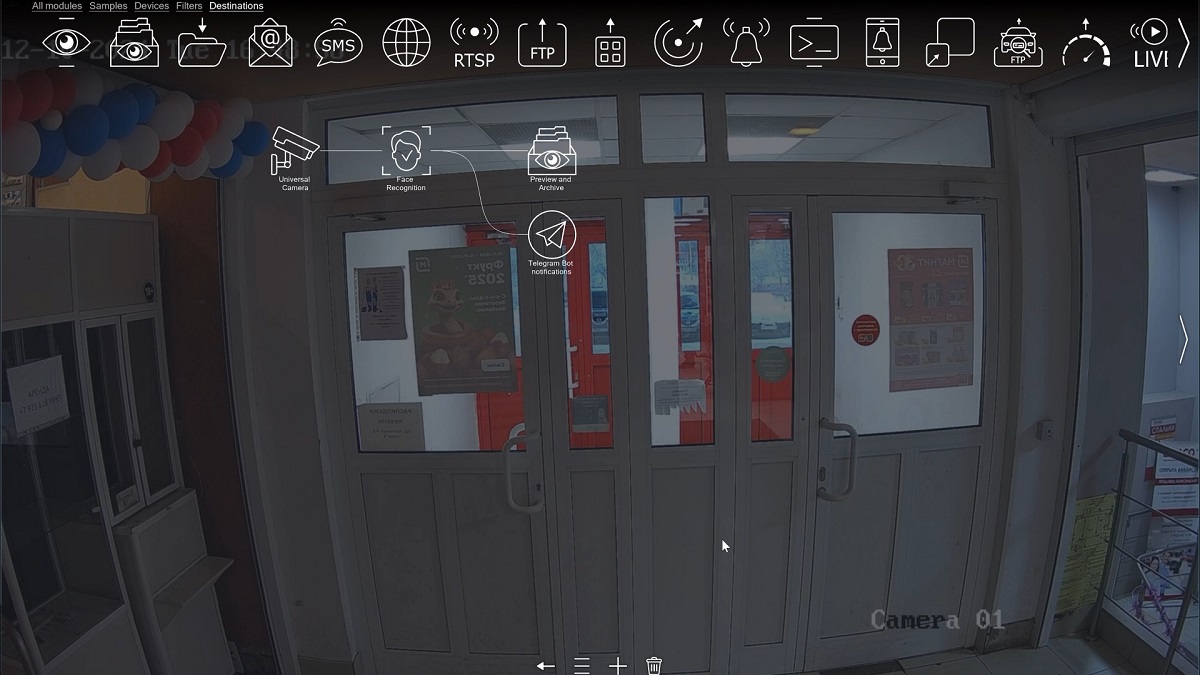
2. Train the system by adding available photos of known shoplifters to the database. Select the people you want the system to react to in the list.
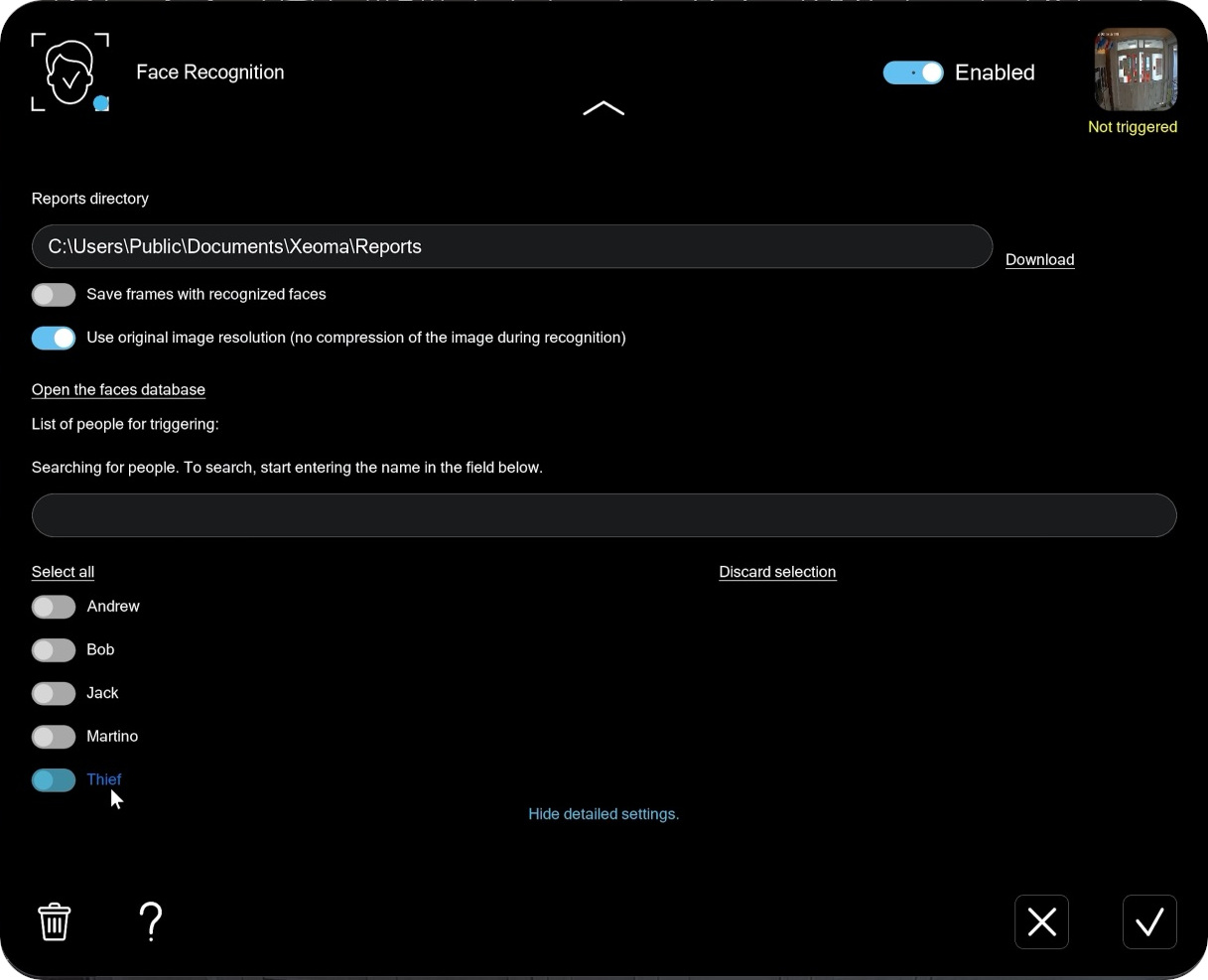
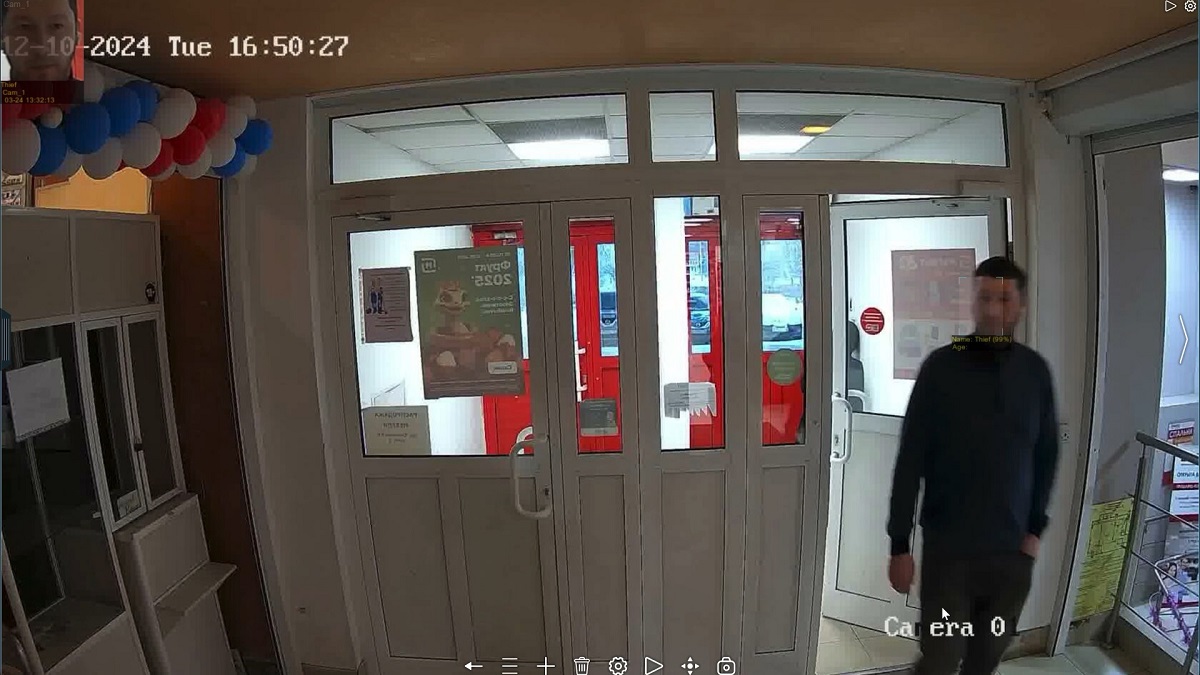
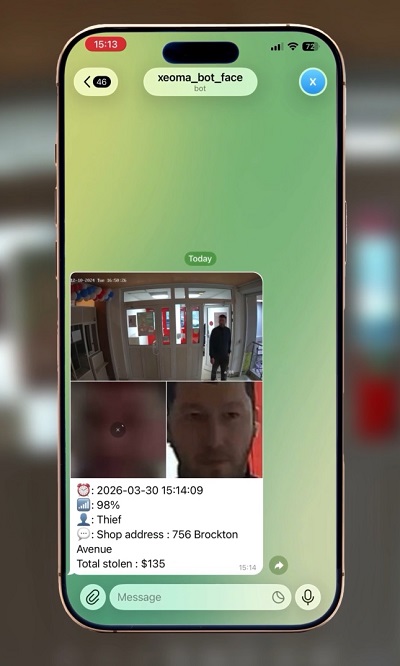
3. When you receive an alert, you or your staff can quickly respond and call the security, preventing a potential theft.
Face Recognition licensing
The license type needed depends on the recognition algorithm you are going to use.
- The ‘Artificial intelligence’ algorithm is included into the Xeoma Pro edition.
Xeoma Pro for 1 camera = 1 Face Recognition module with the ‘Artificial intelligence’ algorithm for the whole server.
Xeoma Pro for 1 camera = 1 faces that you can add to the database.
Number of faces can be increased by buying more Xeoma Pro licenses or by buying a special ‘Face Recognition – Artificial Intelligence’ license for as many faces as needed. This special license can also work with the Xeoma Standard edition. - The ‘Artificial intelligence using CNN (ConvNet)’ algorithm is included into the Xeoma Pro edition.
Xeoma Pro for 1 camera = 1 Face Recognition module with the ‘Artificial intelligence’ algorithm for the whole server.
Xeoma Pro for 1 camera = 1 faces that you can add to the database.
Number of faces can be increased by buying more Xeoma Pro licenses or by buying a special ‘Face Recognition – Artificial Intelligence’ license for as many faces as needed. This special license can also work with the Xeoma Standard edition. - The ‘Vision’ algorithm requires a special ‘Face Recognition – Vision’ license.
The license is purchased per camera.
Each license is for an unlimited number of faces in the database.
The ‘Face Recognition – Vision’ license can be activated with the Xeoma Pro and the Xeoma Standard editions.
How to install the camera to use Face recognition
Troubleshooting and increasing recognition rate
Here are the ways to increase the successful recognition rate:
• You can place the camera as close as possible to the area where you need to detect faces in (preferably at right angle to the face)
• Place camera at right angle, face should occupy a large part of the frame
• Lighting should not be very dim or with a lot of flashes (you can use special HLC (High Light Compensation) cameras (often marked ‘For LPR/ANPR’))
• Use long-focus objective for a better view
• You can choose “Range of face recognition” in «Face recognition» module’s settings
• “Artificial intelligence” option in «Face recognition» module’s settings increases average recognition accuracy up to 90%.
You can test this option in Trial version and purchase it as an additional module.

|
Starting with Xeoma 21.3.4 the Face Recognition module settings has a new “Improved face detection thanks to human posture analysis” option. It will help distinguish a face on a person’s body more exactly thus avoiding false detection, and increasing recognition accuracy. This option is only available for a limited range of processors – Intel 64-bit processors of the following series:
-IntelCore processors starting from the 4th generation (including 10+ generations); Supported OS: Windows, Linux, Mac, Android and Linux ARM. |
Search for faces in archive
You can have the search for people by their names in archive recording made with the Face Recognition module.
Read detailed instruction here
|
|
Additionally: search person by photo. Enables option in the archive viewer to search through recordings made with the “Face Recognition” module for people by uploading their photo. 1 piece per server (for any number of cameras). Only works for episodes found with the Face Recognition’s Artificial Intelligence method. |
Auto training by found faces
Starting with Xeoma 19.11.26, the Face Recognition module that works with the “Artificial Intelligence” option offers the “Auto training by found faces” feature that adds people to certain groups based on how often they appear in camera’s field of view.
|
|
Read also: guide on using this feature for unique visitors counting |
Tick the “Allow auto training by found faces” box and three new fields will appear. When a face is detected the first time, it is given a unique ID, and the system memorizes its time of detection and puts in initially into the third group that we can call “New or rarely detected faces”.

When the face is detected the next times, it will either get to group #1, group #2, or stay in the same group (group #3), depending on the time settings.
Example: let’s name our first group “Staff” and set the Time to be put into the group at 30 minutes. Let’s give the seconds group name “Returning customers” and set the time to 2 hours. If next time the same face is detected within 30 minutes, it will get into group #1 that covers 1-30 minutes of returning the face. A good example of someone who belongs to such a group is employees of the establishment that ought to be always in camera’s field of view and are detected a lot. If more than 30 minutes but less than 2 hours passes before the face is detected again, it will get into group #2 – for example, like returning customers or service workers that are detected from time to time.
In “Reaction type” you can select to detection from which group should the system react. For example, it can notify the security guards if unauthorized/new people are detected (group #3) or notify the kindergarden’s staff when a parent comes to pick their child.

|
|
Starting from Xeoma 21.3.4 the face recognition visualization (frame around the recognized face with the person’s name) is applied to screenshots made with the Xeoma’s ‘Screenshot’ option. |
More about Face Recognition, scenarios, and full setup
See what Face Recognition can do and get a complete step-by-step configuration guide and examples of usage.
Updated 8 June 2026
Read also:
Frequently Asked Questions about Xeoma software
Complete Xeoma User Manual